Assets tab
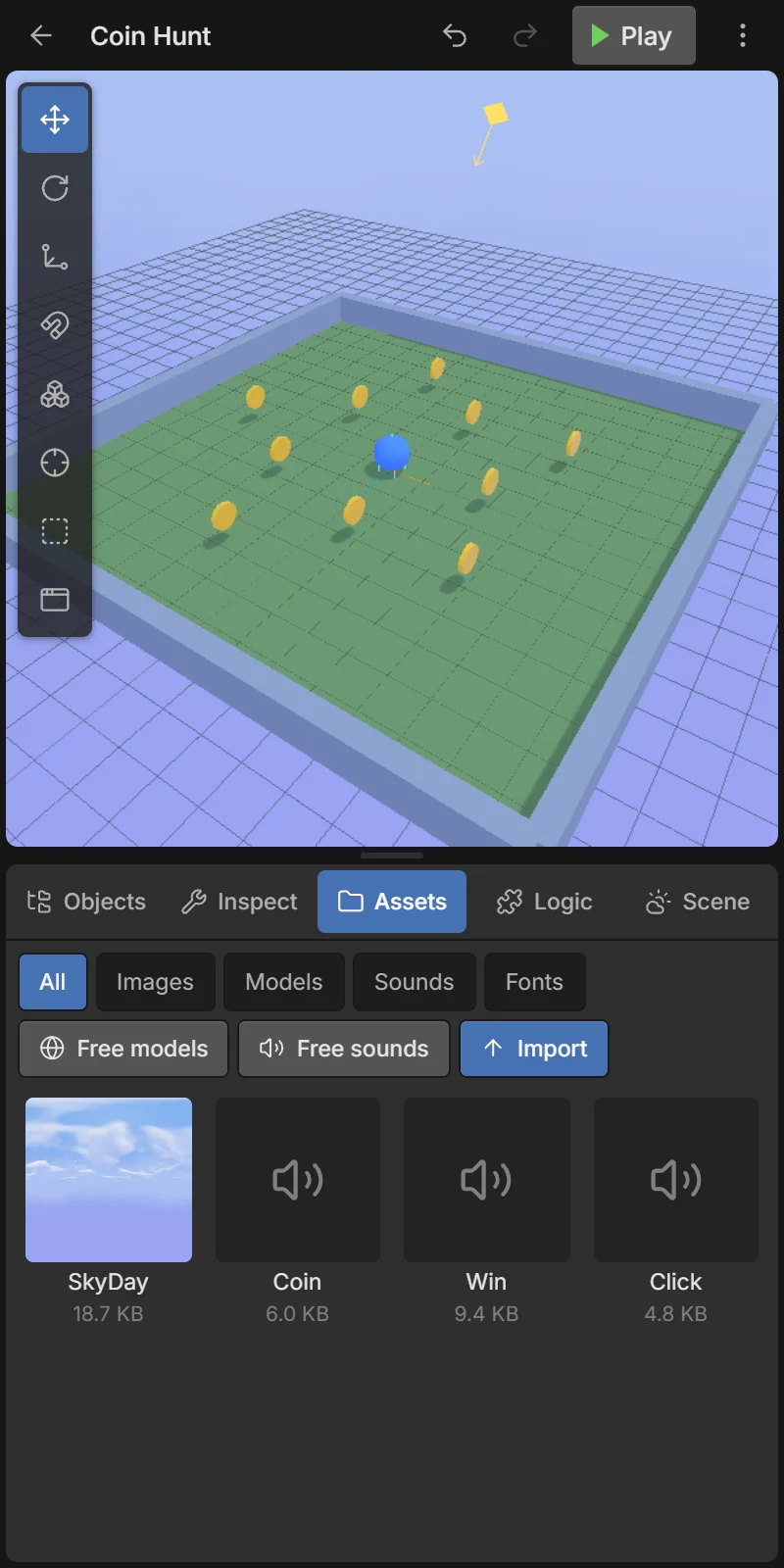
Assets are the files your game uses: images (textures), 3D models, sounds and fonts. They are stored inside the project, so an exported game or a backup carries them along.
- The chips at the top filter by kind: All, Images, Models, Sounds, Fonts.
- 🌐 Free models opens the model library.
- 🔊 Free sounds opens the free sound library (see Sound).
- ⬆ Import picks files from your phone.
Supported files
| Kind | Files | Used by |
|---|---|---|
| 🖼️ Images | PNG, JPG, WebP, GIF… | Textures on shapes, UI images, particle textures, sky images, the app icon |
| 🧊 3D models | .glb (recommended), .gltf (single file only) | Shape & look → 3D model |
| 🔊 Sounds | MP3, OGG, WAV, M4A | Sound component, Play sound action |
| 🔤 Fonts | TTF, OTF, WOFF, WOFF2 | Text and UI |
Keep files small
Everything is stored on the phone and packed into exported games. Prefer compressed images (JPG/WebP, 1024 px or less) and short MP3/OGG sounds.
Asset menu
Tap an asset to open its menu:
| Item | Appears for | What it does |
|---|---|---|
| Add to scene | Models | Places the model in the scene. |
| Apply to ‹object› | Images, when a shape is selected | Uses the image as that object’s texture. |
| Preview sound | Sounds | Plays it once. |
| Rename | All | Renames it (names are used by Play sound and scripts). |
| Delete | All | Deletes it; tells you how many objects use it first. Objects using it lose the reference. |
The card shows the file size. Models from the free library show their thumbnail.