Inspector
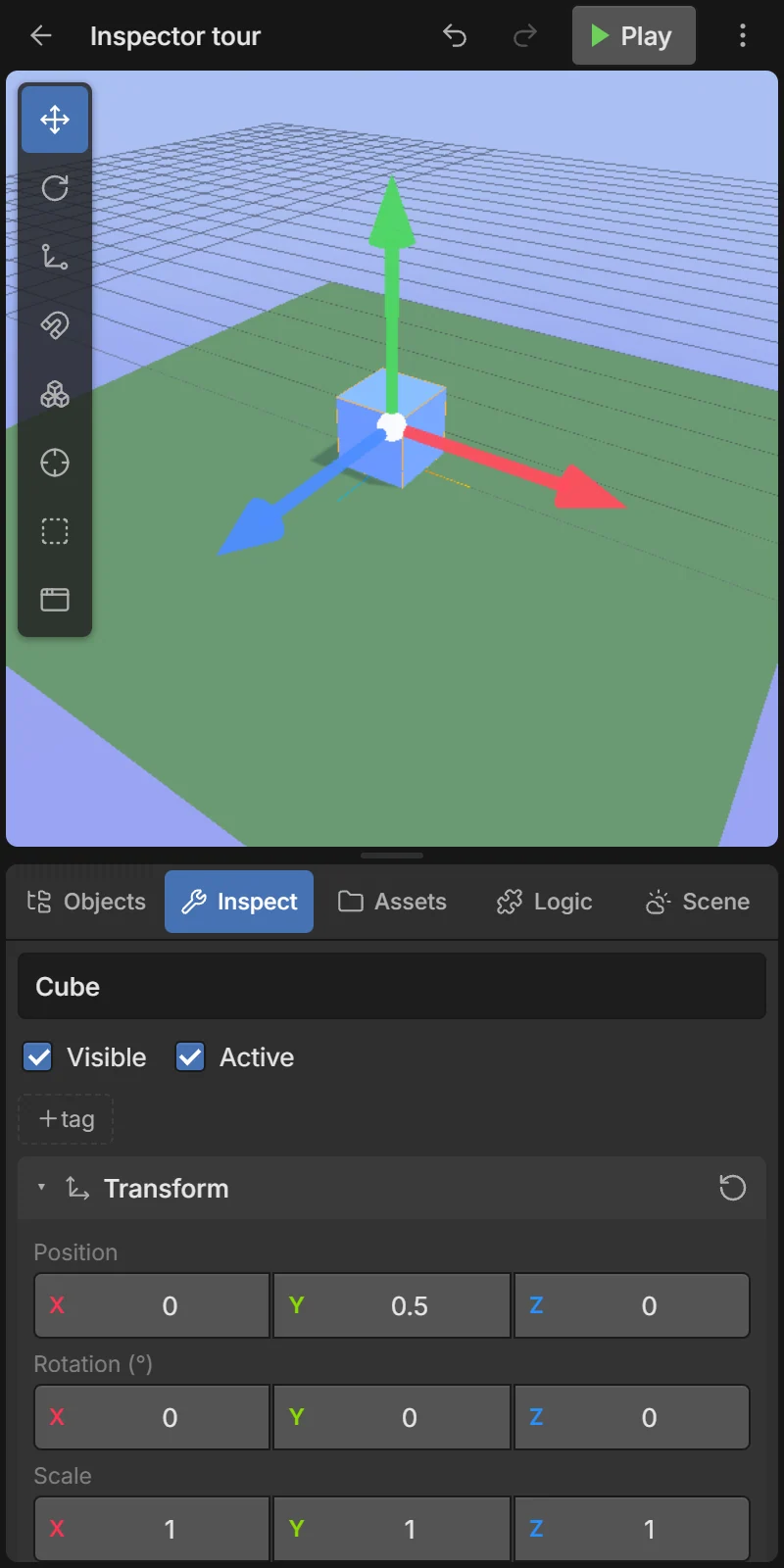
The Inspect tab shows everything about the selected object, as a stack of cards. Select an object (tap it in the 3D view or the Objects list) and open Inspect.
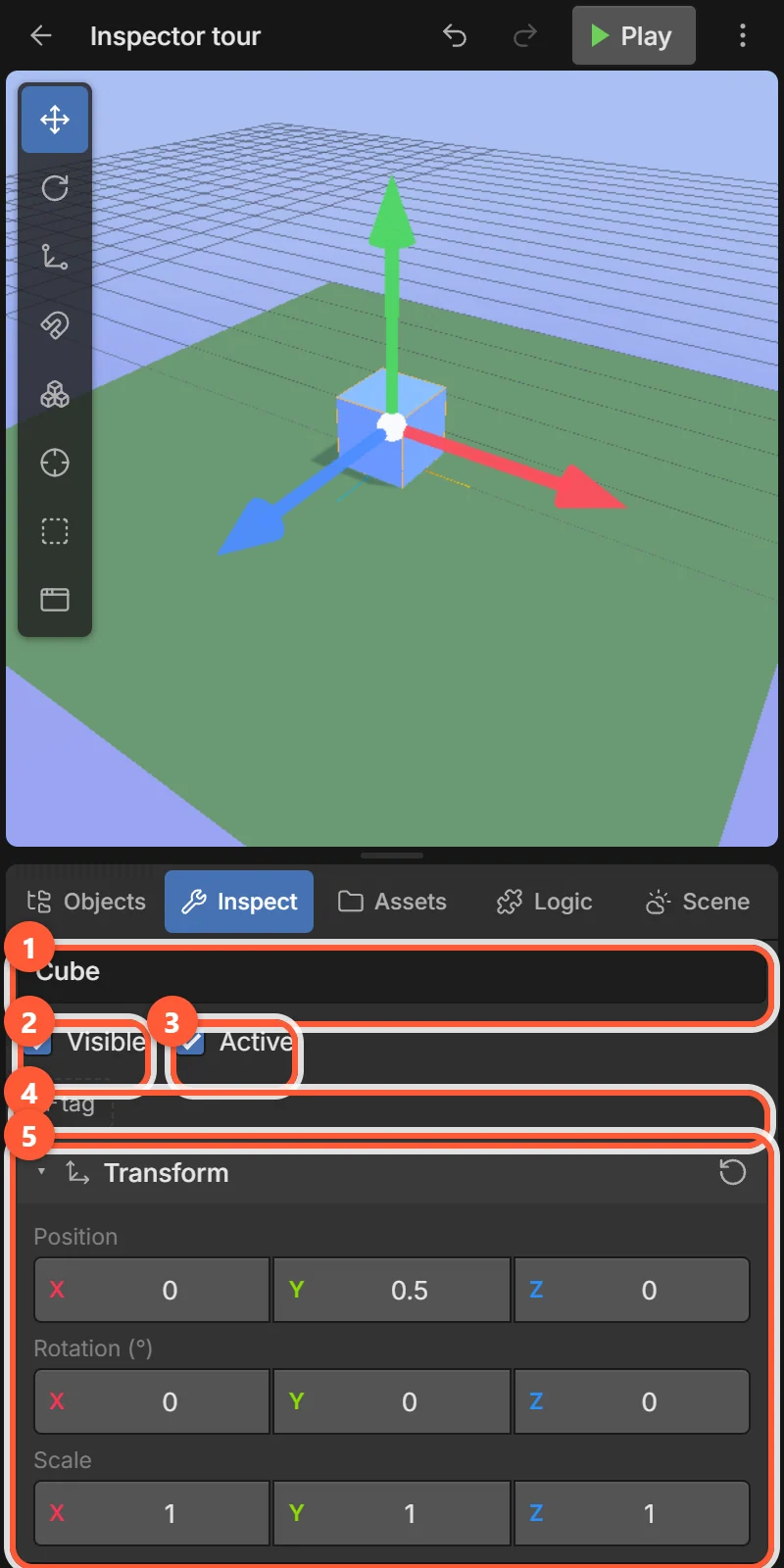
- 1Name — also the object’s type for events. Letters, numbers and
_. - 2Visible — drawn or not (hidden objects still collide and run).
- 3Active — inactive objects are not updated or drawn at all.
- 4Tags — labels like
#enemythat group objects of different types. - 5Transform — position, rotation and scale.
With nothing selected, the tab says so and offers + Add object.
Tags
Tap + tag to add a tag. You can pick a tag already used in the project or create a new one. Tap × on a tag to remove it.
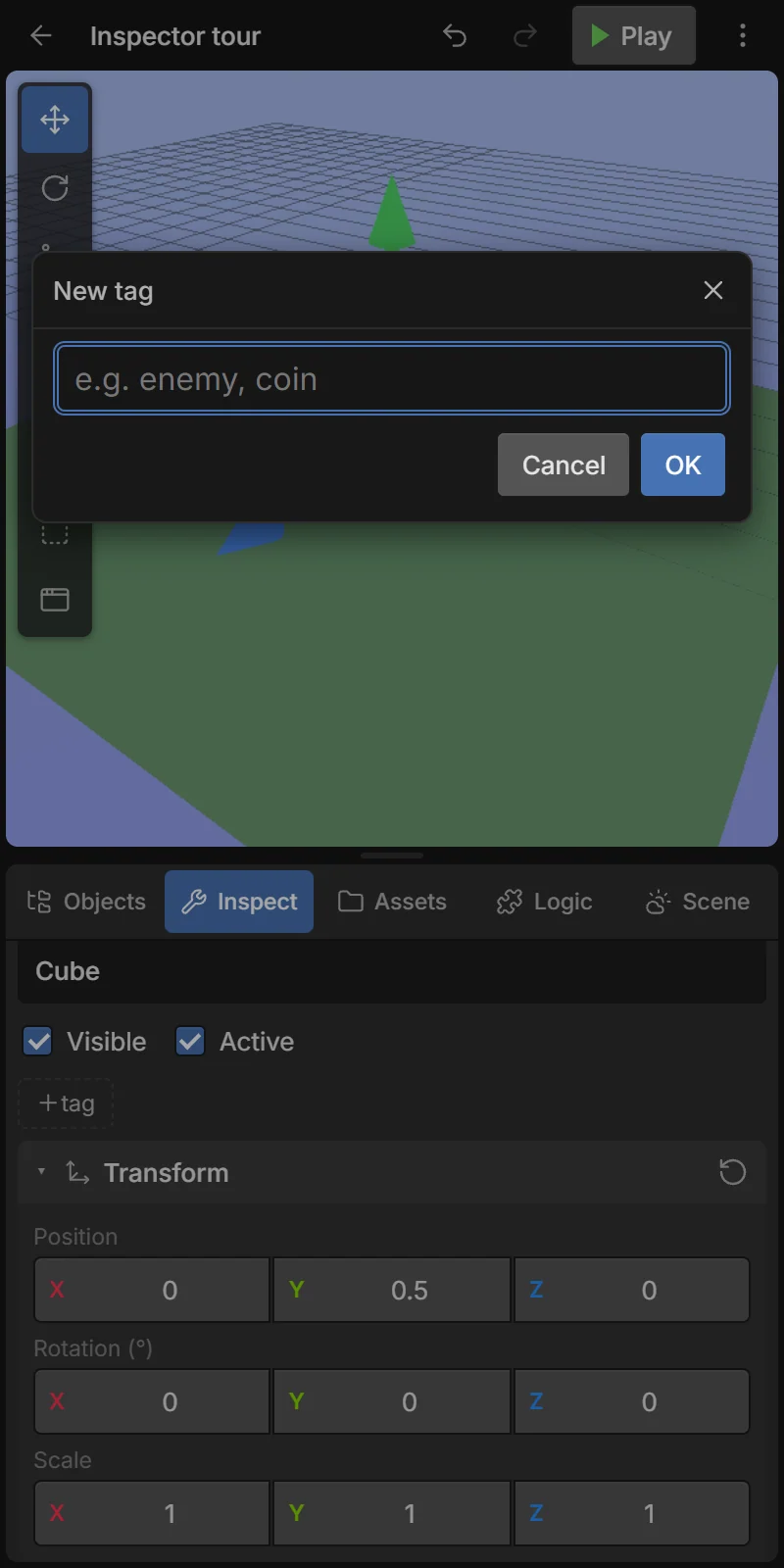
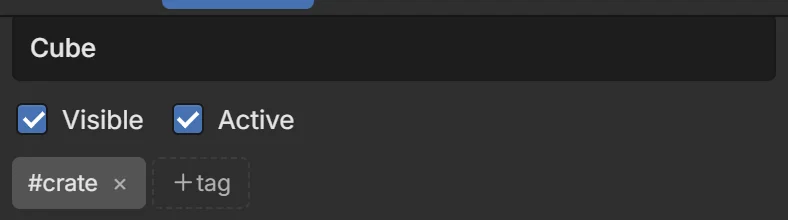
Tags work like families: in events, #enemy means every object with that tag, whatever its name. A spider and a slime can both be #enemy and share one “touch an enemy → lose a life” event.
Transform
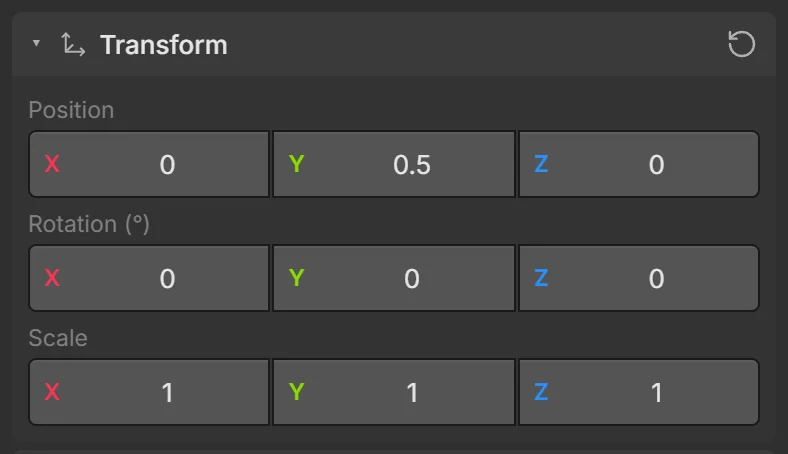
| Field | Meaning |
|---|---|
| Position | X (right), Y (up), Z (toward the camera), in meters. Relative to the parent, if it has one. |
| Rotation (°) | Turn around X, Y and Z, in degrees. Y turns left/right. |
| Scale | Size multiplier per axis. 2 = twice as big. |
↺ resets rotation and scale. Drag a number sideways to change it, or tap it to type. Screen UI elements don’t have a Transform (they use their UI anchor instead).
Components
Each component gives the object an ability. The cards under Transform are its components; + Add component adds more.
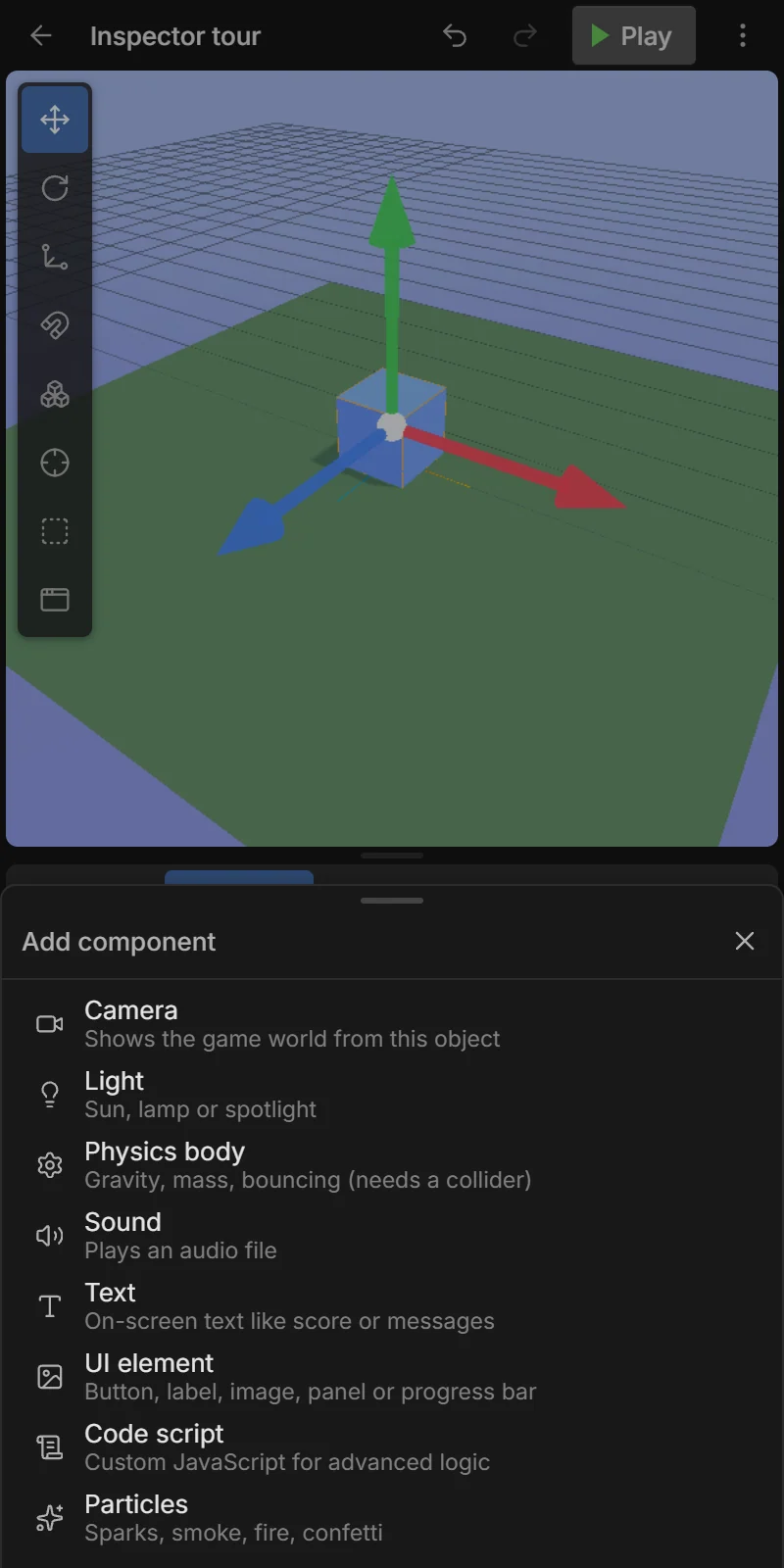
| Component | Gives the object… | Guide |
|---|---|---|
| 🧊 Shape & look | a visible shape or 3D model, color, texture and material | Shapes & materials |
| 🎥 Camera | a view of the world (the main camera shows the game) | Cameras & lights |
| 💡 Light | sun, lamp, spotlight or sky light | Cameras & lights |
| 🥅 Collider | a shape to touch and bump into others | Physics |
| ⚙️ Physics body | gravity, mass, bouncing (needs a collider) | Physics |
| 🔊 Sound | an audio file to play | Sound |
| 🔤 Text | on-screen or floating text | Game UI |
| 🖼️ UI element | button, label, image, panel or progress bar | Game UI |
| 📜 Code script | custom JavaScript | Code scripts |
| ✨ Particles | sparks, smoke, fire, confetti | Particles |
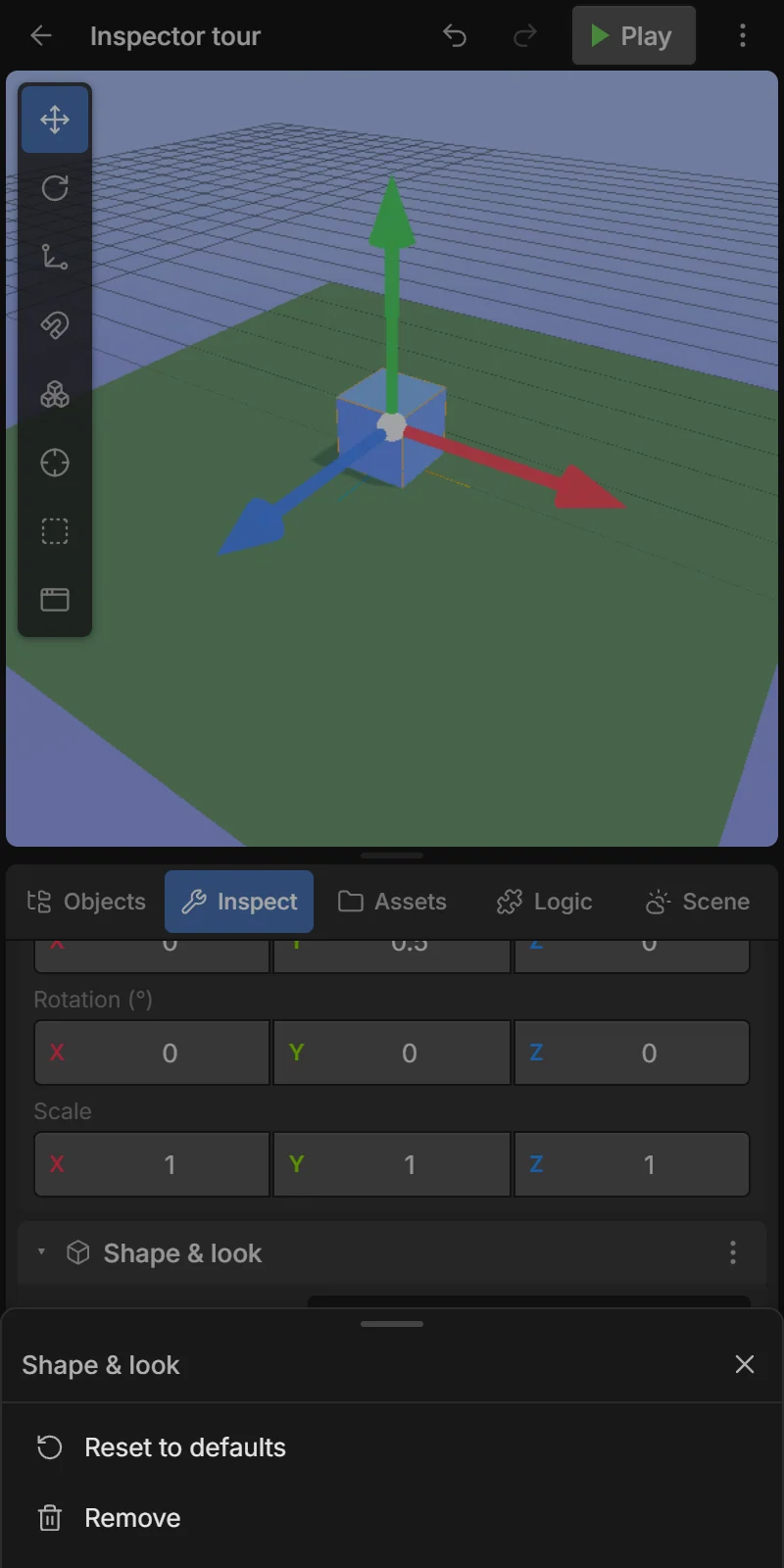
An object has at most one of each (except Code script). The ⋮ on a card offers Reset to defaults, Move up and Remove. Adding a Physics body also adds a Collider if missing. Tap a card’s title to fold it. Every field of every component is described in the Components reference.
Behaviors
Below the components are the object’s behaviors — ready-made movement and logic. + Add behavior lists them; the switch on a behavior card turns it on or off, 🗑 removes it.
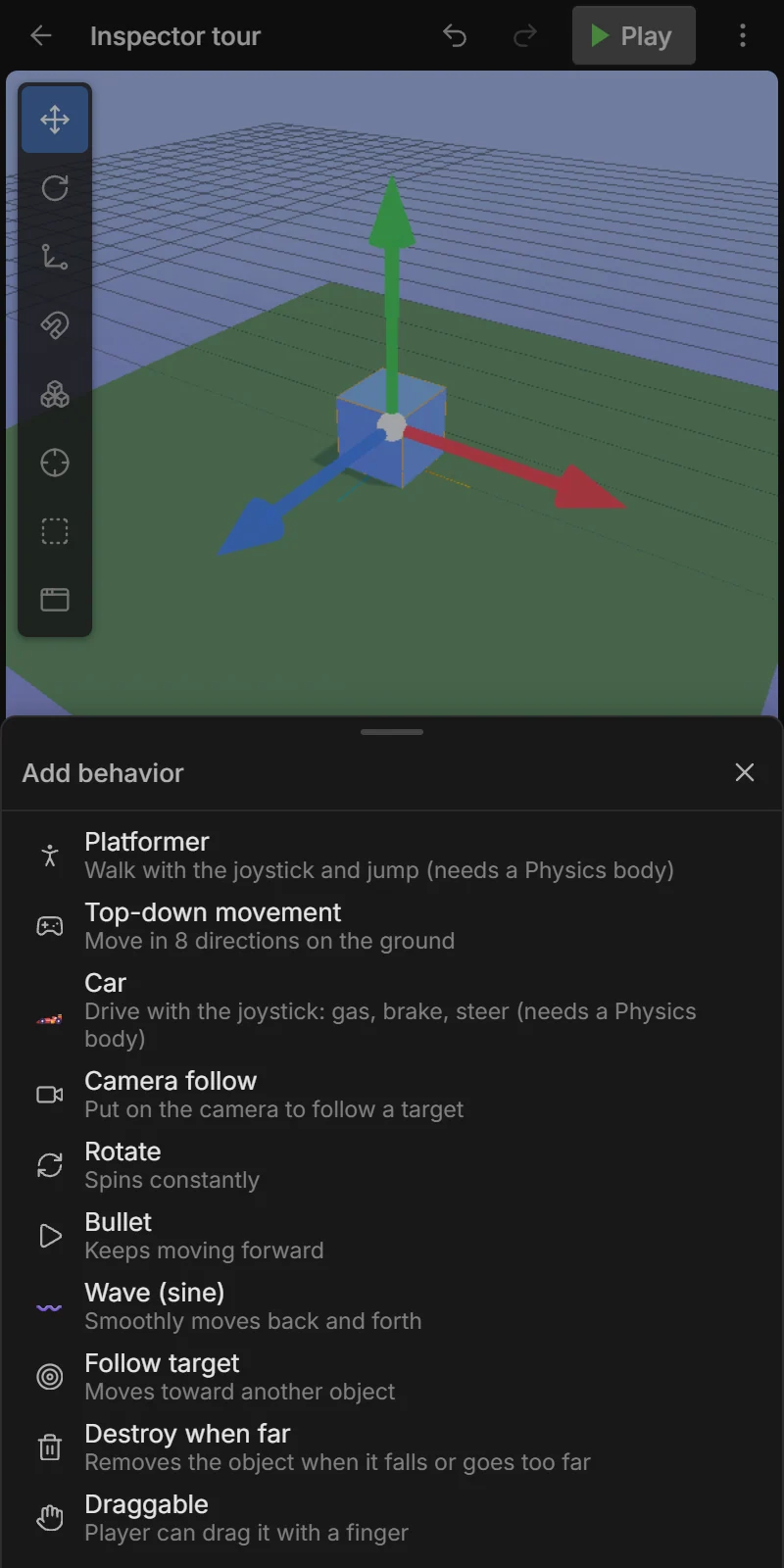
Adding Platformer also adds a Physics body (that doesn’t tip over) and a Collider. See Behaviors.
Instance variables
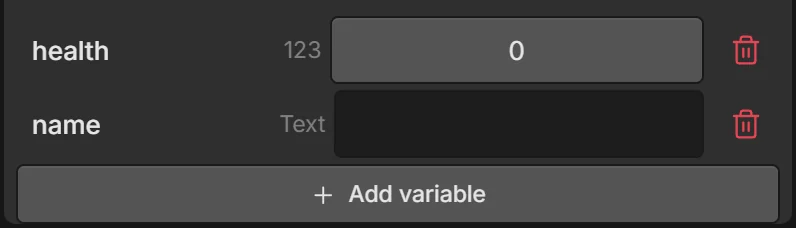
Instance variables are values each copy of the object has for itself — like health for every enemy. Tap + Add variable, type a name and choose Number, Text or Yes / No. Edit the start value in the list; 🗑 deletes it.
In events use Compare instance variable, Set instance variable etc.; in expressions write Enemy.health. See Variables.