Objects tab
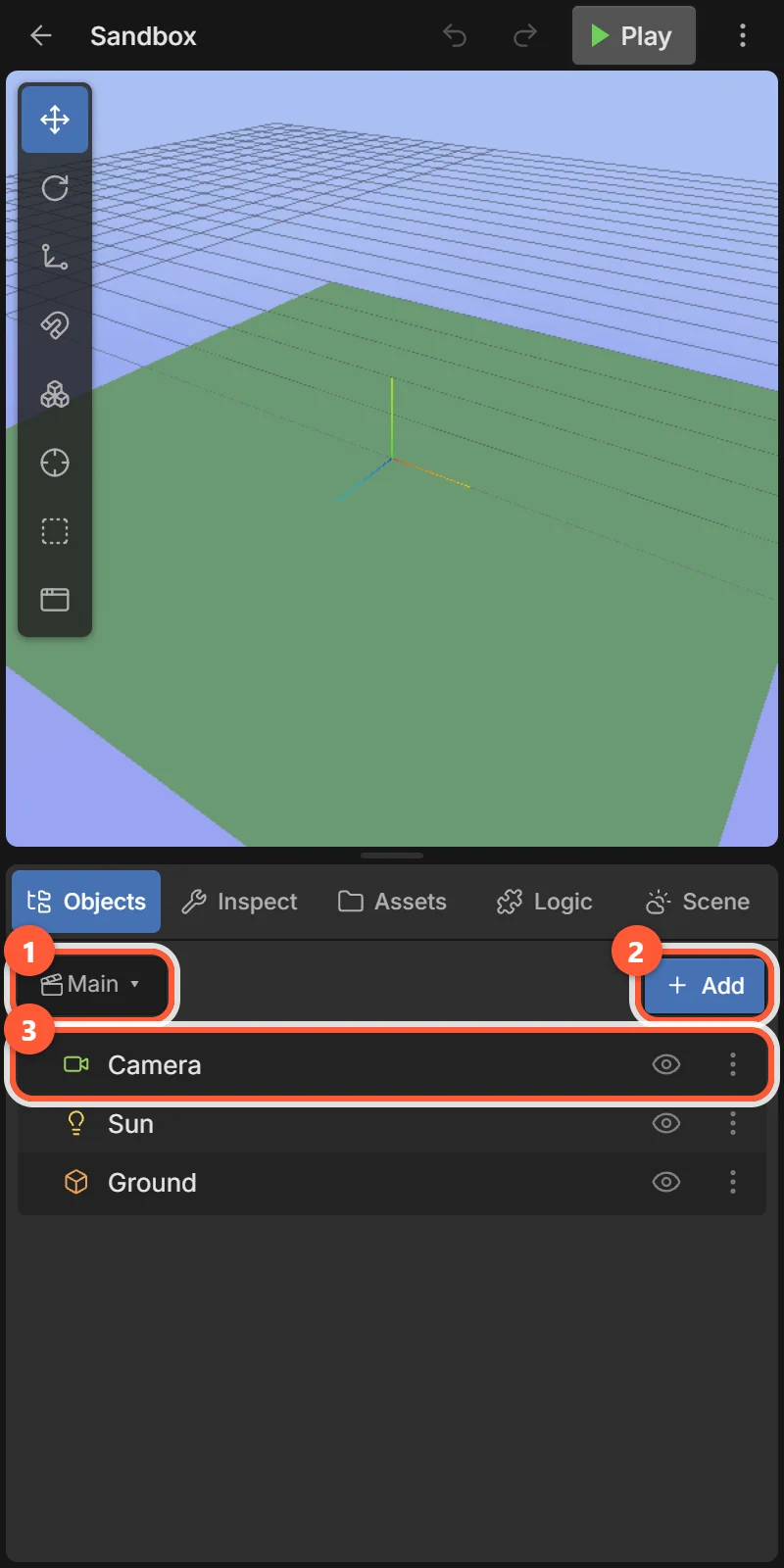
The Objects tab lists every object in the scene you are editing, and is where you add new ones.
- 1Scene — the scene you are editing. Tap to switch or add scenes (see Scenes).
- 2+ Add — add an object.
- 3Object rows — tap to select. Children are indented under their parent.
A new project has a Camera, a Sun light and a Ground.
Object rows
Each row has an icon showing what the object is (🎥 camera, 💡 light, 🧊 shape or model, 🖼 UI, 🔤 text, ✨ particles, 🔊 sound, ○ empty).
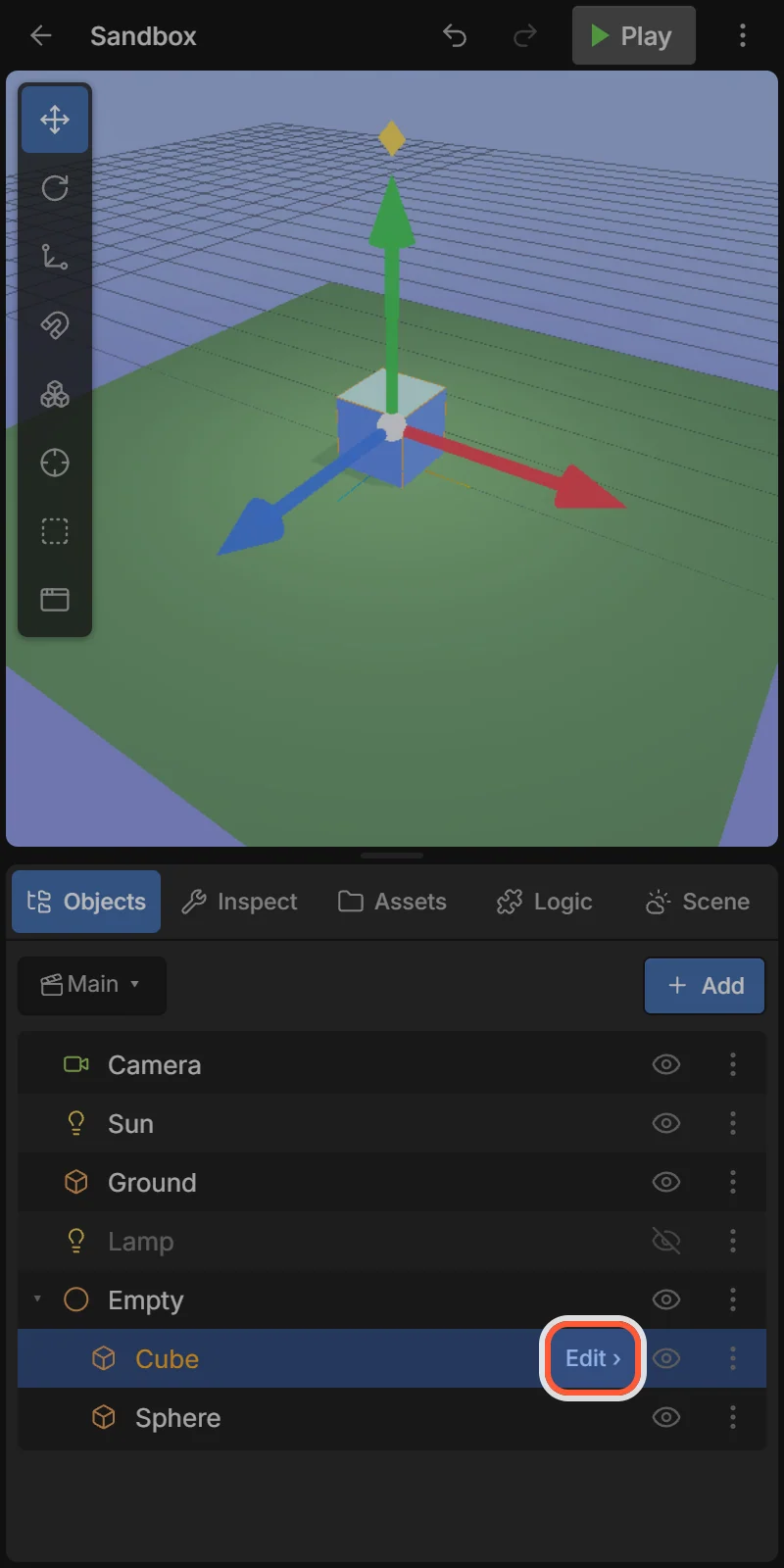
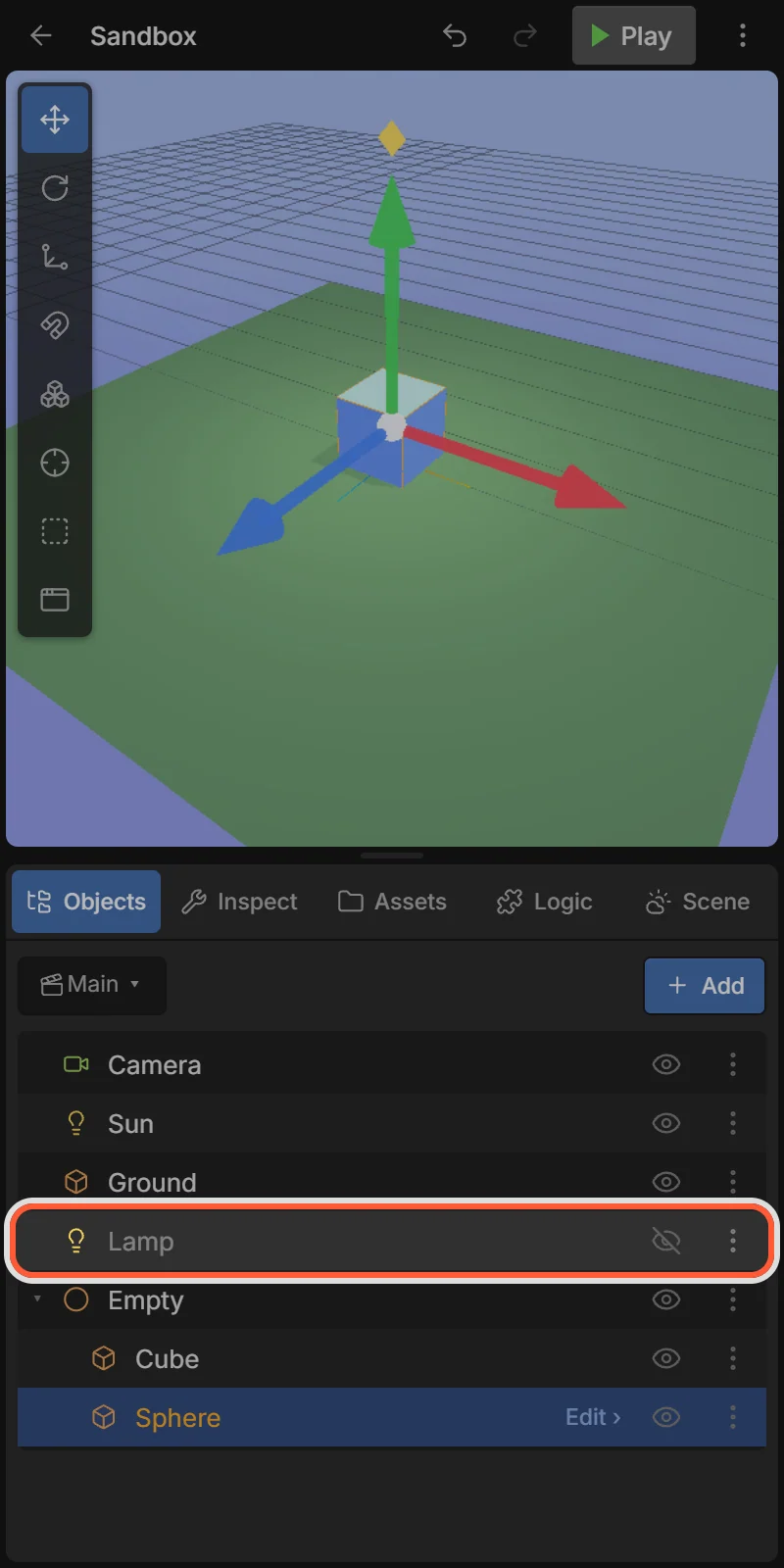
- Tap a row to select it; tap the selected row again (or Edit ›) to open the Inspector.
- 👁 hides or shows the object. Hidden objects are not drawn in the game either, but still exist — events can show them again.
- ⋮ opens the object menu.
- A ▾ / ▸ arrow before a parent folds or unfolds its children.
- Greyed-out rows are inactive objects (see the Inspector’s Active switch).
The Add menu
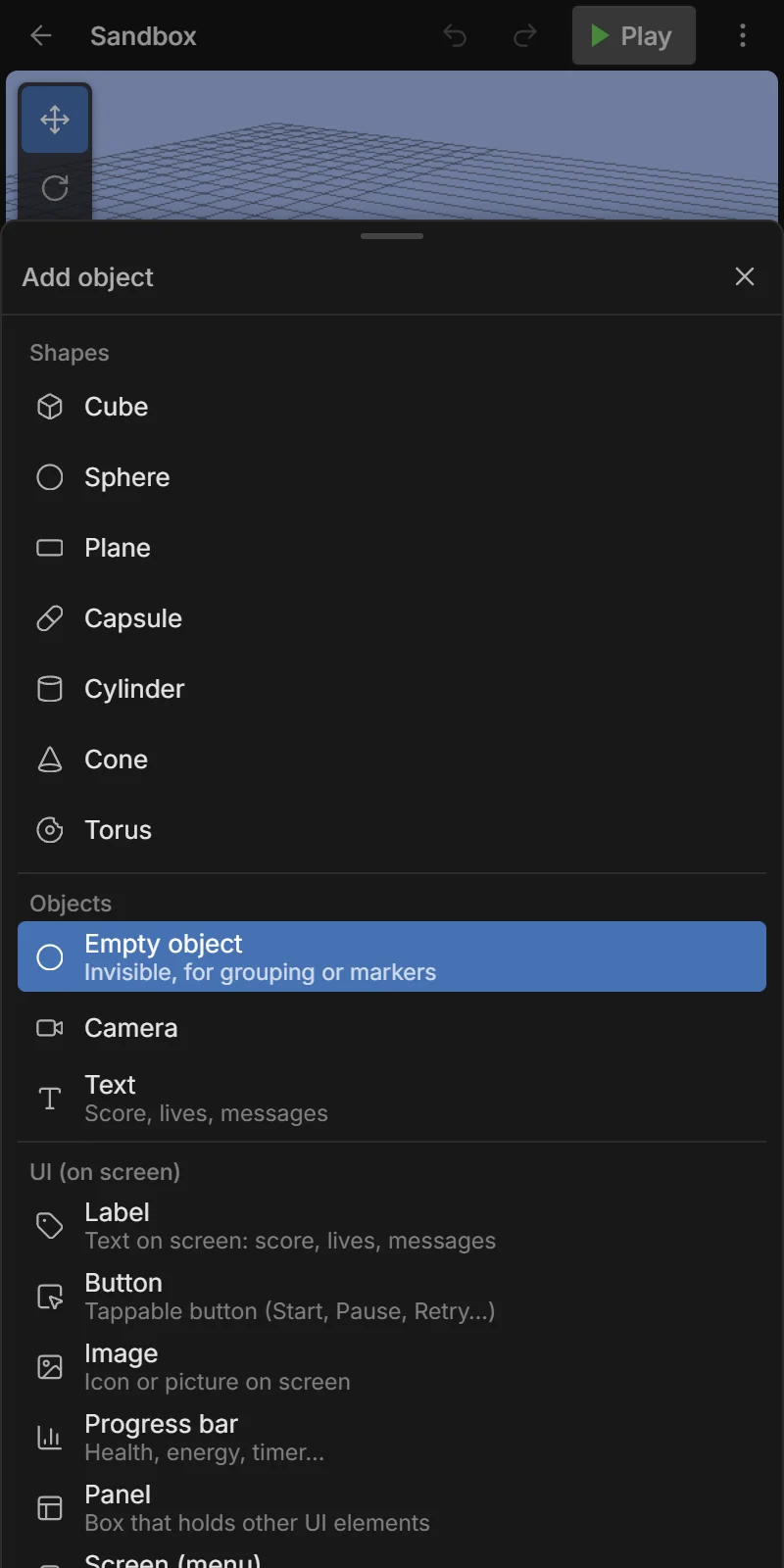
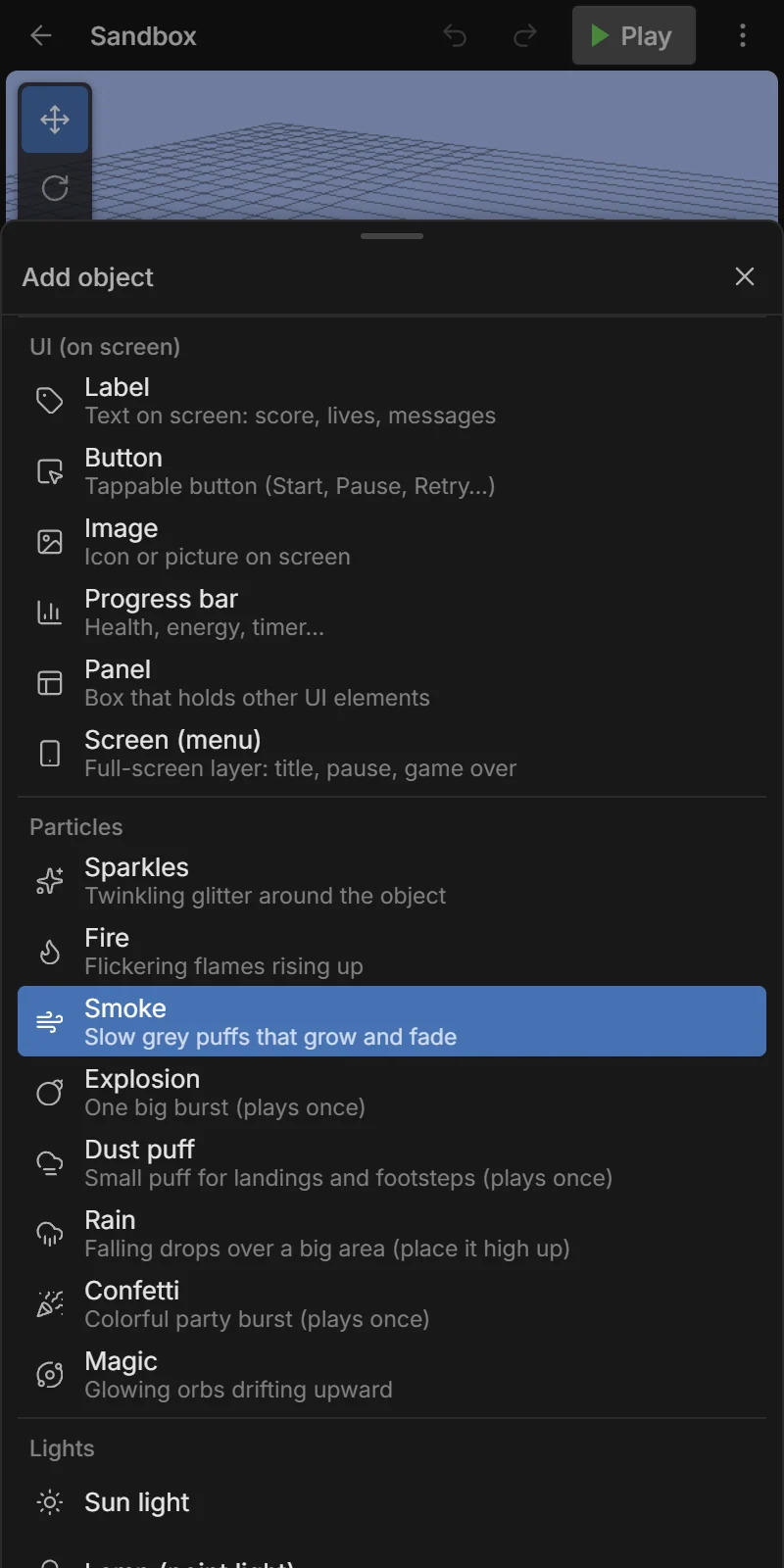
Tap + Add. New objects appear in the middle of the view.
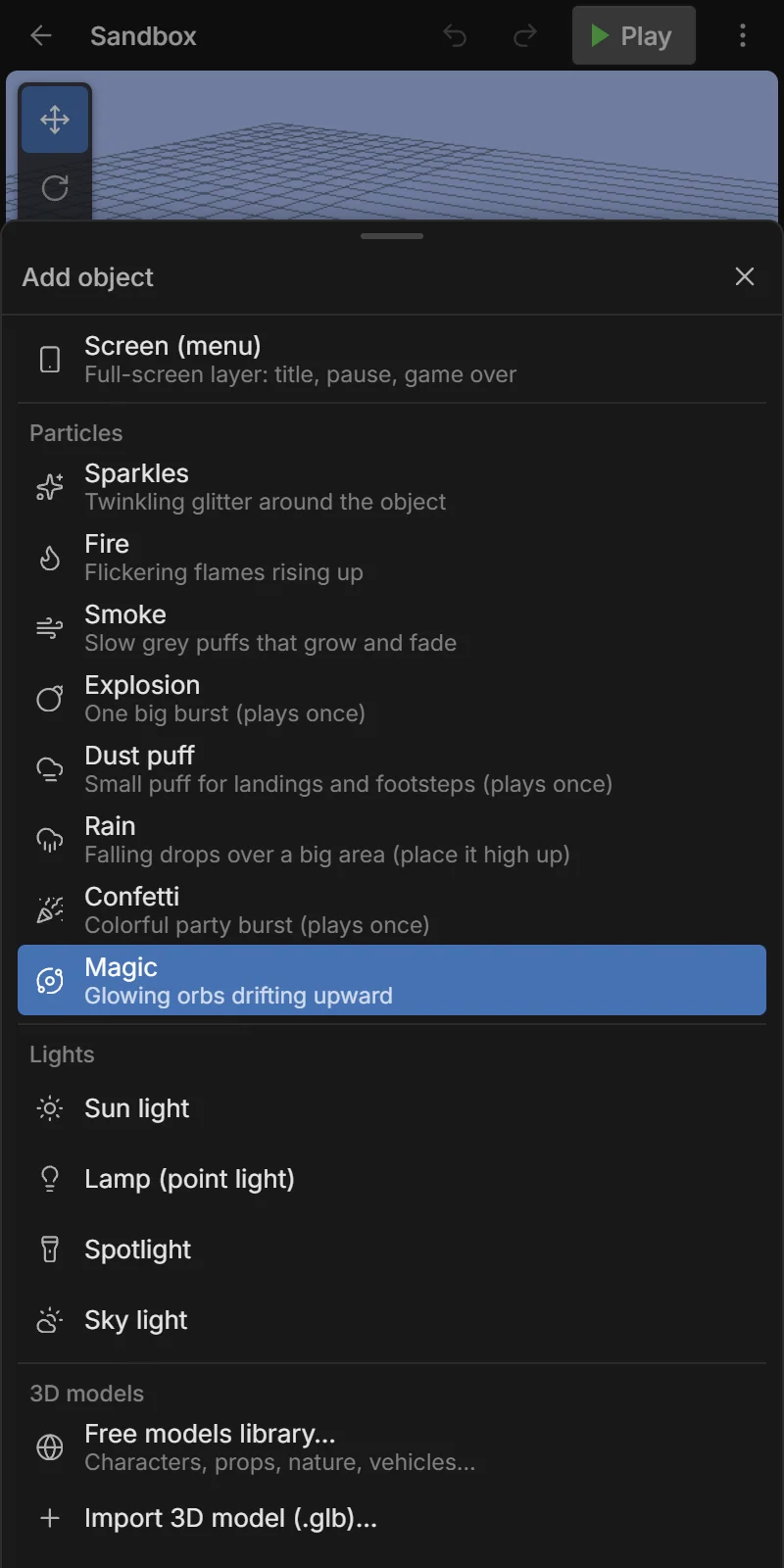
| Group | Items |
|---|---|
| Shapes | Cube, Sphere, Plane, Capsule, Cylinder, Cone, Torus — each with a Collider, ready for physics. See Shapes & materials. |
| Objects | Empty object (invisible; for grouping or as a marker), Camera, Text (on-screen text). |
| UI (on screen) | Label, Button, Image, Progress bar, Panel, Screen (menu). See Game UI. |
| Particles | Sparkles, Fire, Smoke, Explosion, Dust puff, Rain, Confetti, Magic. See Particles. |
| Lights | Sun light, Lamp (point light), Spotlight, Sky light. See Cameras & lights. |
| 3D models | Models already in your Assets, Free models library…, Import 3D model (.glb)…. See 3D models. |
| Prefabs | Your saved prefabs (see below). |
Object menu
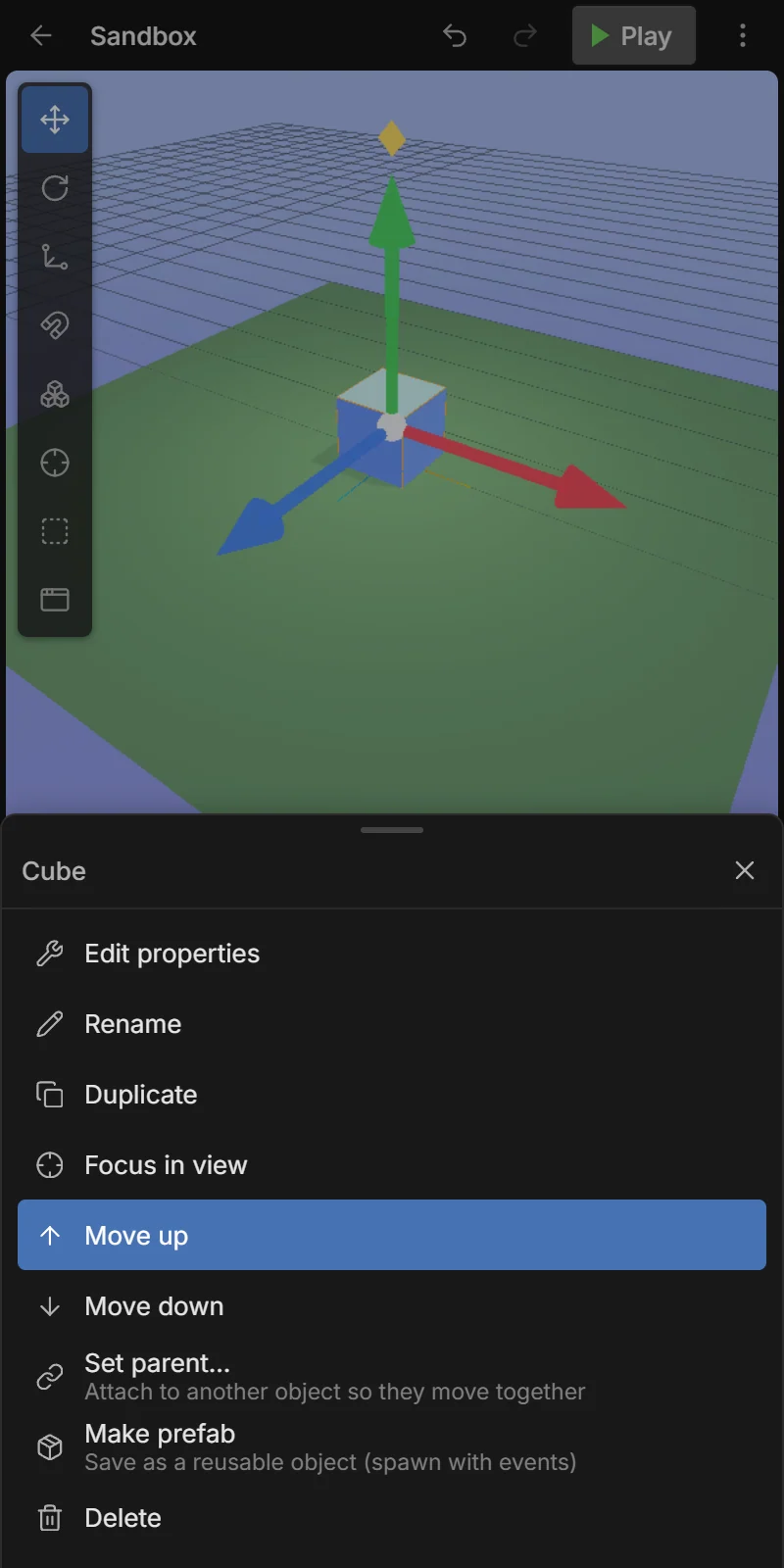
Tap ⋮ on a row, or long-press the object in the 3D view.
| Item | What it does |
|---|---|
| Edit properties | Opens the Inspector. |
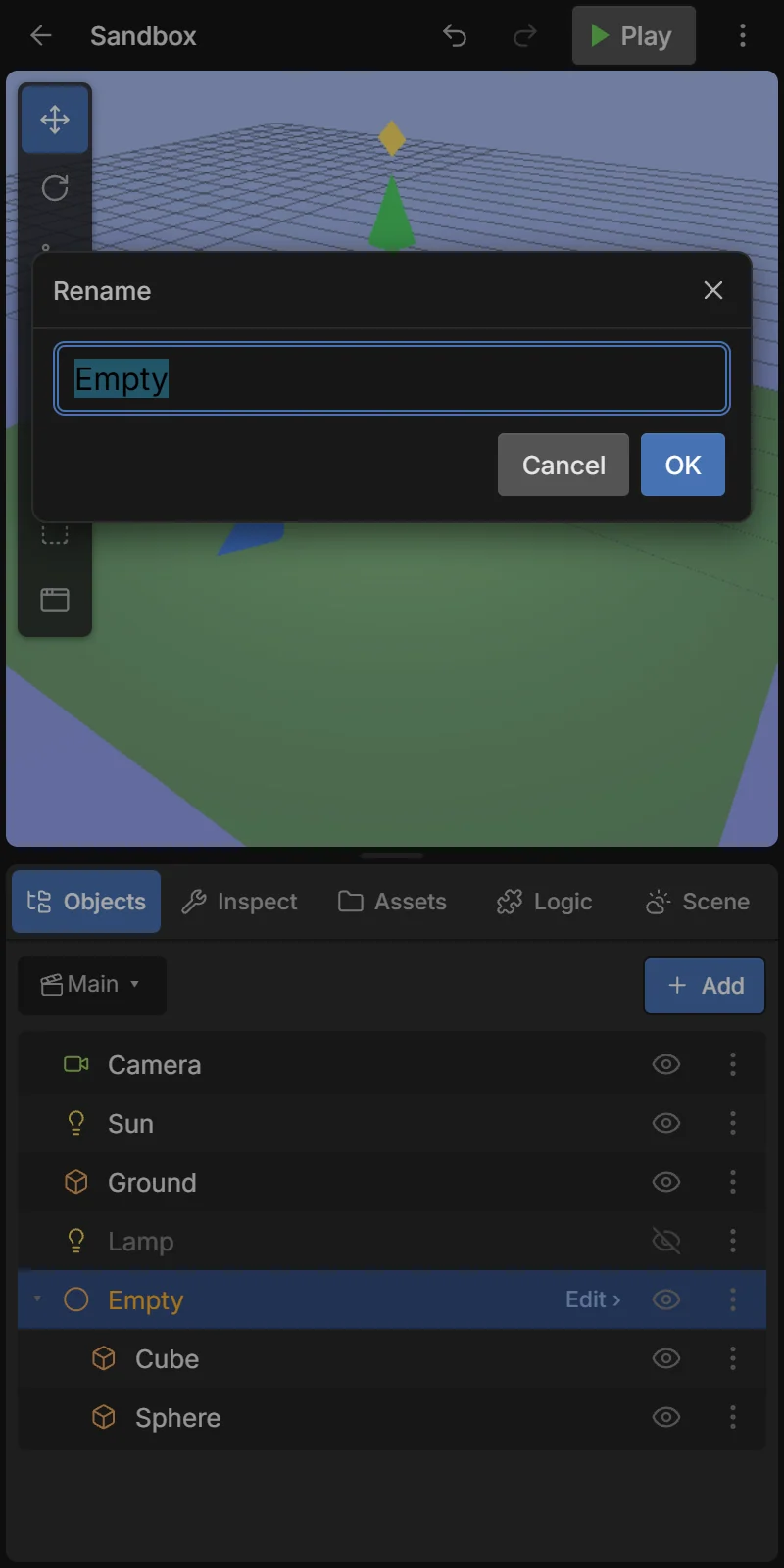
| Rename | Names use letters, numbers and _ so events can refer to them. |
| Duplicate | A copy with the same name — an extra instance of the same object type. |
| Focus in view | Centers the 3D view on it. |
| Move up / down | Reorders the list (also the drawing order of UI). |
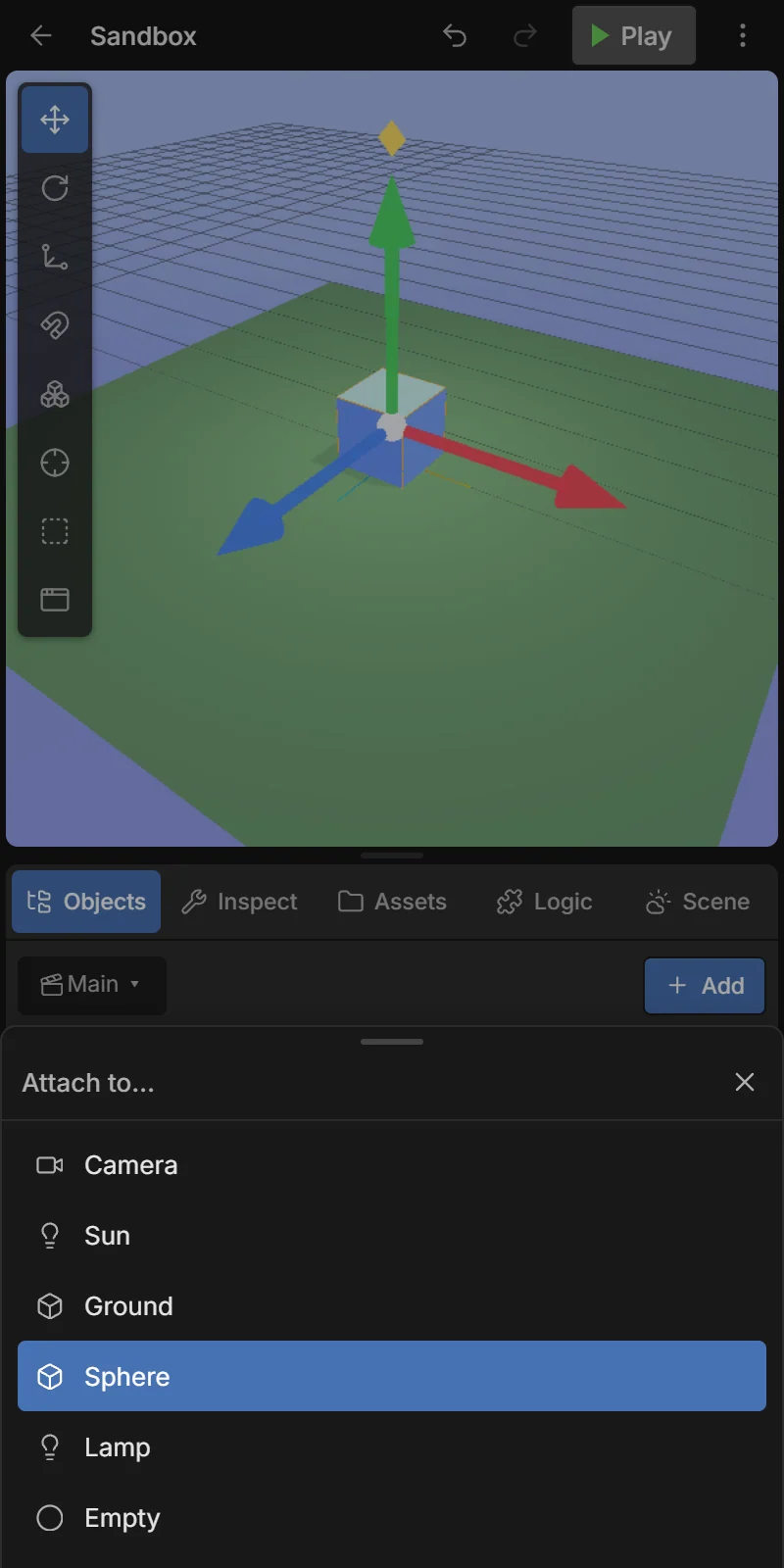
| Set parent… | Attaches it to another object so they move together. |
| Unparent | Detaches it again. |
| Make prefab | Saves it (with its children) as a reusable prefab. |
| Delete | Deletes it and its children (undo brings them back). |
Objects with the same name are instances of one object type. An event about Coin works on every coin — see How events work. Give different things different names.
Parents and children
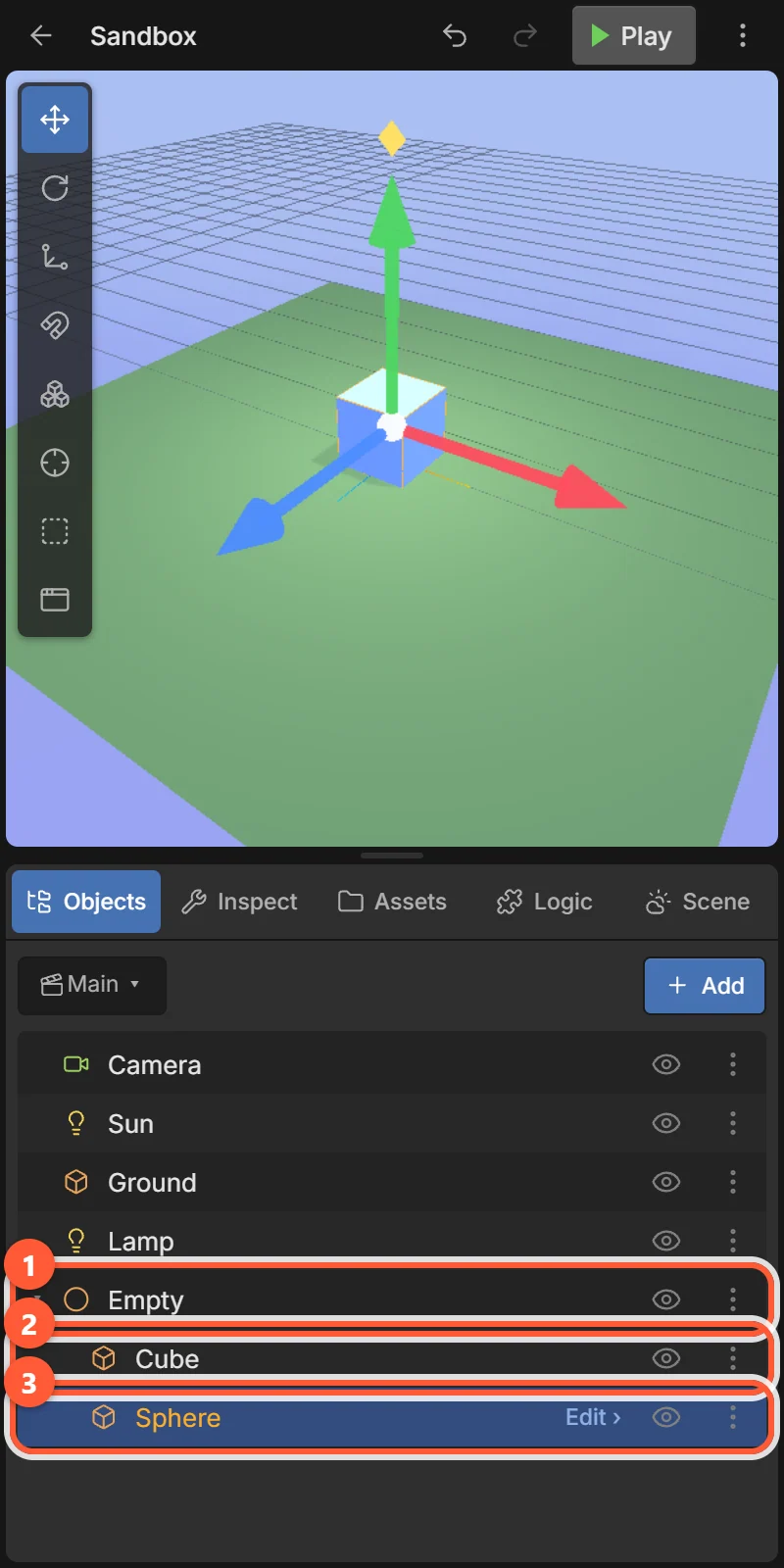
Set parent… attaches an object to another. The child then moves, turns and scales with its parent, and its position becomes relative to it. Here an Empty object is the parent of a Cube and a Sphere:
- 1Parent
- 2Child
- 3Child
Uses: a car body with wheels, a character holding a sword, a group of walls you move as one, a UI panel with buttons inside.
Prefabs
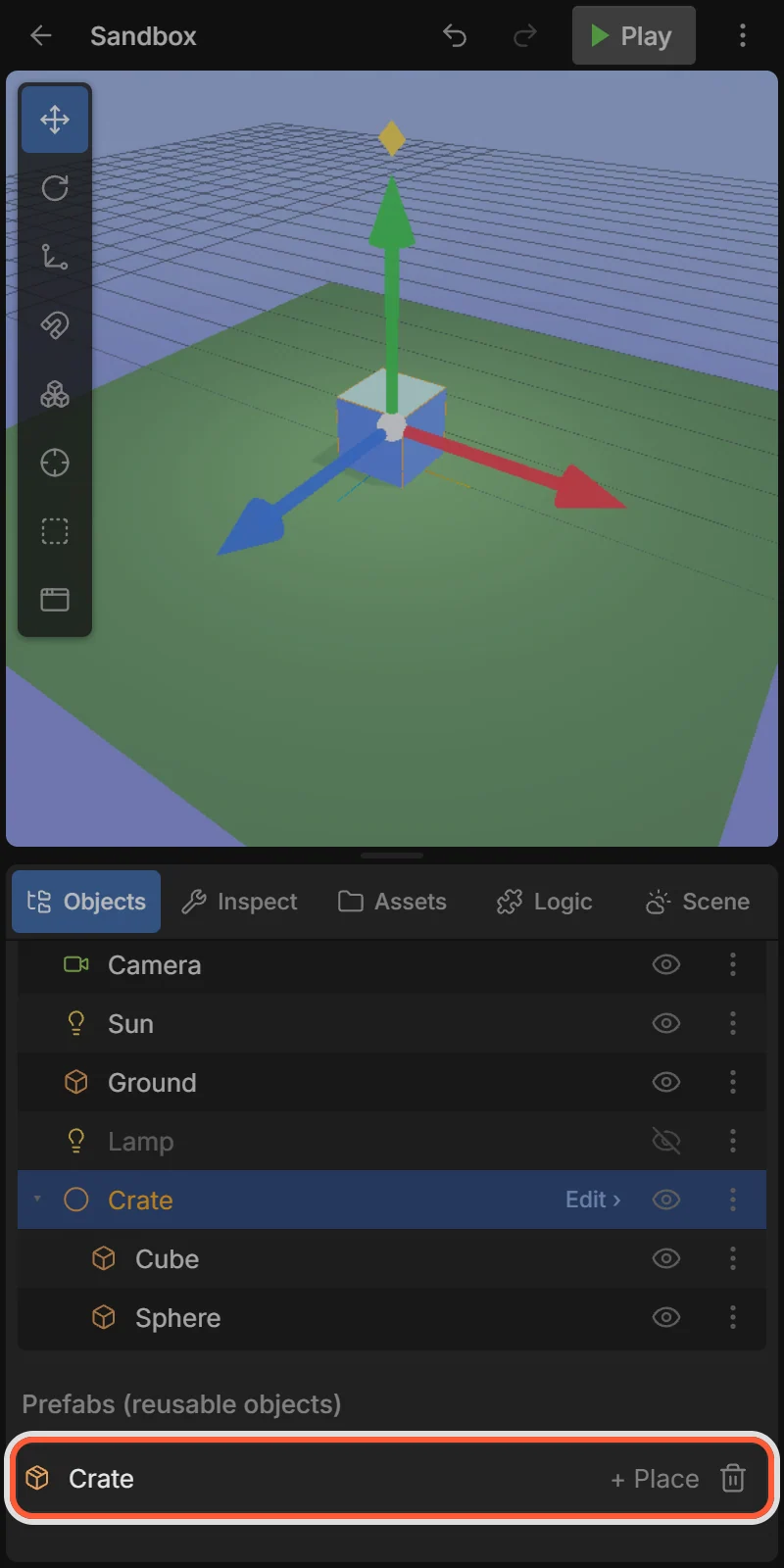
A prefab is a saved object (with its children, components, behaviors and variables) that you can place again and again, and that events can create while the game runs (Create object action) — bullets, enemies, coins.
- Make prefab from the object menu.
- The Prefabs list appears under the objects. + Place adds a copy to the scene; 🗑 deletes the prefab (copies already placed stay).
- Prefabs also appear in the + Add menu.