Scene tab
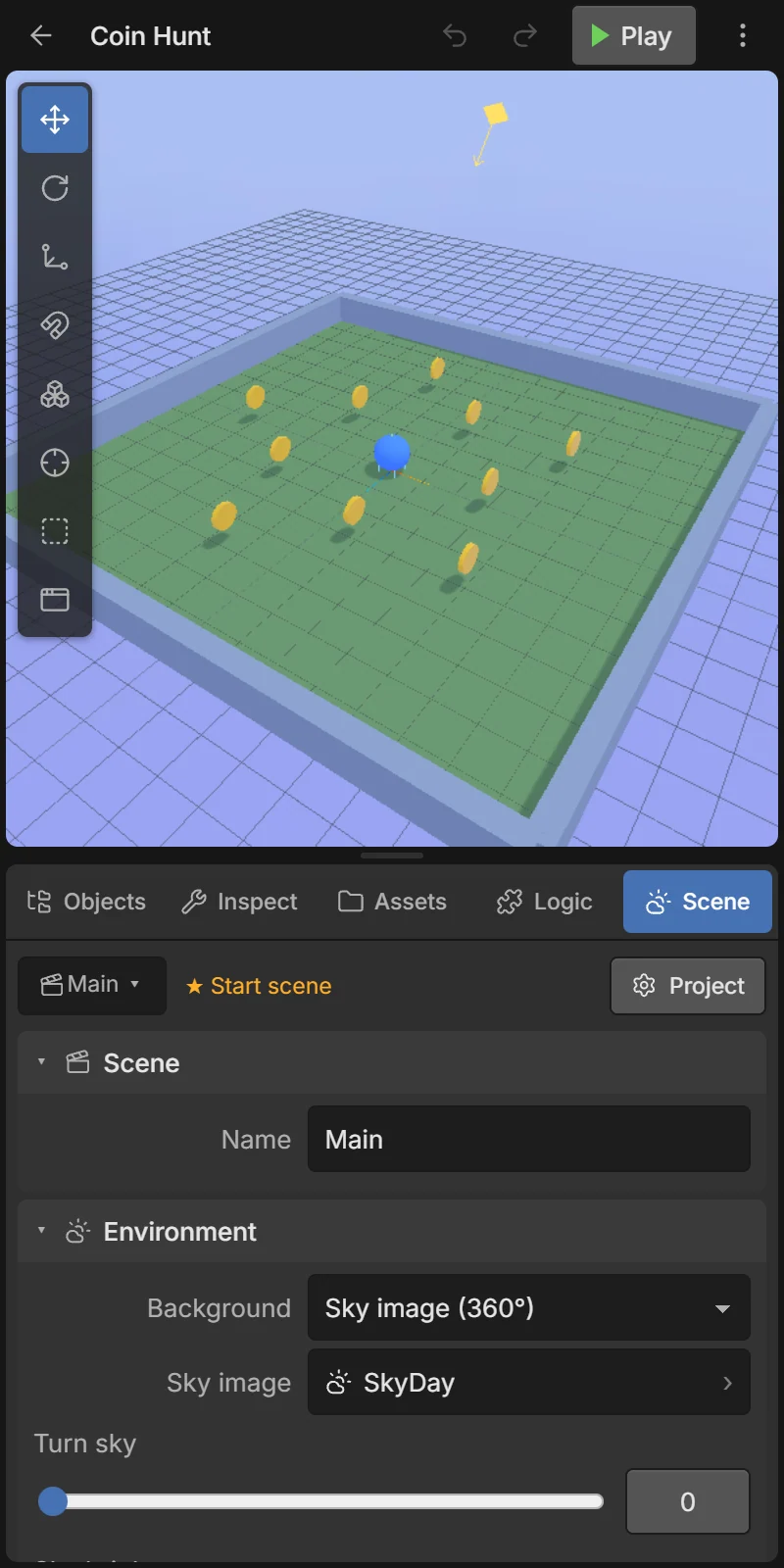
The Scene tab holds settings for the whole scene you are editing, plus the project’s variables and touch controls.
At the top: the scene you are editing (tap to switch — see Scenes), a ★ Start scene badge if the game starts here, and ⚙ Project to open Project settings.
The cards below can be folded by tapping their title.
Scene
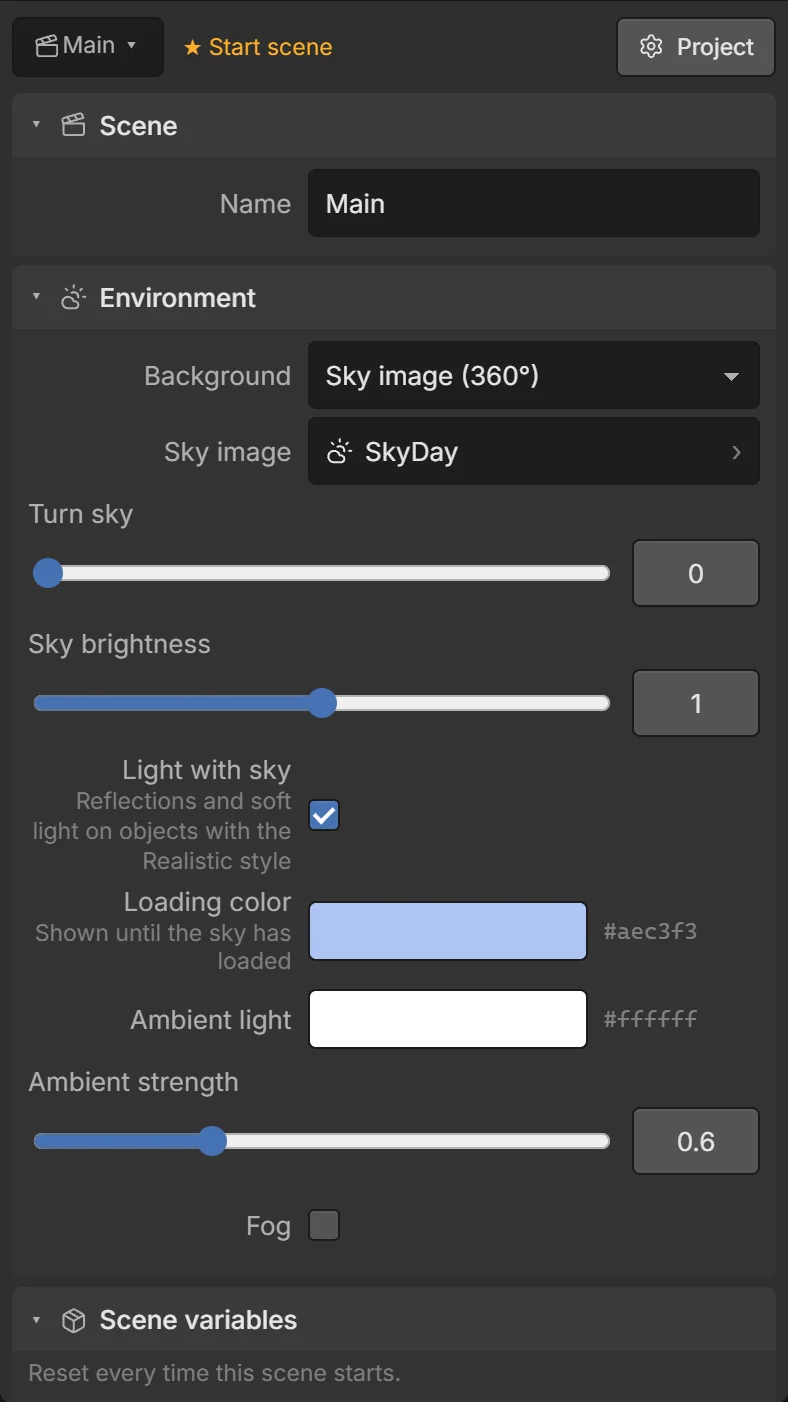
Name — the scene’s name, used by the Go to scene action.
Environment
| Field | What it does |
|---|---|
| Background | Color (a plain color) or Sky image (360°). |
| Color | The background color. |
| Ambient light | Color of the soft light that reaches everything, even in shadow. |
| Ambient strength | How strong it is (0–2). Lower it for a darker, moodier scene. |
| Fog | Fades far things into the fog color. Also hides the edge of big worlds and helps performance. |
| Fog color / starts at / fully at | Color, the distance where fog begins, and the distance where it is solid. |
Sky image
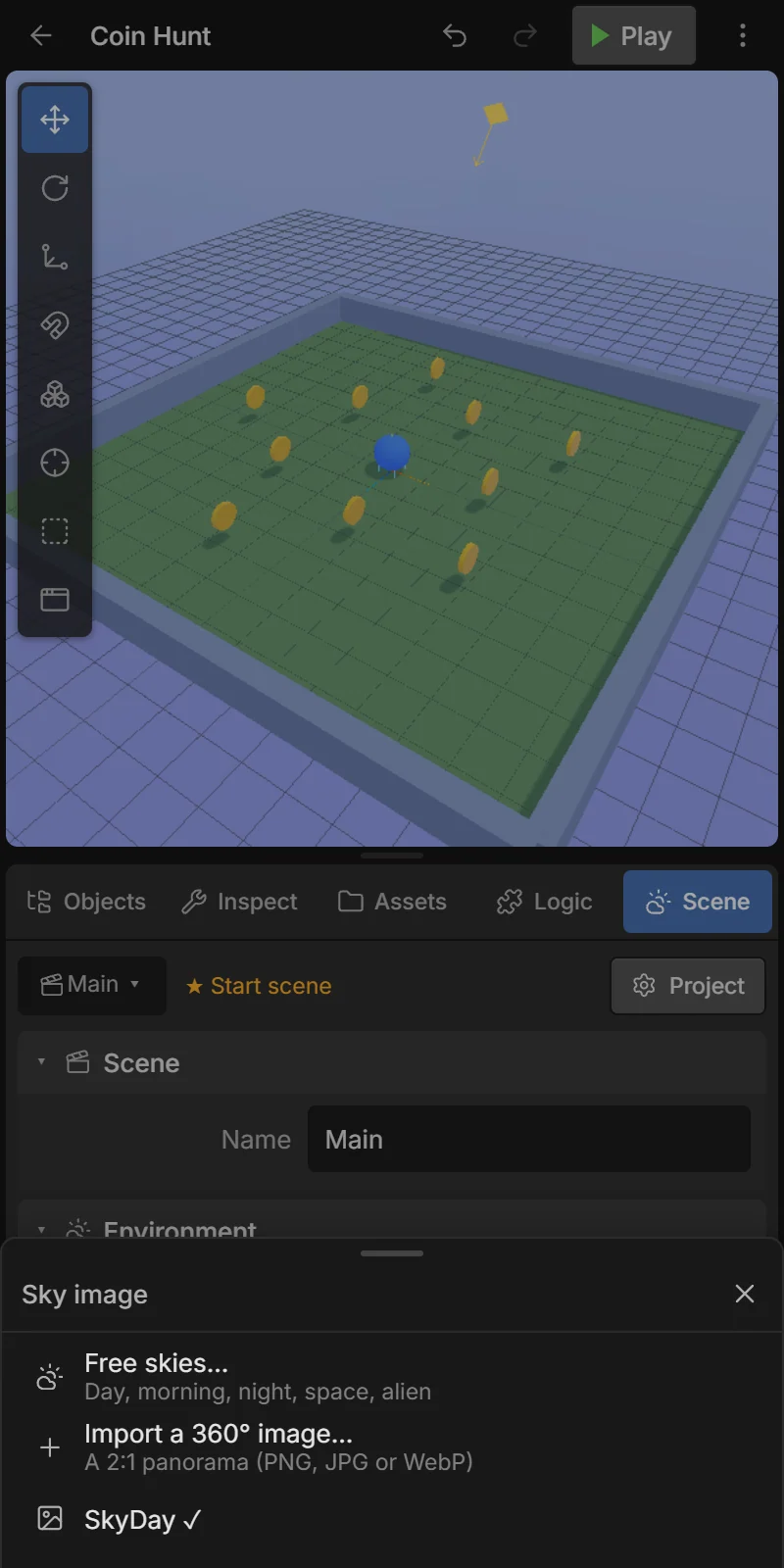
Choose Background → Sky image (360°) (or tap the sky image) and pick one of:
- Free skies… — day, morning, night, space, alien (by Kenney, free).
- Import a 360° image… — a 2:1 panorama (equirectangular) PNG, JPG or WebP.
- One of your project’s images.
Then:
| Field | What it does |
|---|---|
| Sky image | Change the image. |
| Turn sky | Rotate the panorama (0–360°) to put the sun where you want it. |
| Sky brightness | 1 = the image as it is. |
| Light with sky | Objects with the Realistic material get reflections and soft light from the sky. |
| Loading color | Shown until the sky has loaded. |
Scene variables
Values that exist only in this scene and reset every time the scene starts — e.g. a level timer. See Variables.
Global variables
Values shared by all scenes and kept when you change scene — e.g. Score, Lives. New projects have a Score variable. Add with + Add variable, choosing Number, Text or Yes / No.
Touch controls
The on-screen controls shown while playing (also in Project settings):
| Field | What it does |
|---|---|
| Joystick | Show the virtual joystick. It drives the Platformer, Top-down and Car behaviors and the joystickX / joystickY values. |
| Joystick side | Left or Right. The buttons go on the other side. |
| Buttons | Round on-screen buttons. Each has a Name used by events and scripts (e.g. jump), a Label shown on it (e.g. A) and a Color. Add button adds one; 🗑 deletes it. |
New projects have one button, jump, labelled A — the Platformer behavior jumps with it. On a keyboard, WASD or the arrow keys move; Space or J presses the first button, K the second and L the third.