Scenes

A scene is one level or screen of your game: a menu, level 1, level 2, game over… Each scene has its own objects, environment, scene variables and event sheet. Global variables are shared by all scenes.
Open the Scenes panel
Tap the scene chip (🎬 Main ▾) at the top of the Objects or Scene tab, or ⋮ → Scenes.
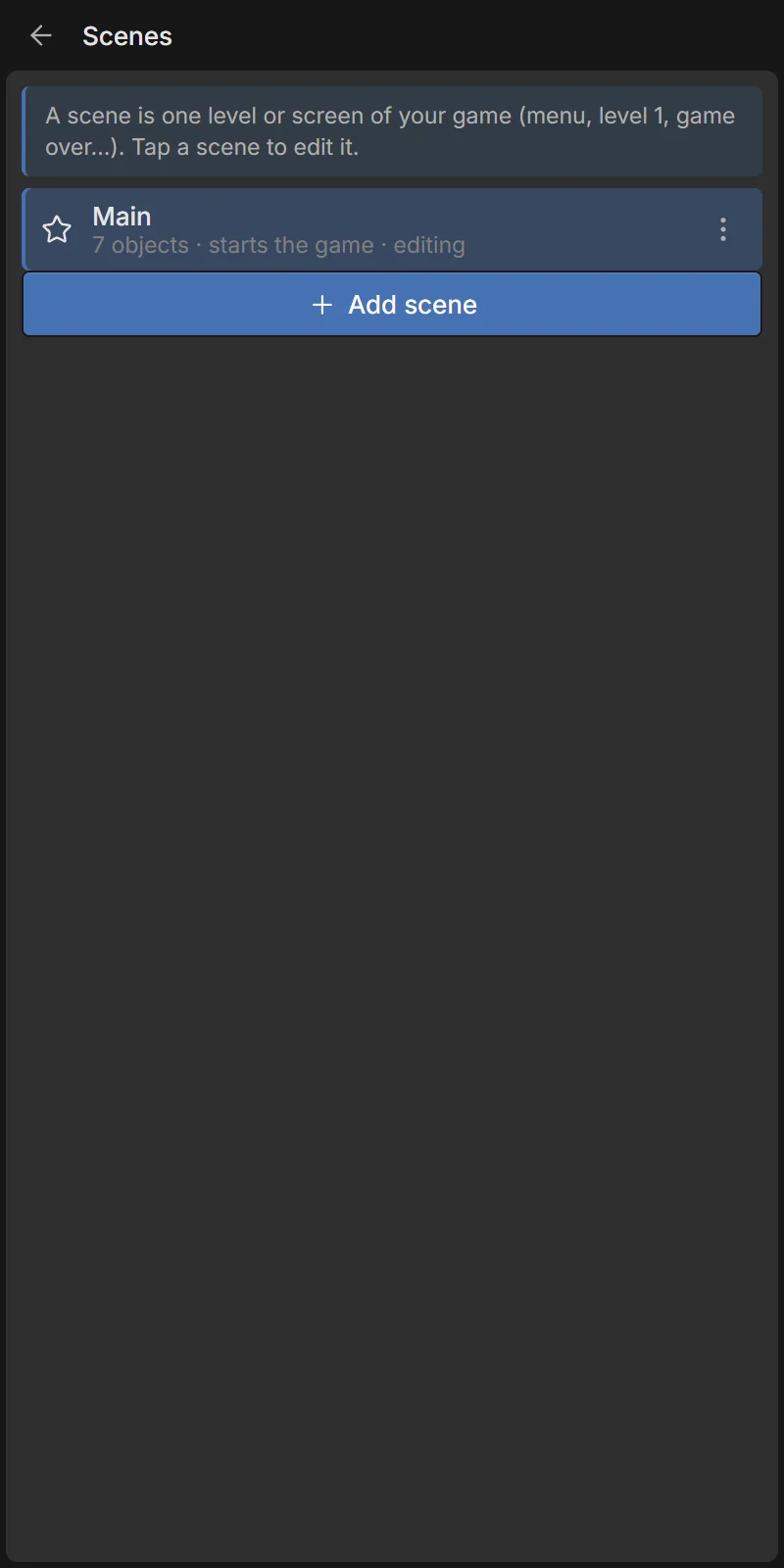
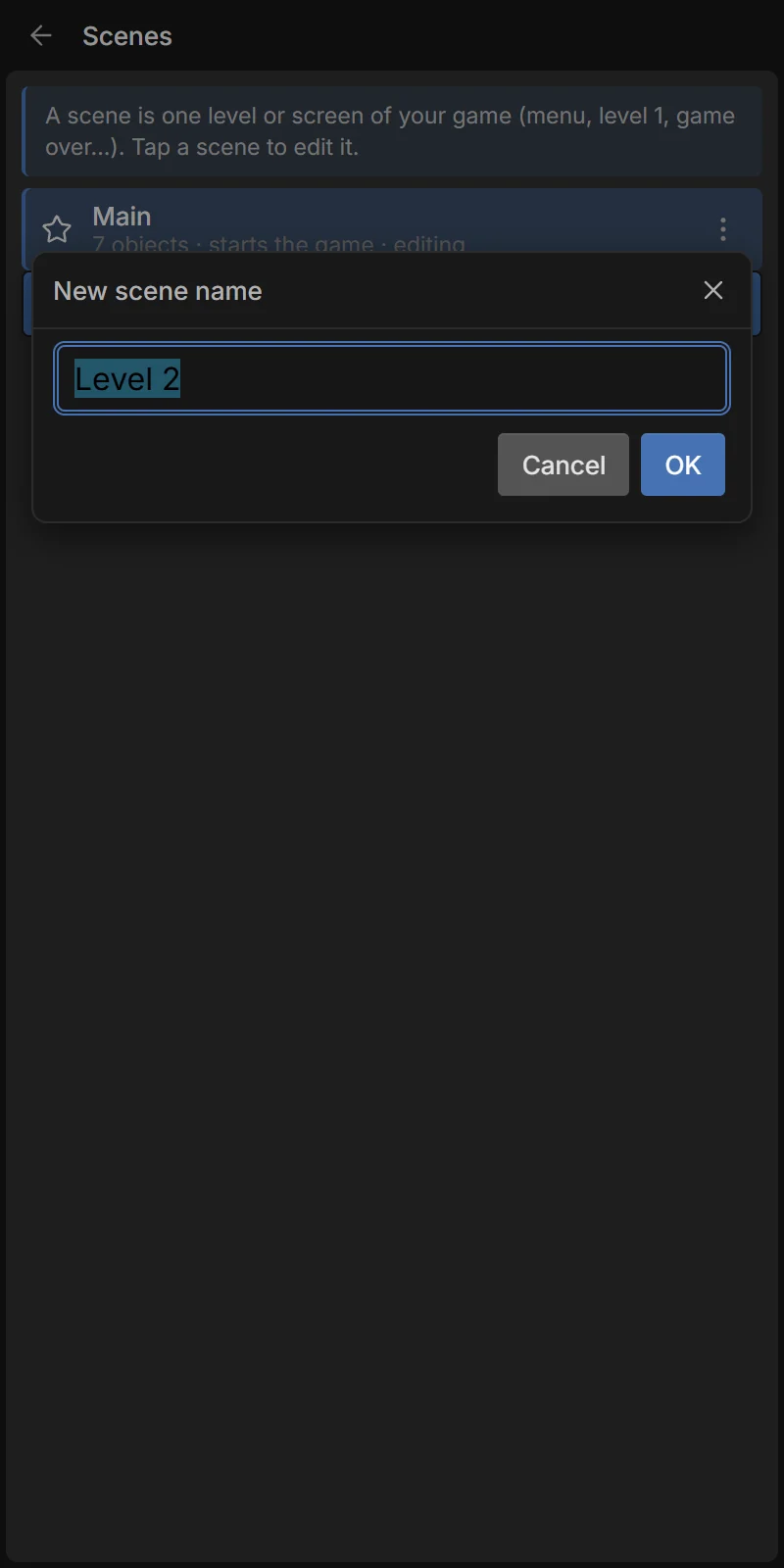
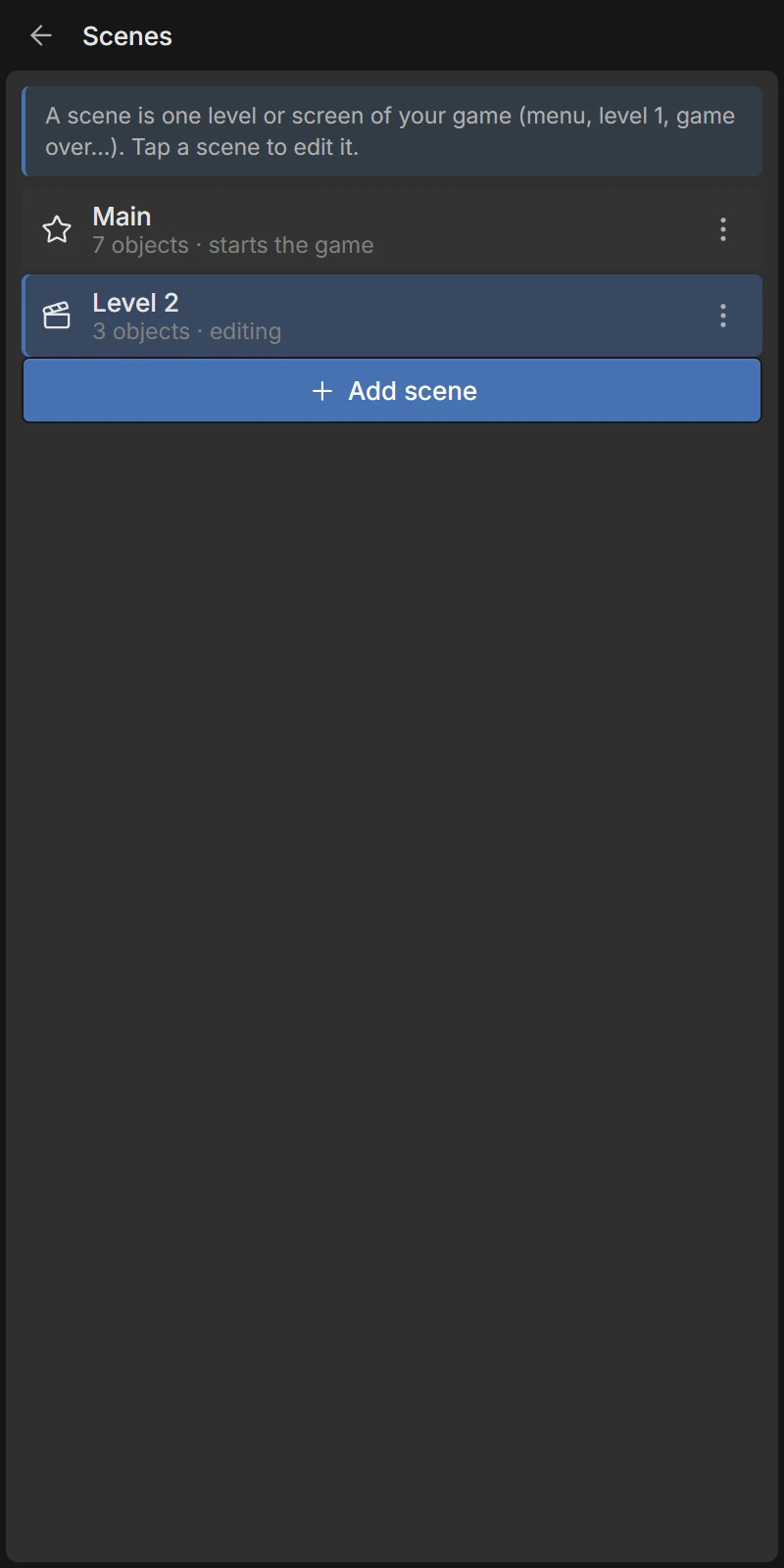
- Tap a scene to edit it. The row says editing for the current one.
- ★ marks the start scene — where the game begins (starts the game).
- + Add scene creates a new scene with a camera, a sun and a ground, and switches to it.
Scene menu
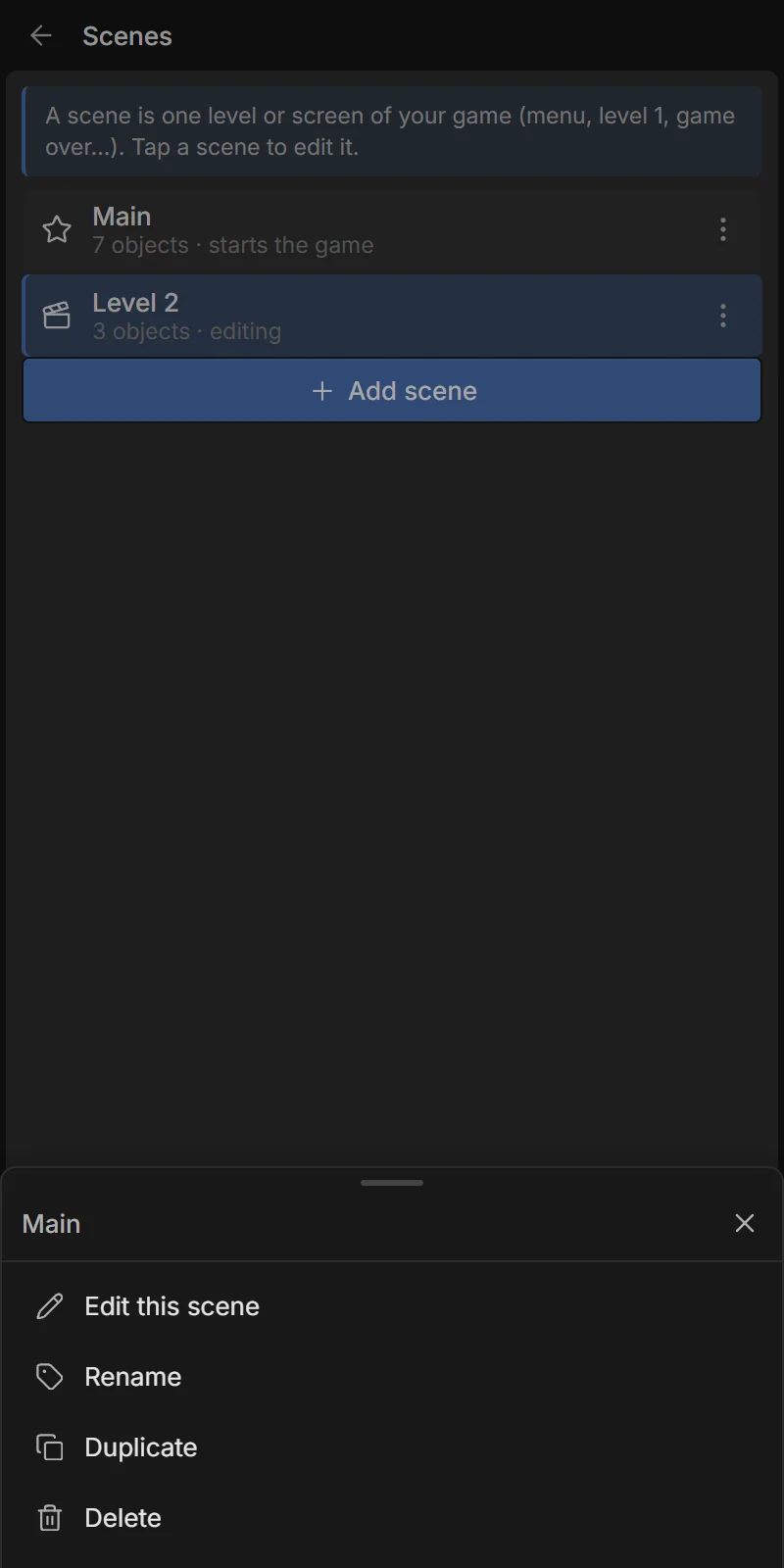
Tap ⋮ on a scene:
| Item | What it does |
|---|---|
| Edit this scene | Switch to it. |
| Rename | Rename it (update Go to scene actions that use the old name). |
| Duplicate | A full copy — handy to make a new level from an existing one. |
| Set as start scene | The game begins here. |
| Delete | Delete it and everything in it (not possible for the last scene). |
Changing scene while playing
Use the actions Go to scene and Restart scene (System category). On end of scene runs just before a scene is left. To play from the scene you are editing instead of the start scene, use ⋮ → Play this scene.
Each scene chooses which event sheet runs in it in the Logic tab (This scene runs). Several scenes can share one sheet, and a sheet can include another (see Advanced events).