The 3D view

The 3D view shows your scene. It is where you place things.
Look around
| Gesture | What it does |
|---|---|
| Drag with one finger (on empty space) | Orbit around the scene |
| Pinch with two fingers | Zoom in and out |
| Drag with two fingers | Pan (slide the view) |
| Double-tap an object | Focus on it (the view centers on it) |
| Mouse: right/middle drag, wheel | Pan, zoom (when using the editor with a mouse) |
The grid shows the ground plane. One grid square is 1 meter.
Select objects
- Tap an object to select it. Its name is highlighted in the Objects list and the Inspector shows it.
- Tap empty space to deselect.
- Long-press an object to open its object menu (rename, duplicate, delete…).
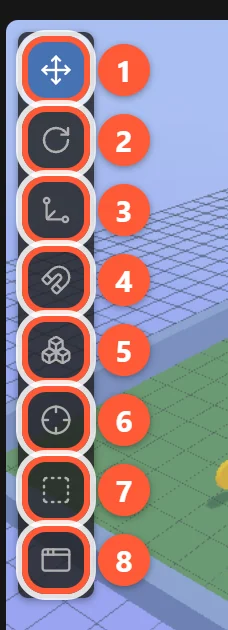
The toolbar
- 1Move — arrows to slide the object.
- 2Rotate — rings to turn it.
- 3Scale — handles to resize it.
- 4Snap — moves in 0.5 m steps and turns in 15° steps (8 px in UI mode).
- 5Multi — select several objects: each tap adds or removes one.
- 6Focus — center the view on the selection.
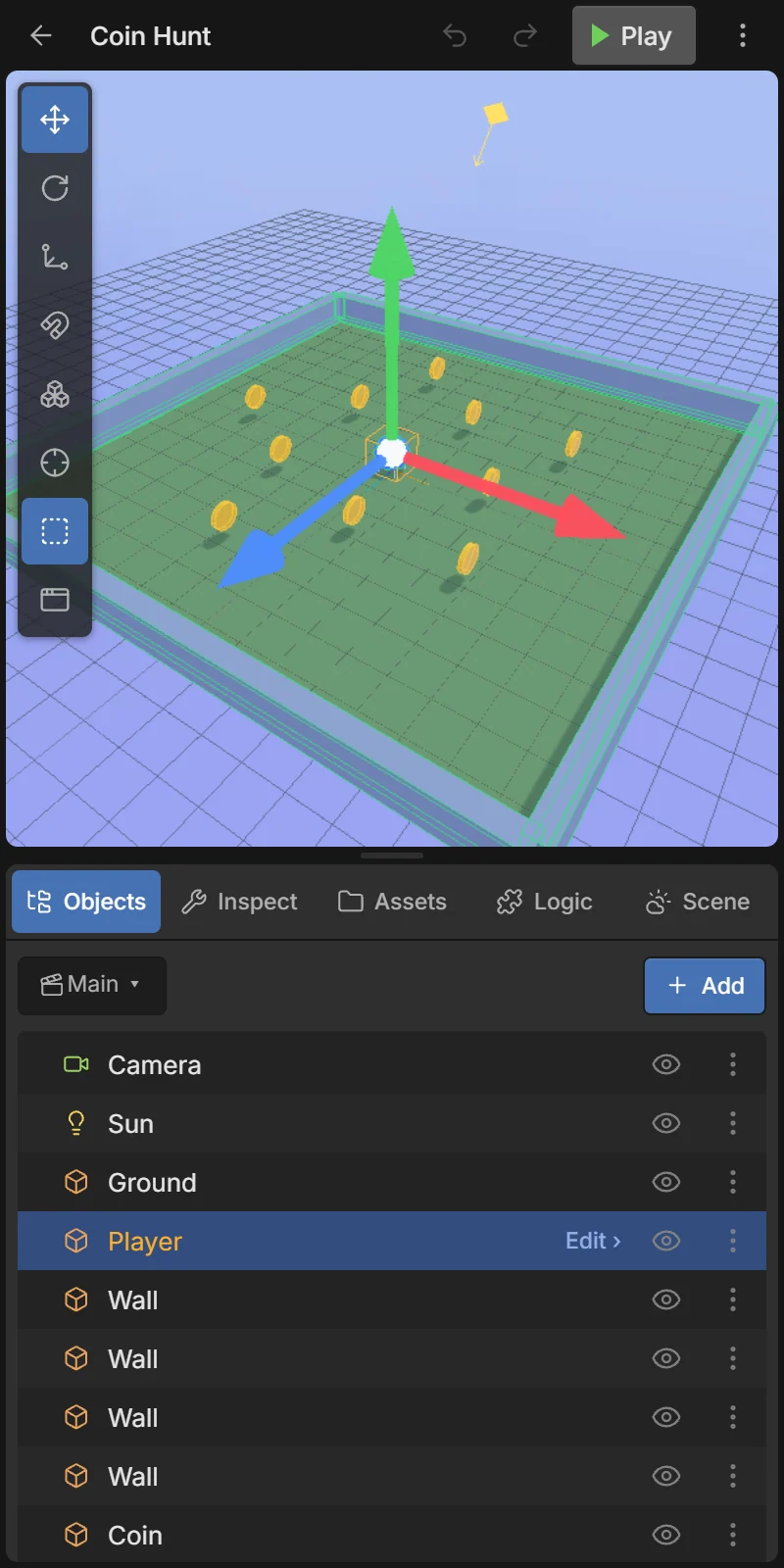
- 7Colliders — show the invisible physics shapes (green outlines).
- 8UI — UI mode: edit on-screen buttons and labels. See Game UI.
With several objects selected an extra Pivot button appears (see below).
Move, rotate and scale (the gizmo)
The selected object shows a gizmo. Drag its handles:
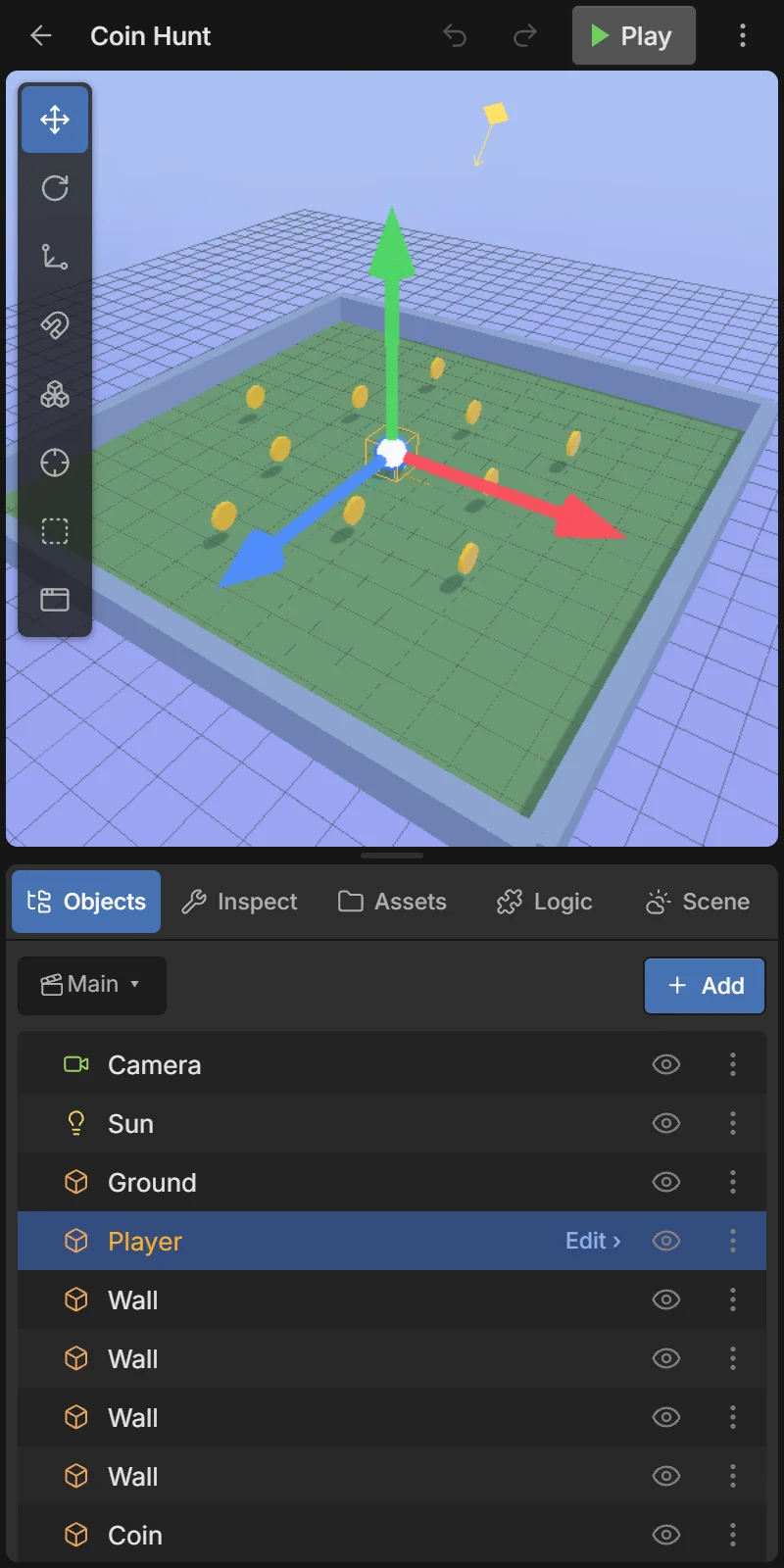
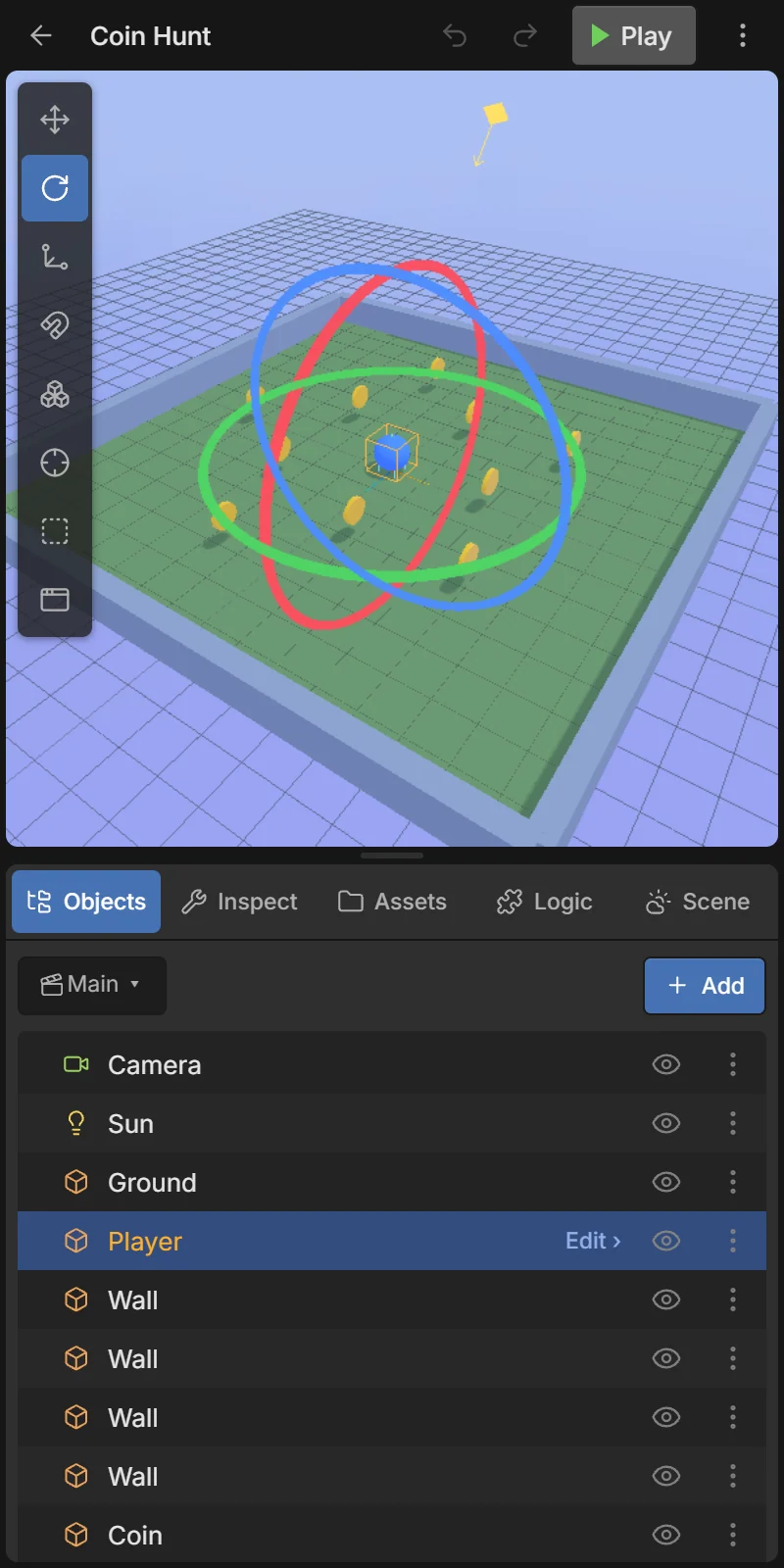
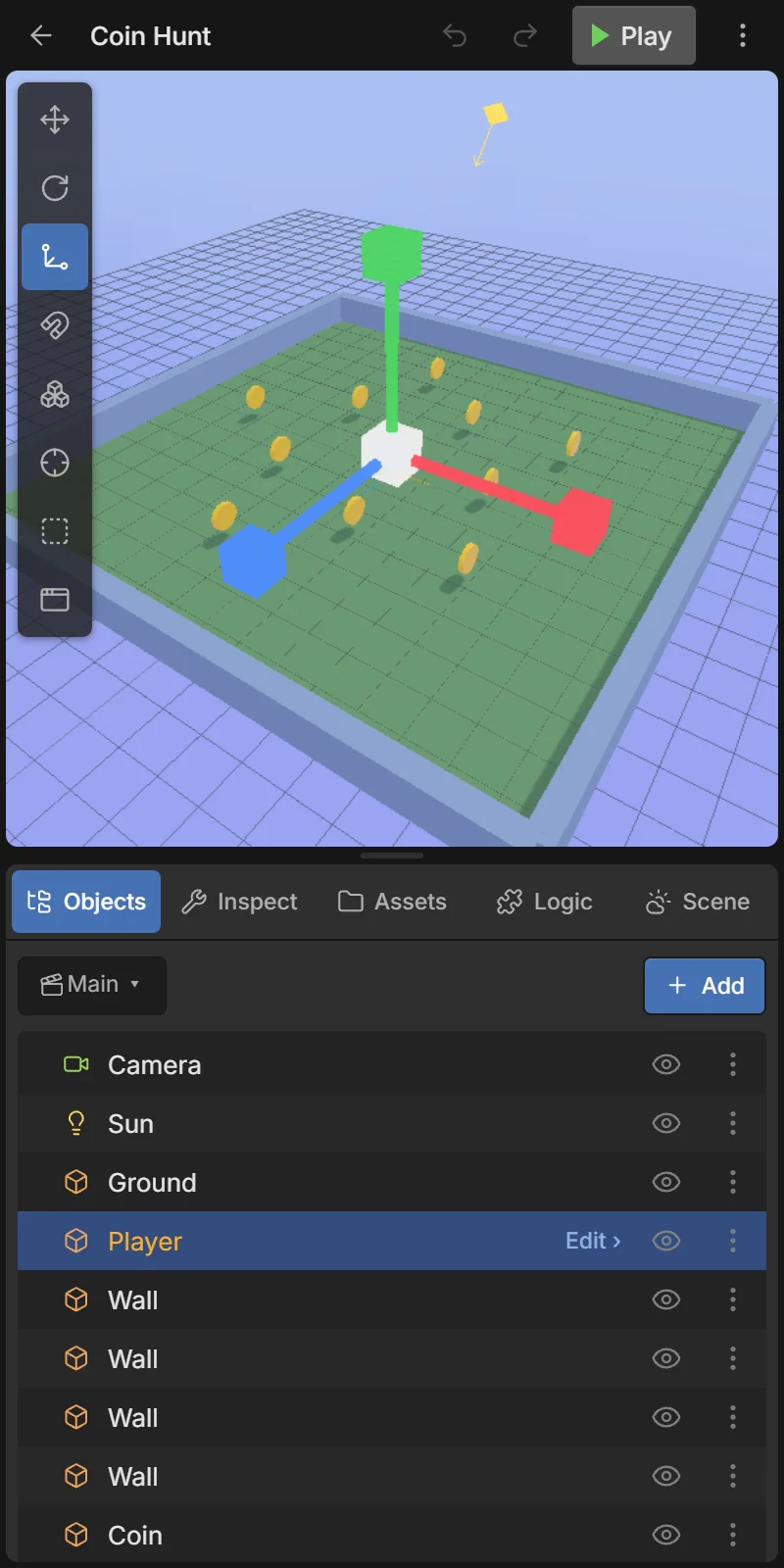
The colors are the axes: red = X (left/right), green = Y (up/down), blue = Z (forward/back).
- In Move mode you can also drag the object itself to slide it along the ground.
- Every drag is one undo step.
- For exact values, type them in the Inspector’s Transform card.
Snap
Turn on Snap to move in 0.5 m steps and rotate in 15° steps — handy for lining up walls and floors. A short message confirms it. Tap it again to turn it off.
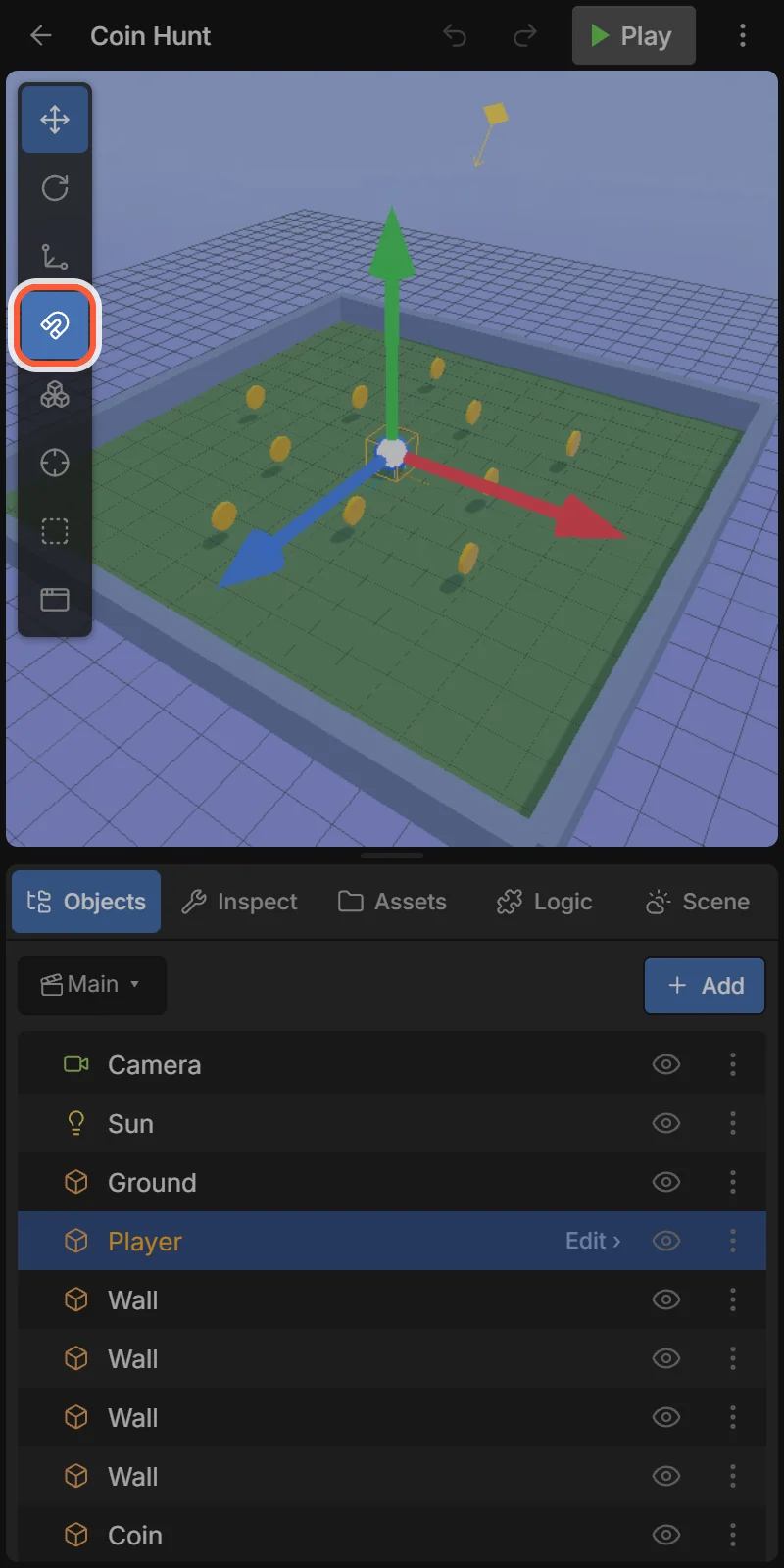
Show colliders
Physics uses collider shapes that can differ from what you see. Turn on Colliders to draw them as outlines. Useful when something falls through the floor or bumps into air. See Physics.
Select several objects
- 1Tap Multi, then tap objects (in the view or the Objects list) to add or remove them.
- 2Pivot — turn and scale around the middle of the group, or each object around its own center.
- 3The Objects tab shows how many are selected; tap it (Done) to finish.
With a keyboard, hold Shift or Ctrl while tapping.
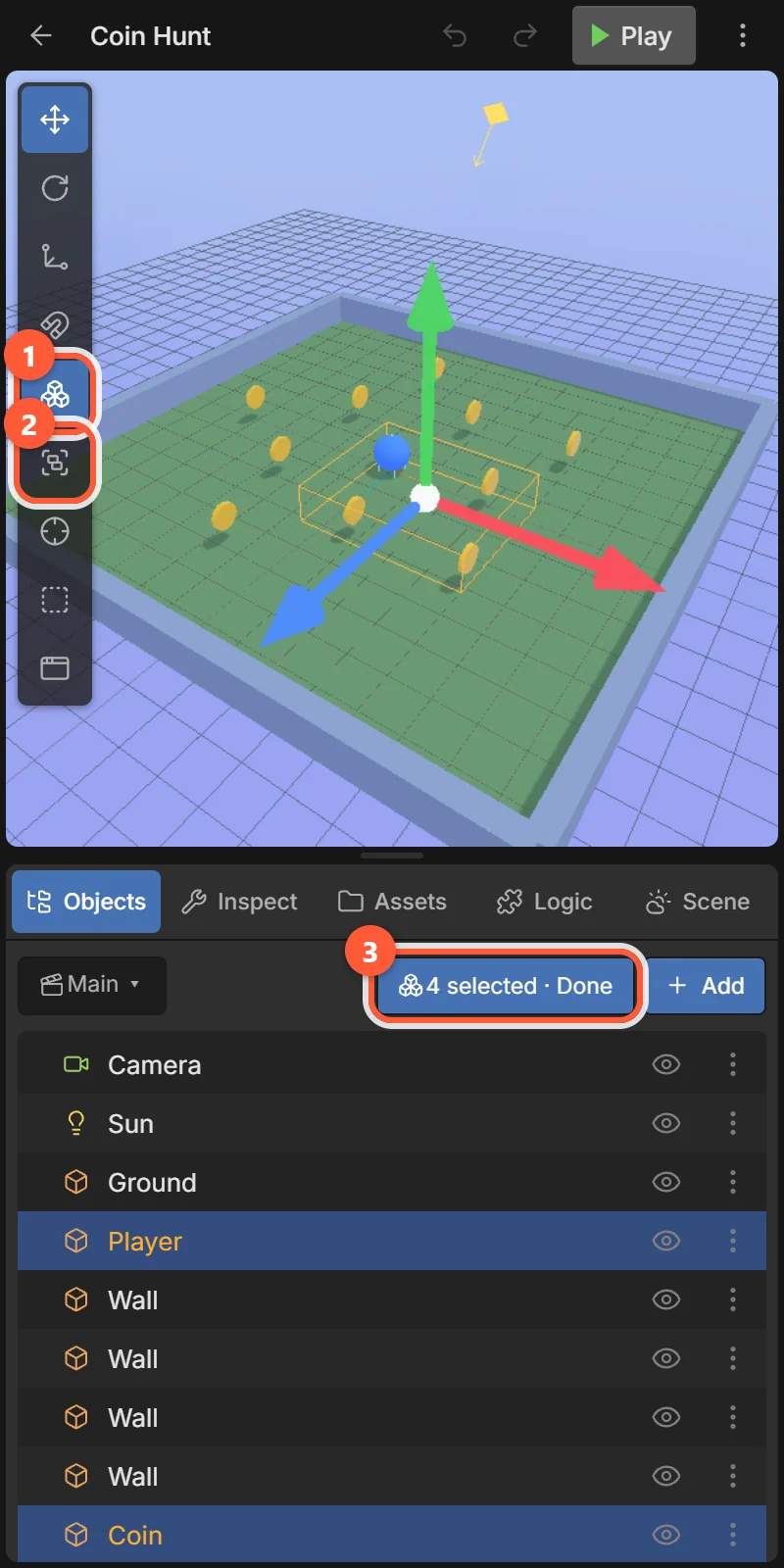
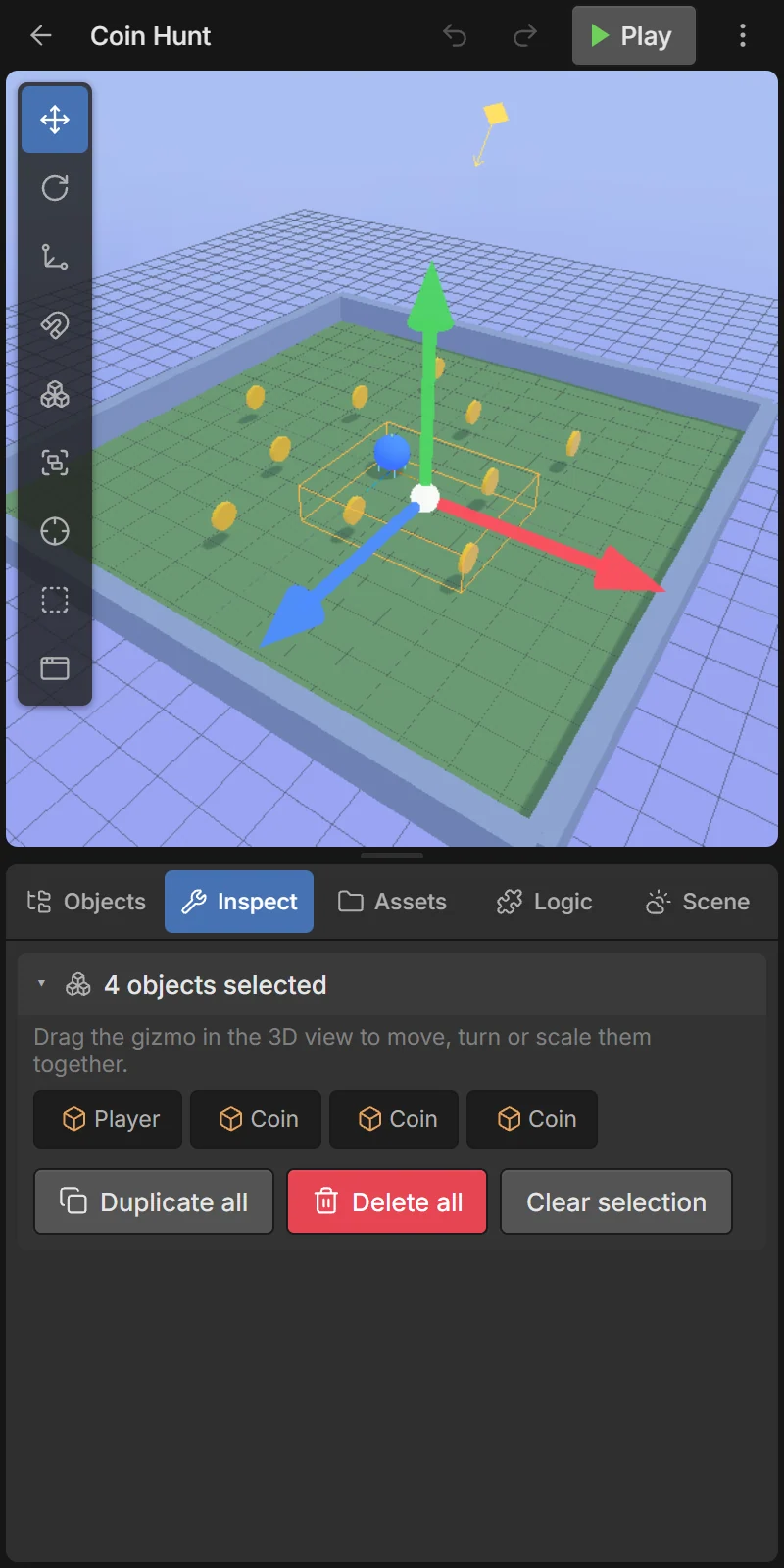
The gizmo now moves, rotates and scales them together. The Inspector shows the group: tap a name to edit just that one, or Duplicate all, Delete all, Clear selection.