Tutorial 2: Keep score and win

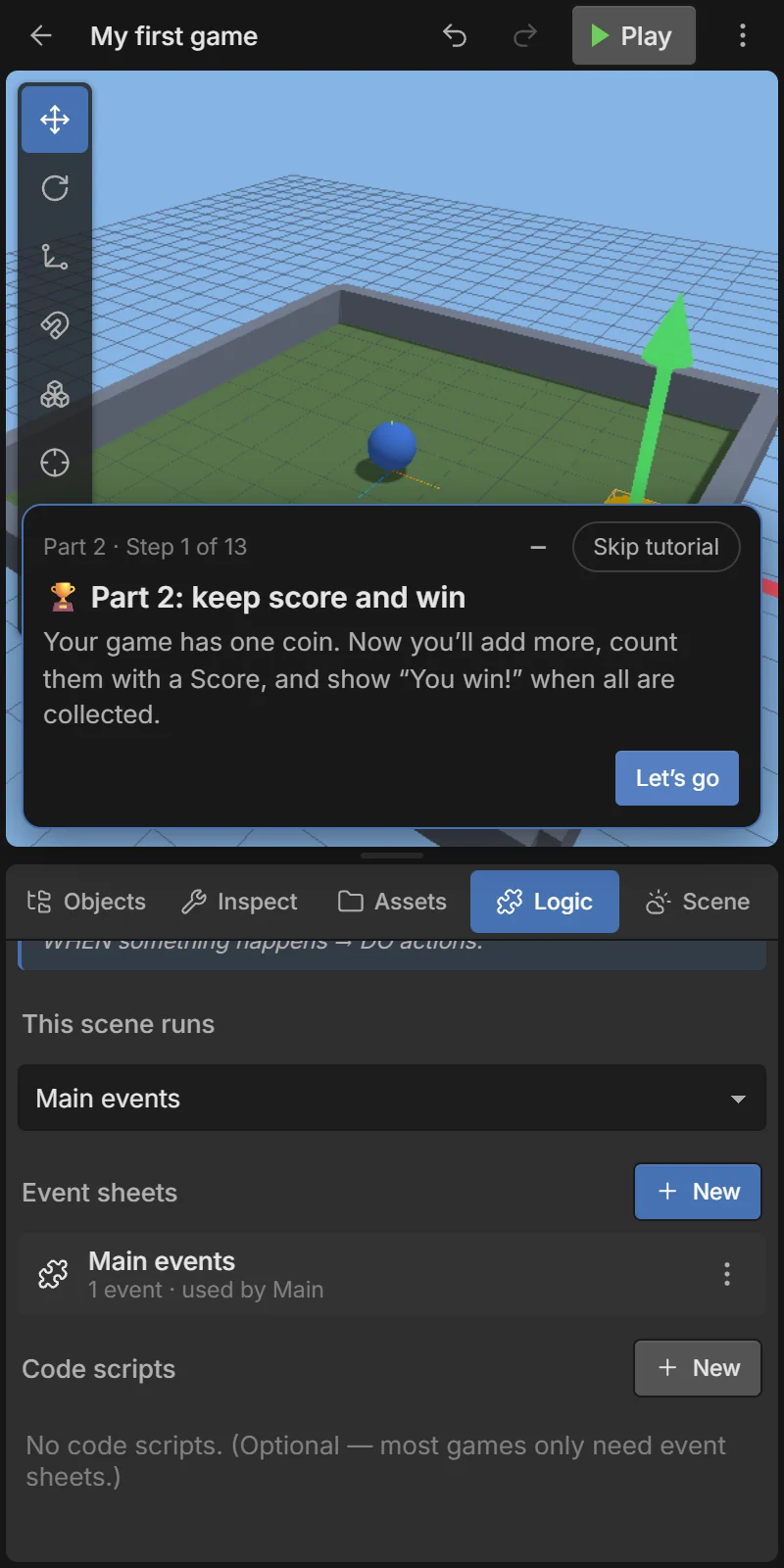
Your game has one coin. Now you will add more, count them with a Score variable, show the score on a label, and show “You win!” when all are collected.
At the end of Tutorial 1 tap Continue to part 2, or on the home screen tap New here? Make your first game → Part 2 (it starts from a finished Part 1).
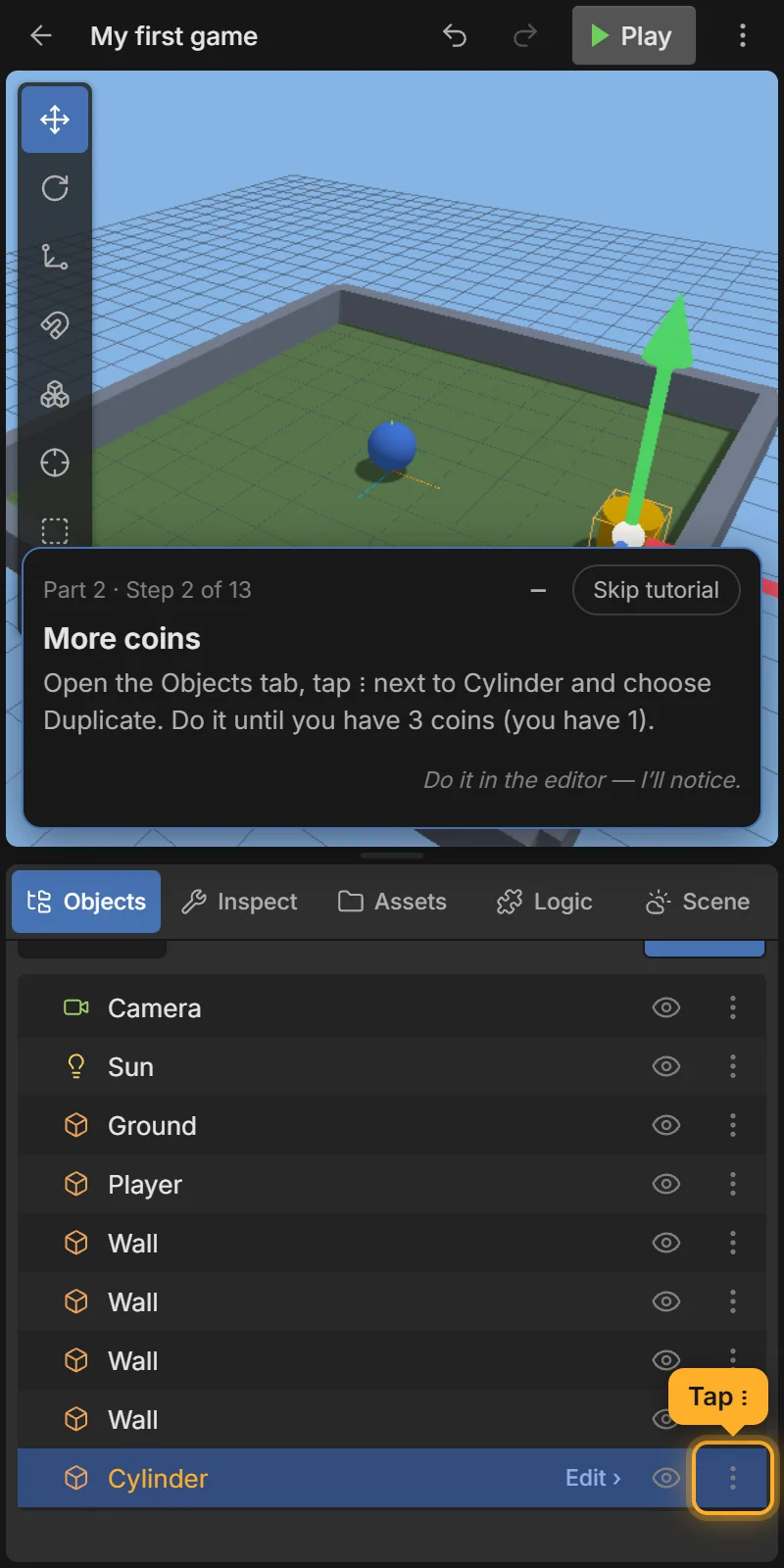
In the Objects tab tap ⋮ next to the coin and choose Duplicate. Do it until you have 3 coins.
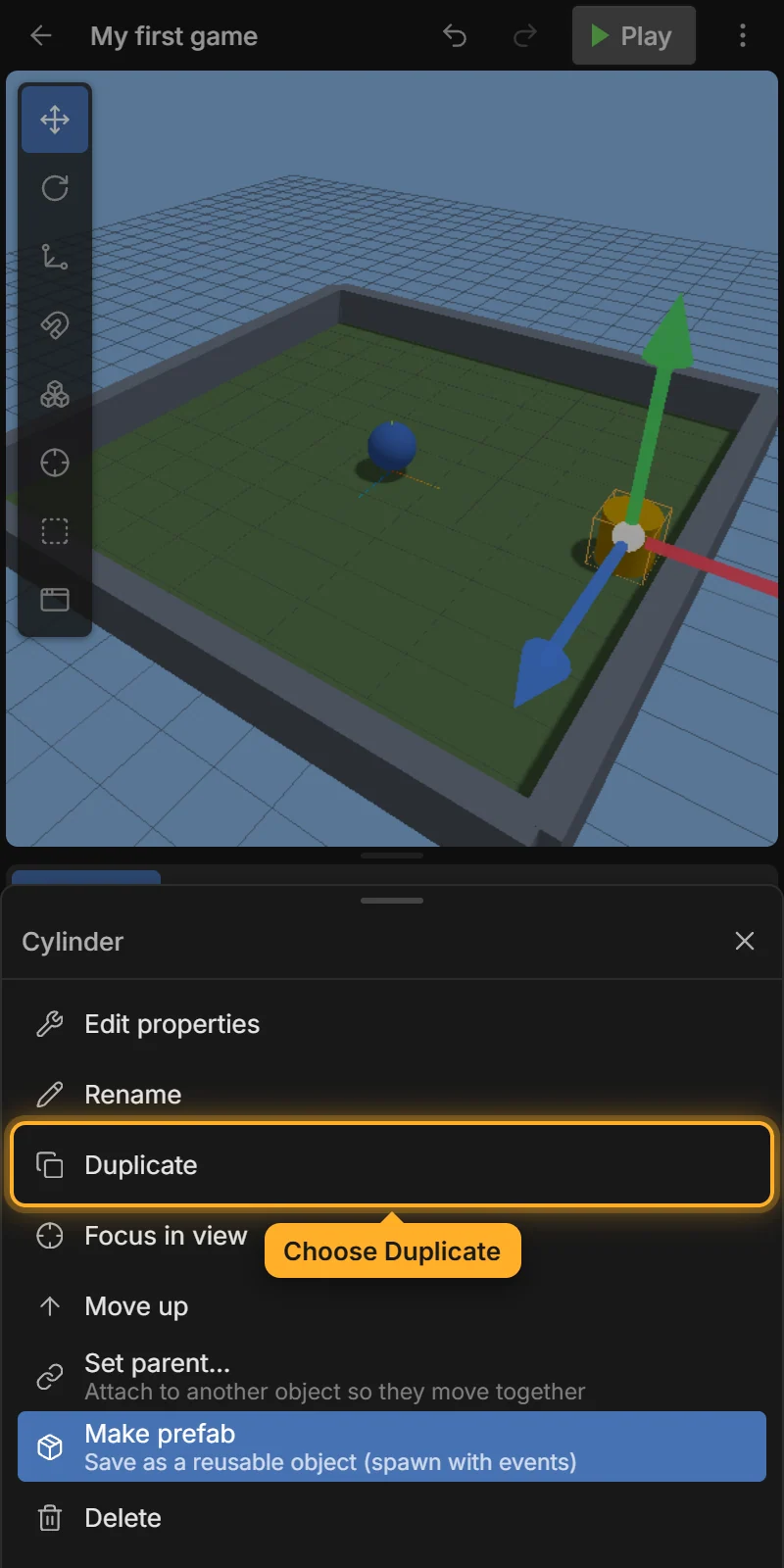
Copies share the same name, so they are all instances of the same object type — one event works for all of them.
The copies sit on top of each other. Tap each coin (in the 3D view or in the Objects list) and drag its arrows so the coins are spread around the arena. You can also type a Position in the Inspect tab.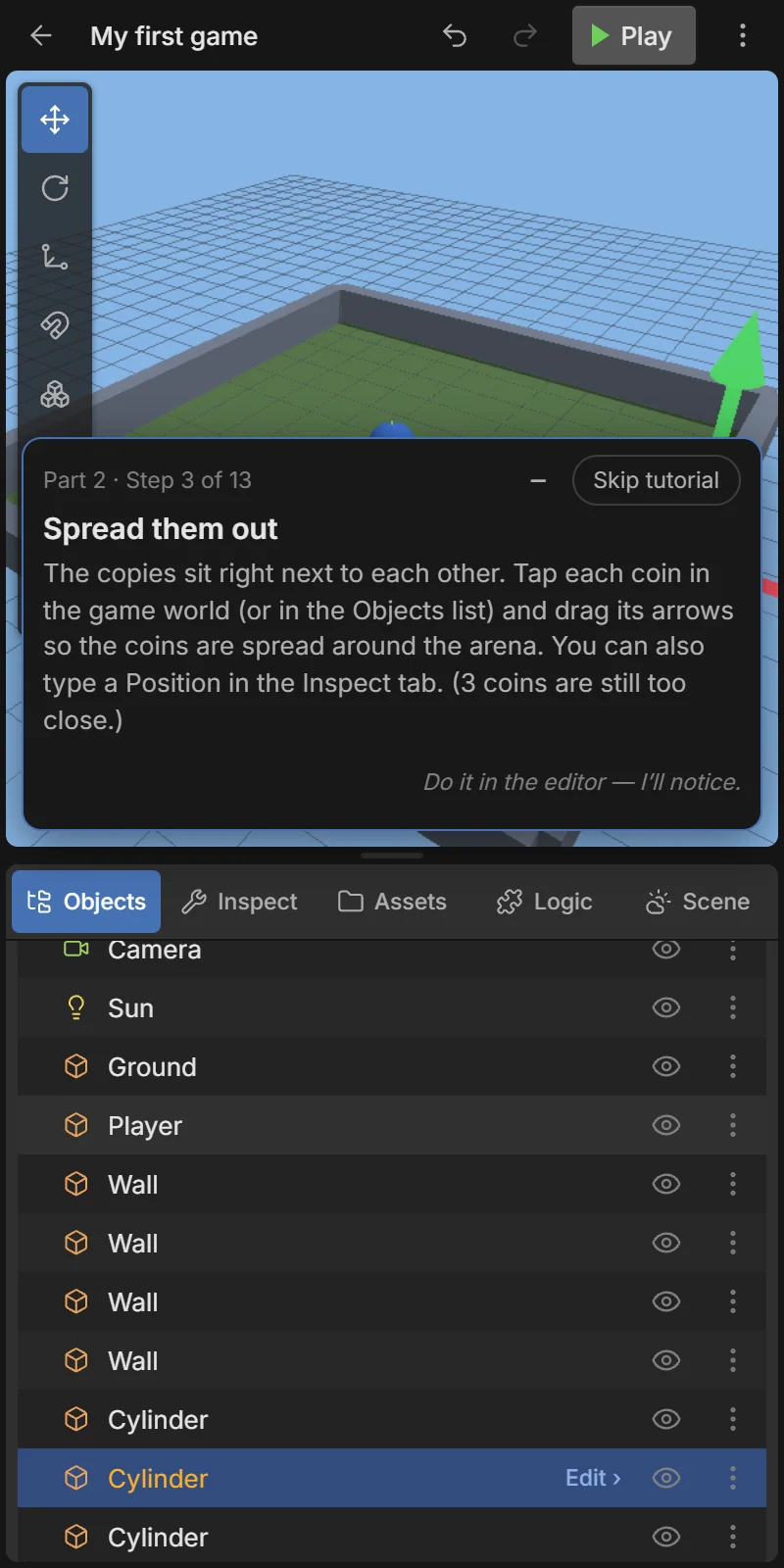
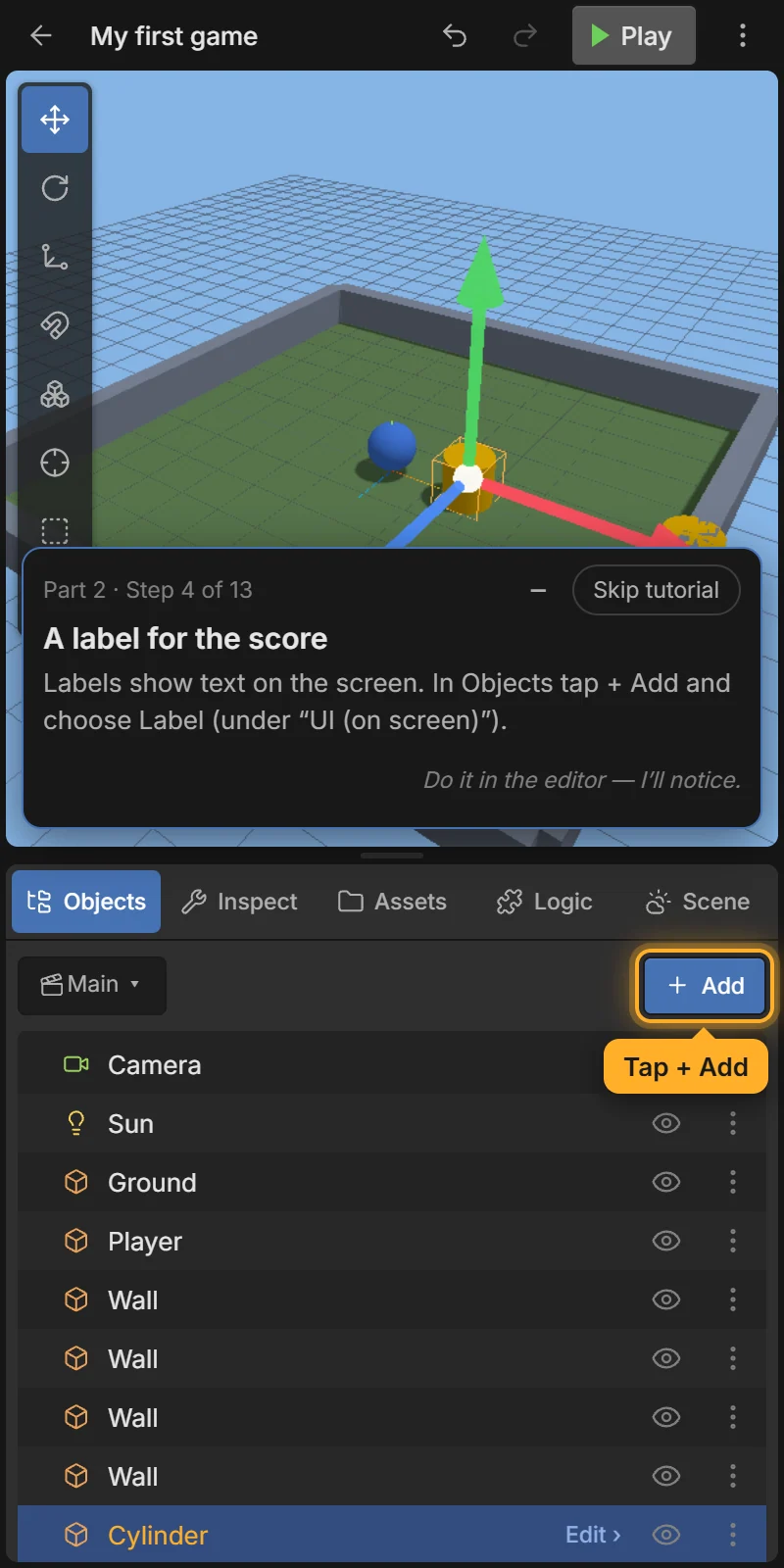
Labels show text on the screen. In Objects tap + Add and choose Label (under UI (on screen)). Then, in Inspect, change its Text to Score: 0.
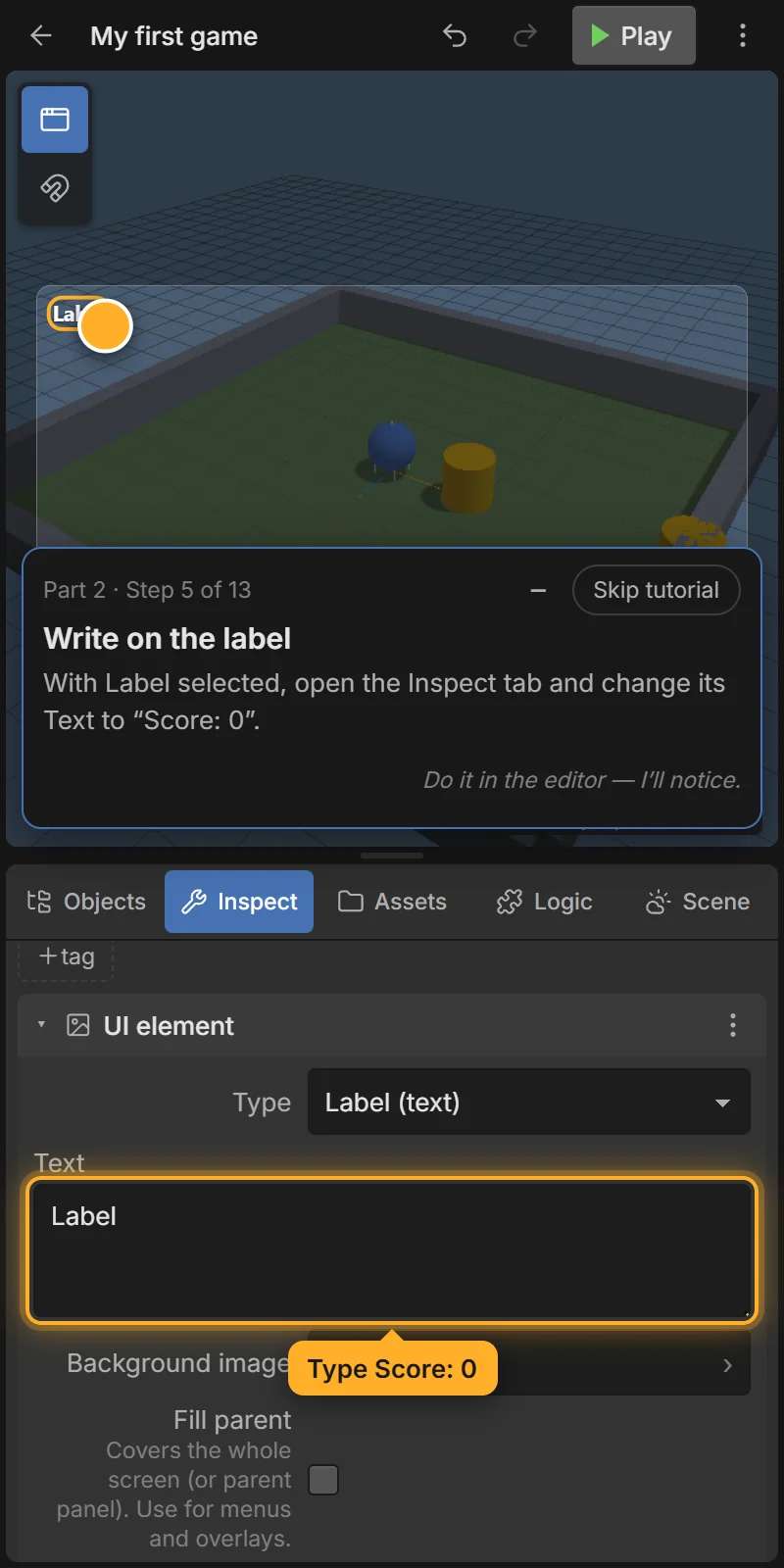
When a UI element is selected, the 3D view switches to UI mode and shows the game screen as a frame. See Game UI.
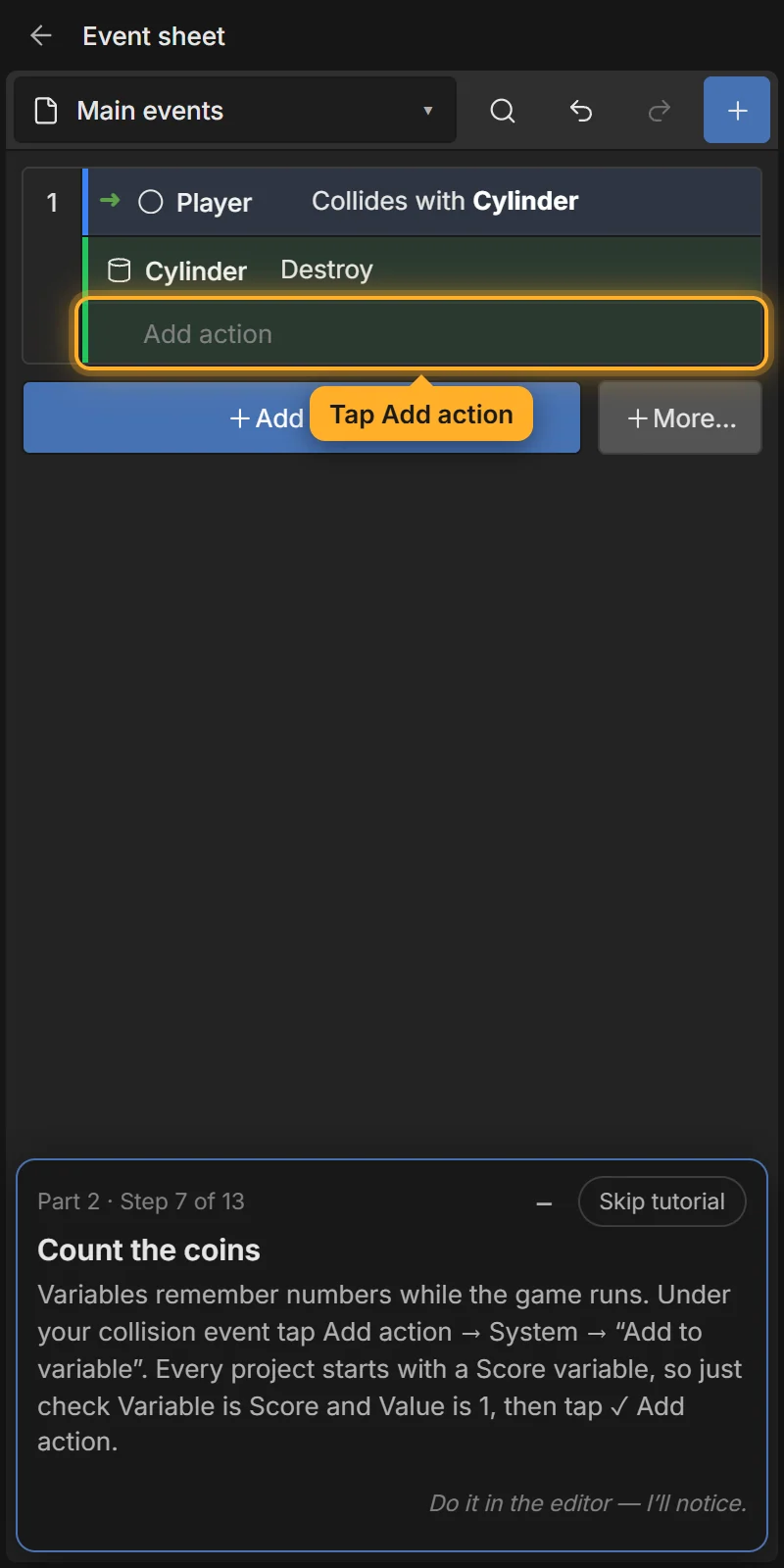
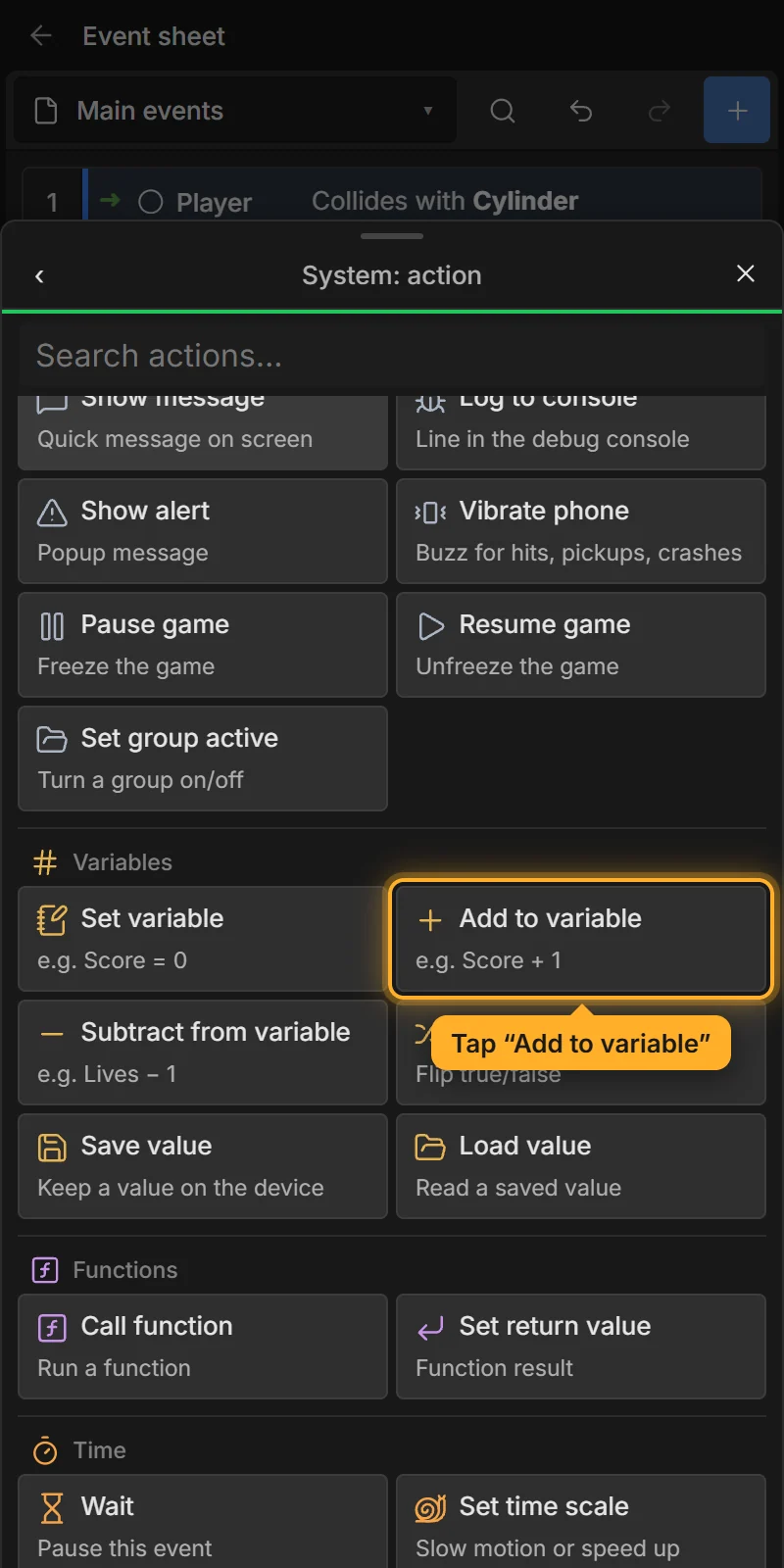
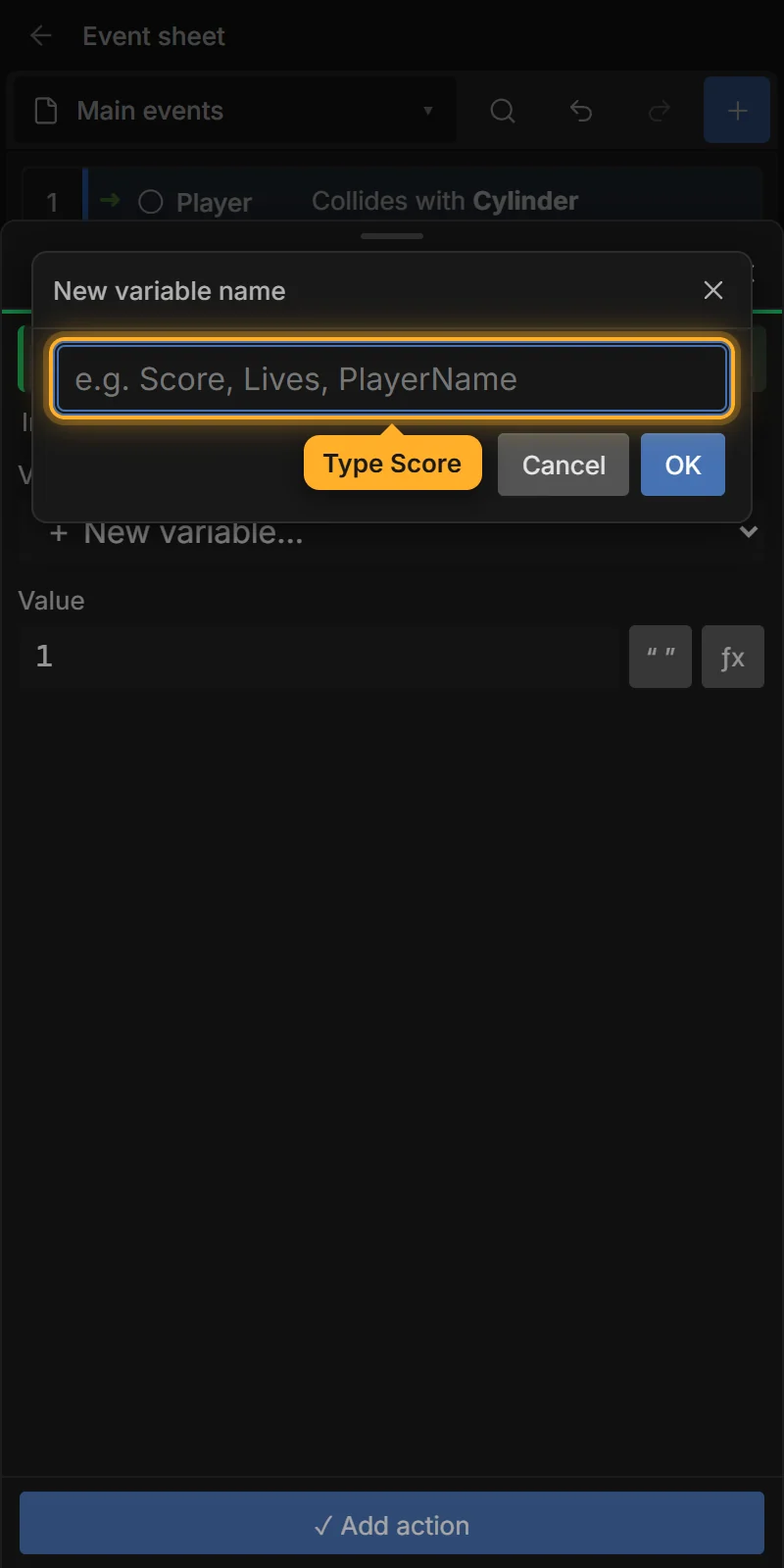
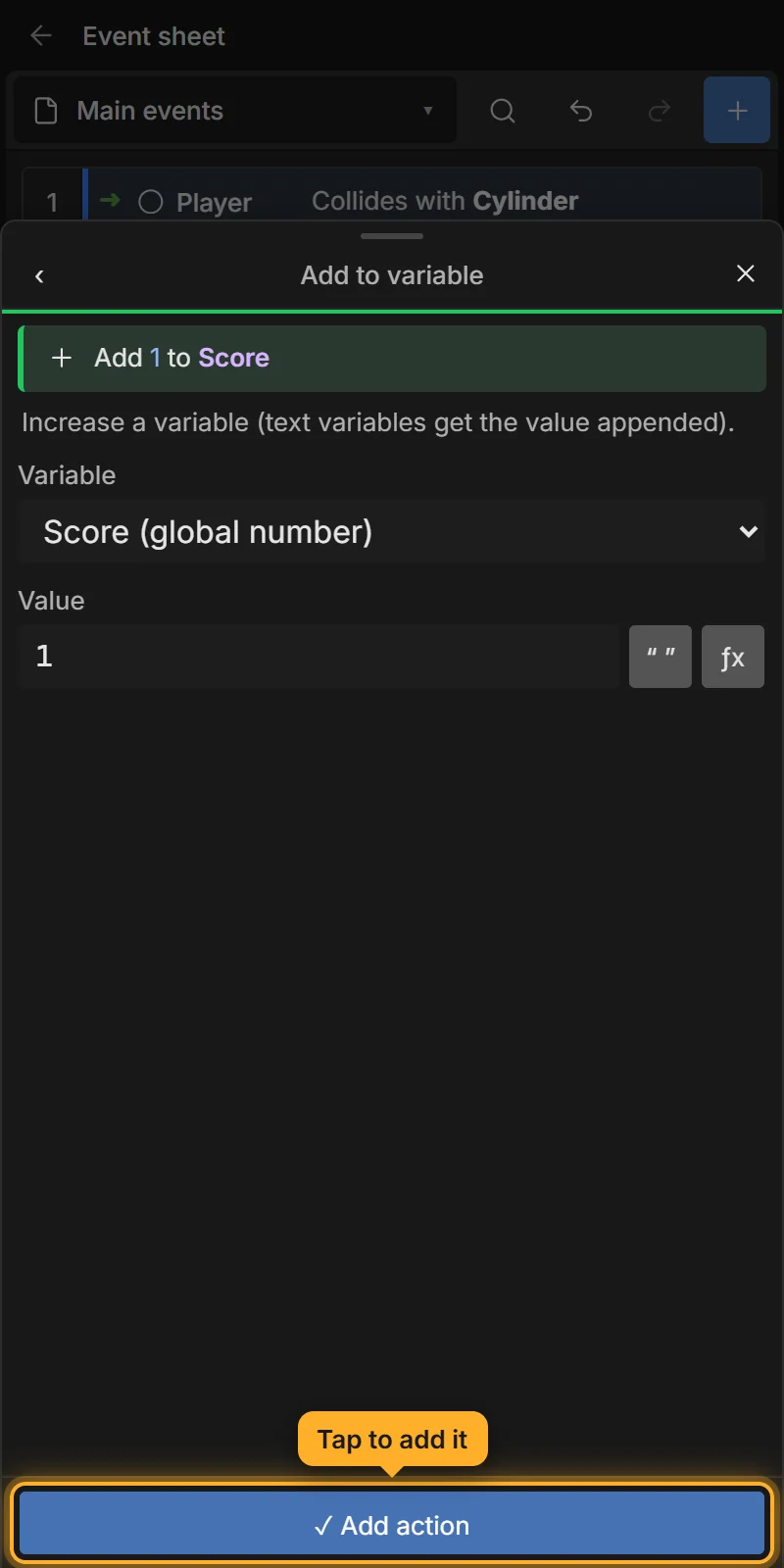
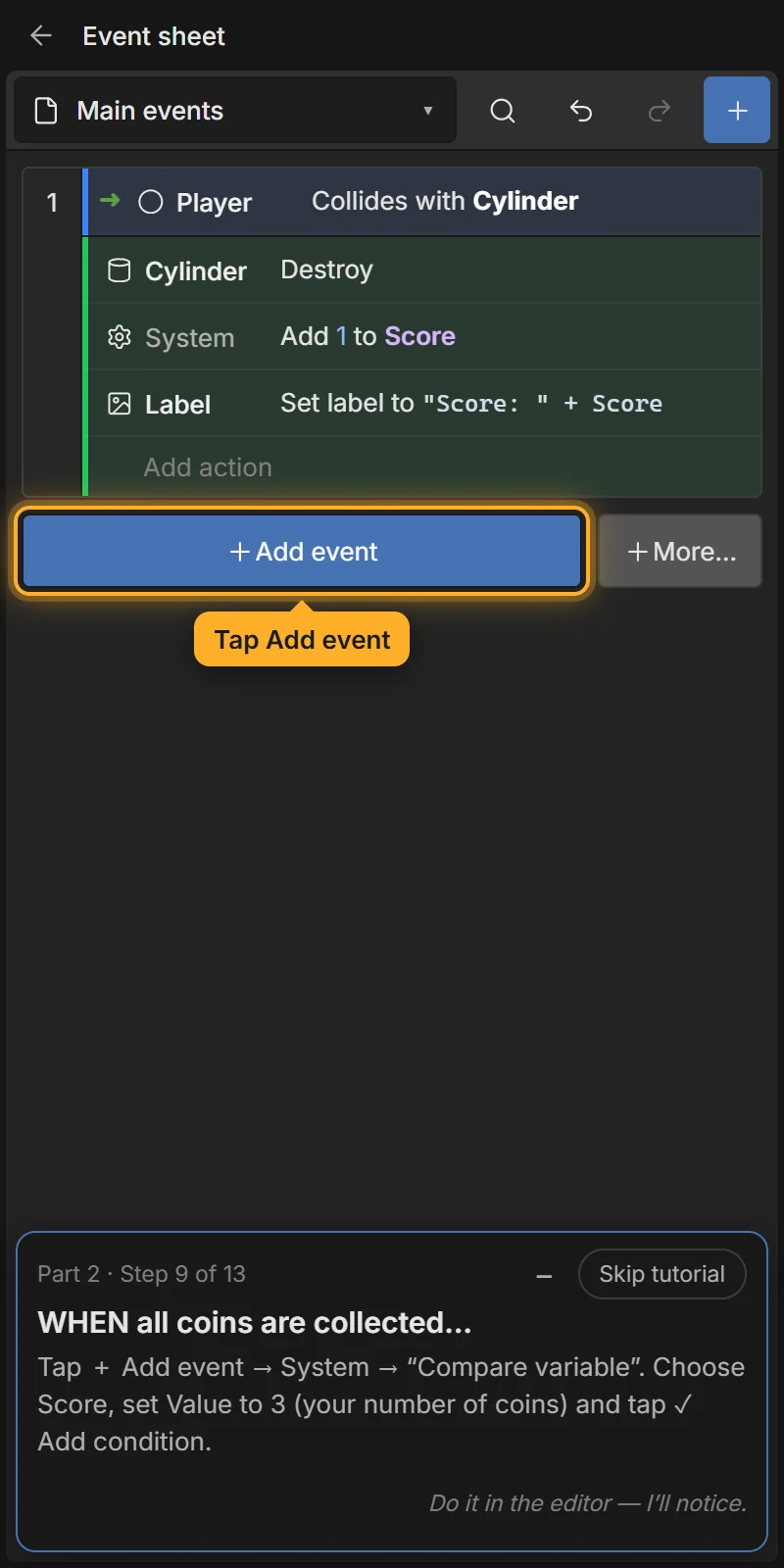
Open Logic → Main events. Under your collision event tap Add action → System → Add to variable. Variables remember numbers while the game runs. Choose Score (if it isn’t there, pick + New variable… and name it Score), keep Value at 1, and tap ✓ Add action.
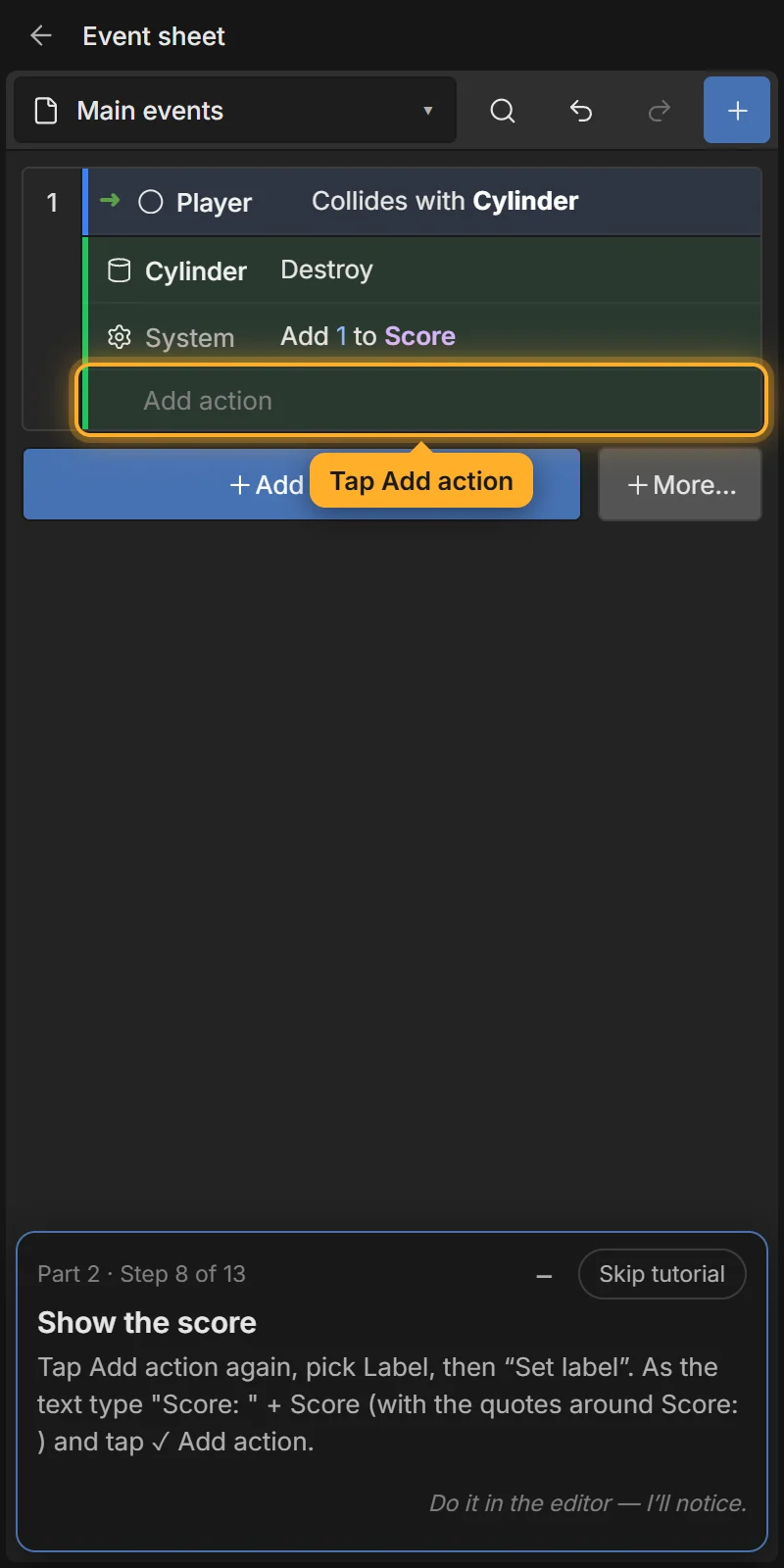
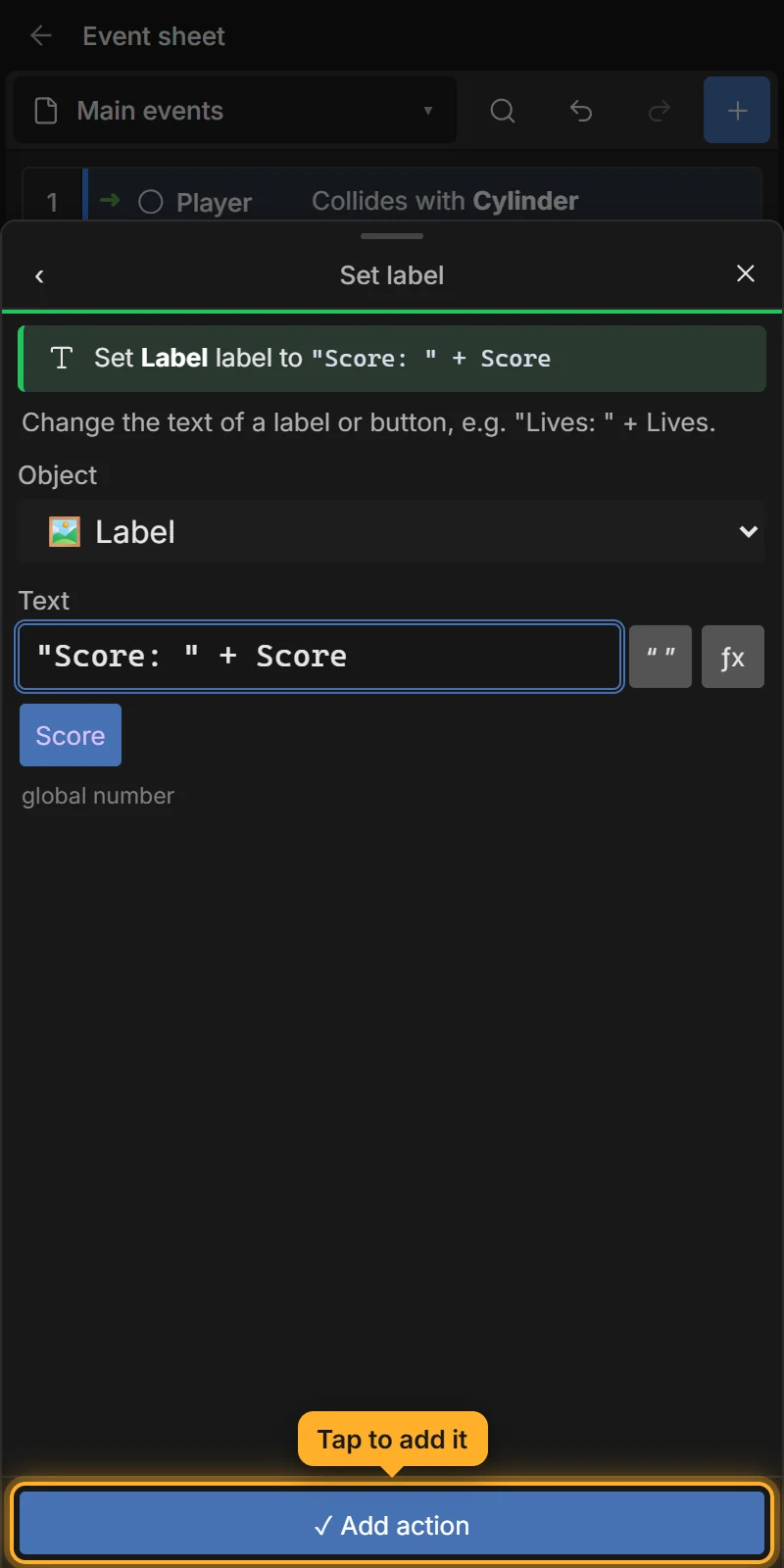
Tap Add action again, pick Label, then Set label. As the text type
"Score: " + Score
with the quotes around Score: . Text in quotes is shown as it is; Score without quotes is the variable’s value. Tap ✓ Add action.
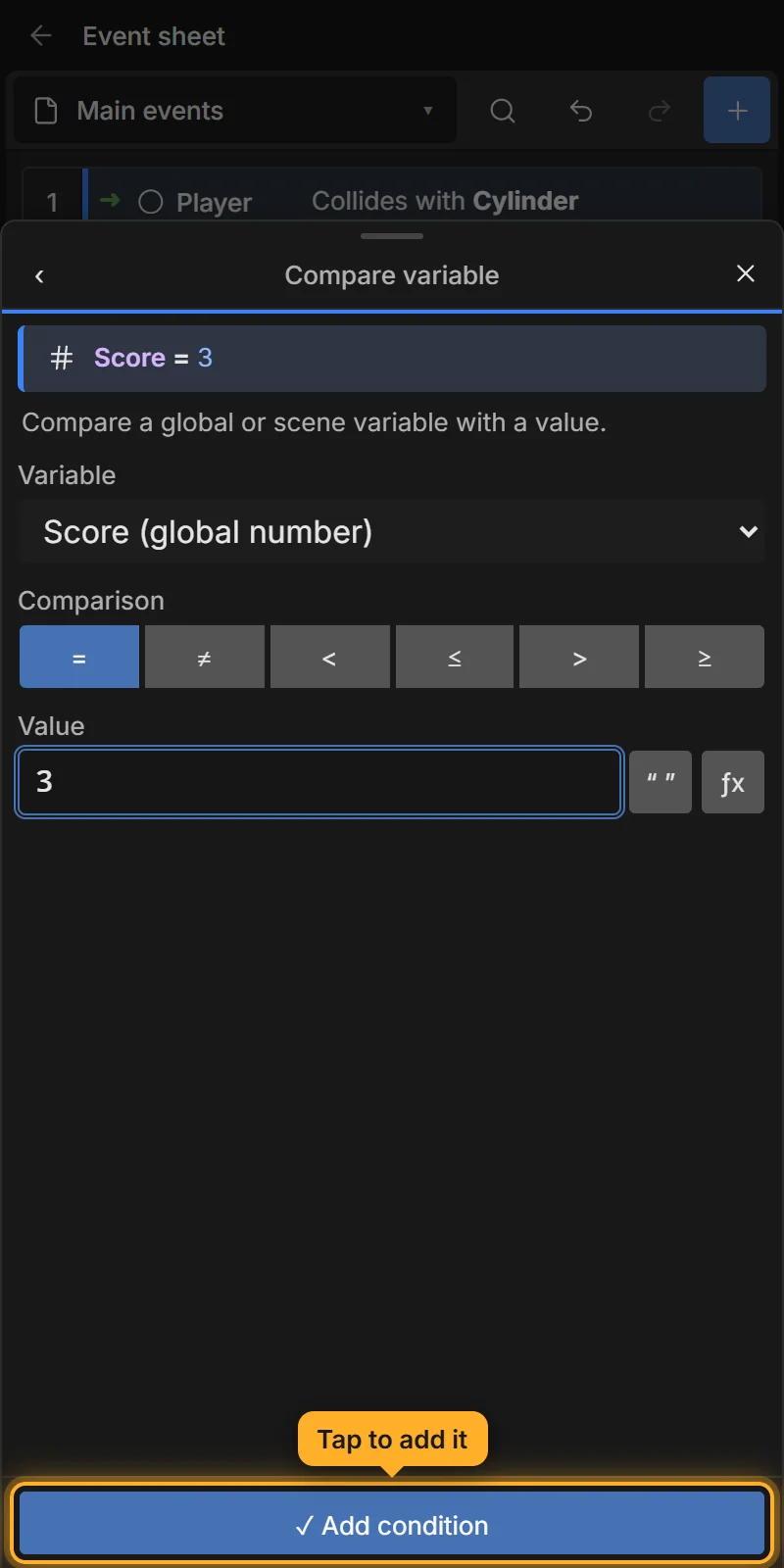
Tap + Add event → System → Compare variable. Choose Score, keep =, set Value to 3 (your number of coins) and tap ✓ Add condition.
Under that new event tap Add action, pick Label, Set label, type "You win!" (with the quotes) and tap ✓ Add action. Your sheet now has two events: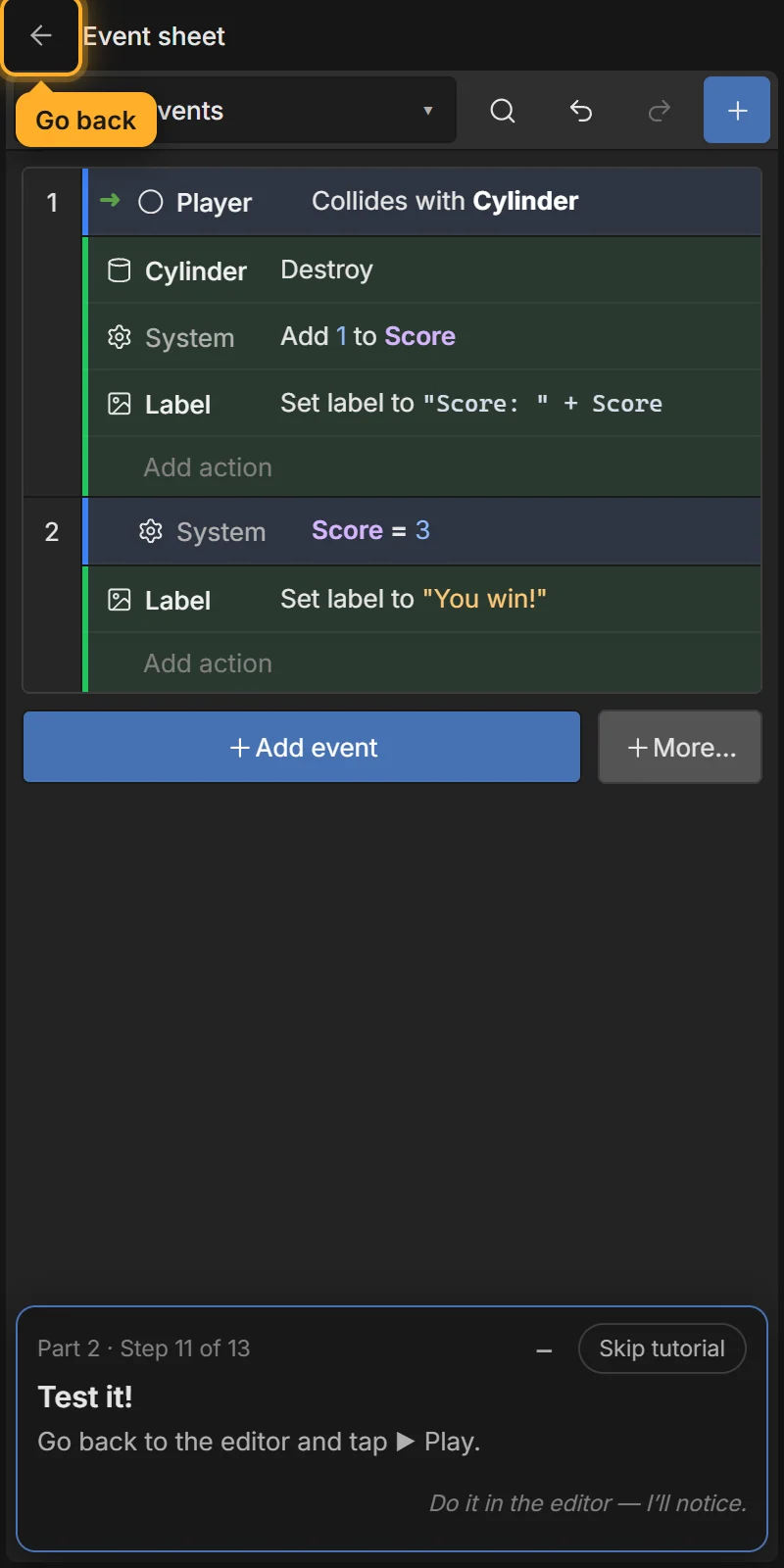
- WHEN Player collides with Cylinder → destroy that coin, add 1 to Score, show the score.
- WHEN Score = 3 → show “You win!”.
Only the coin the ball touched is destroyed, not all of them: the collision condition picks that coin, and actions only apply to picked instances. See How events work.
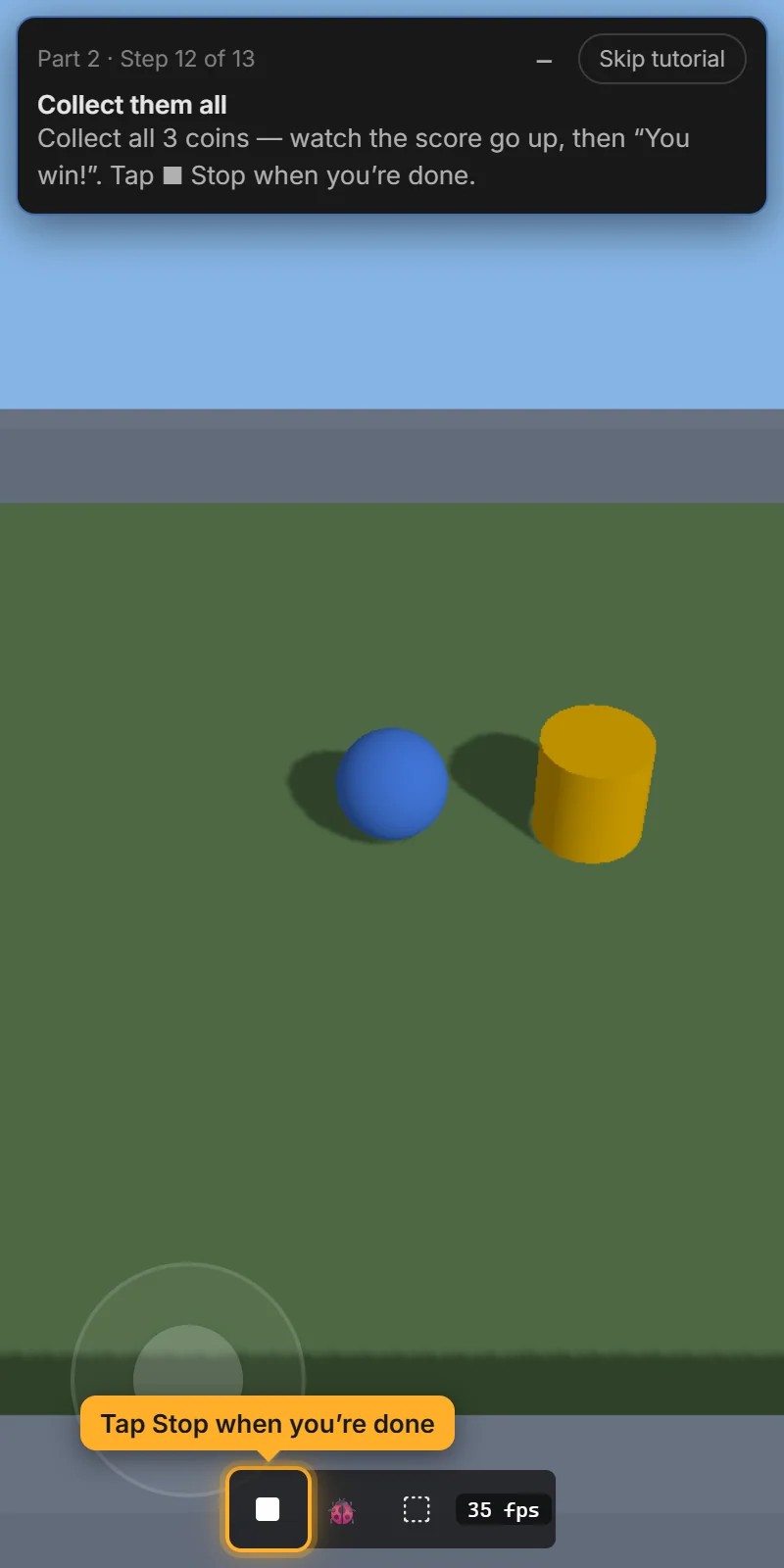
Go back, tap ▶ Play and collect all the coins. Watch the score go up, then “You win!”.
What next?
- Add a sound when a coin is collected: Audio → Play sound (see Sound).
- Add a timer: Time → Start timer and On timer finished (see Advanced events).
- Add a second level: a new scene and Go to scene (see Scenes).
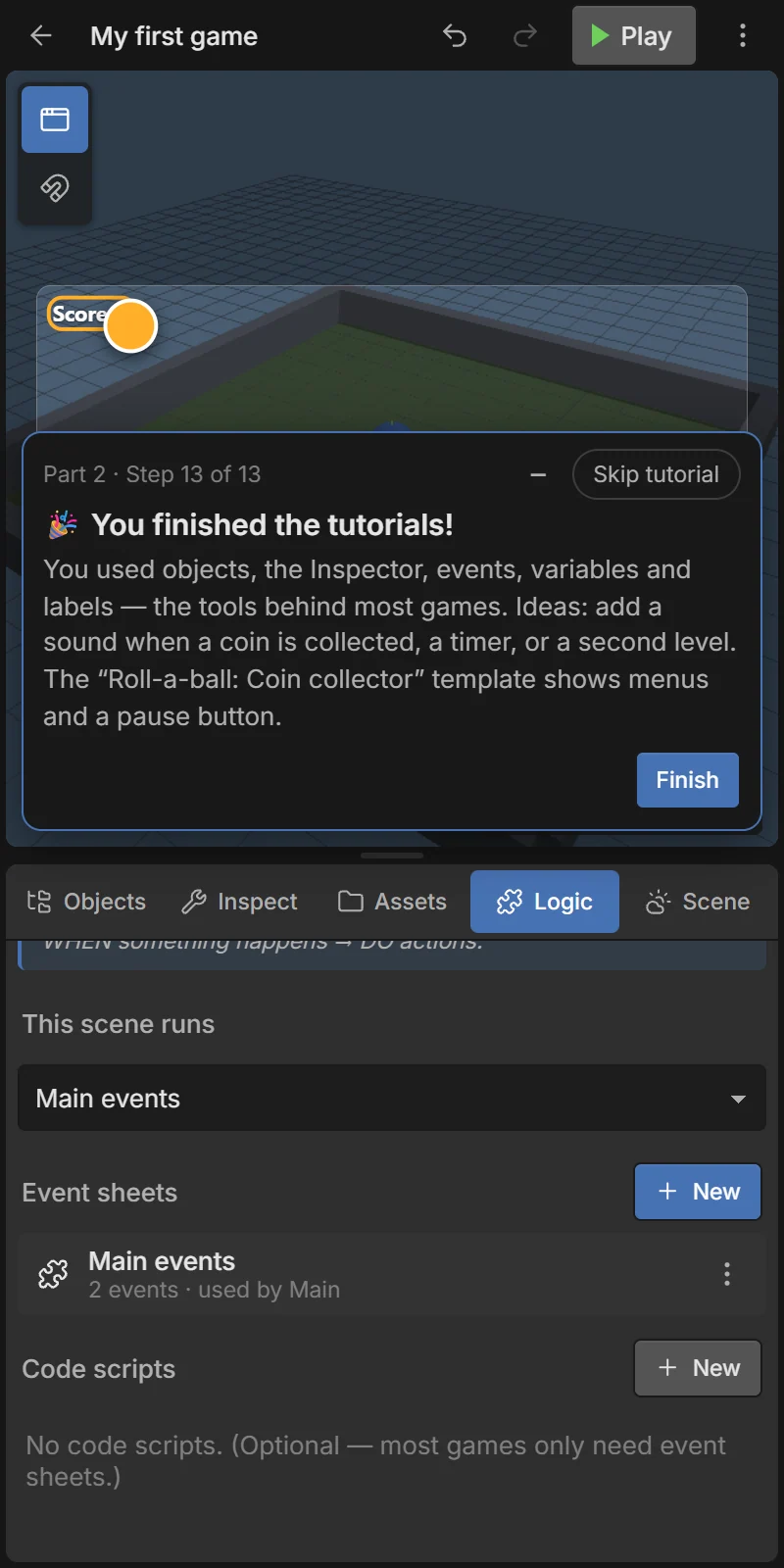
- Open the Roll-a-ball: Coin collector template: it has a start menu, a coin bar, a pause button and a win screen (see Templates).