The event sheet editor
Open Logic and tap an event sheet. The editor fills the screen; ← goes back. The screenshots use the Roll-a-ball template’s sheet.
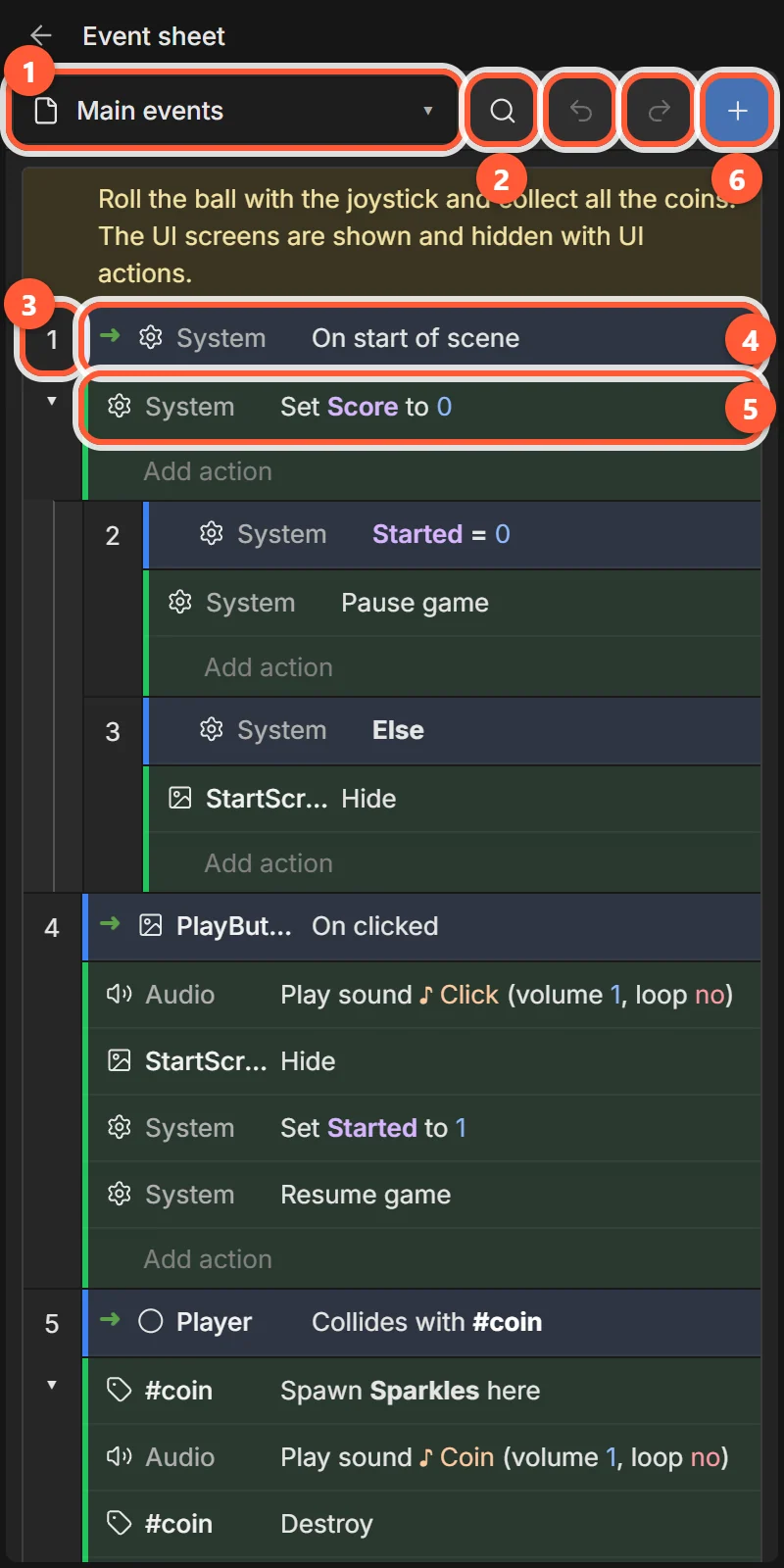
- 1Sheet — which sheet is open. Tap to switch sheets, create one, rename it, choose which scene uses it, include other sheets, or delete it.
- 2🔍 Find, ↶ Undo, ↷ Redo, + Add.
- 3Event number — tap to select the event, long-press for its menu.
- 4Conditions (left, blue edge) — the WHEN part. The object column shows what each is about.
- 5Actions (green edge) — the DO part. Add action is at the bottom.
- 6+ Add — add an event, group, comment, variable, function or script. The bottom of the sheet also has + Add event and + More….
Add an event
Tap + Add event at the bottom (or + at the top).
Choose System or Input for general conditions, or an object from the scene (or a #tag). Objects show how many instances they have.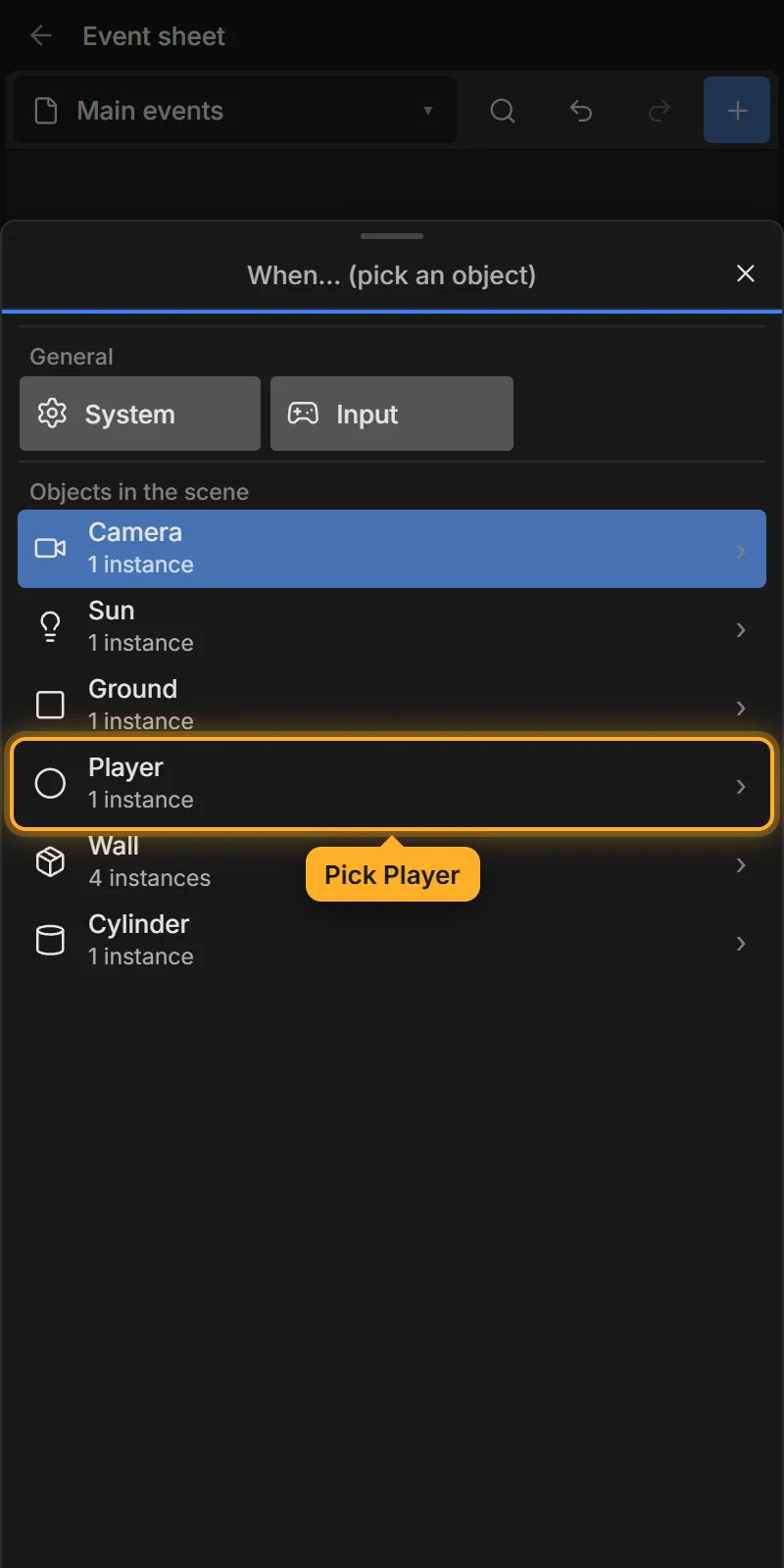
Conditions are grouped by category, with a short hint on each. Type in Search to find one. ⚡ marks triggers.
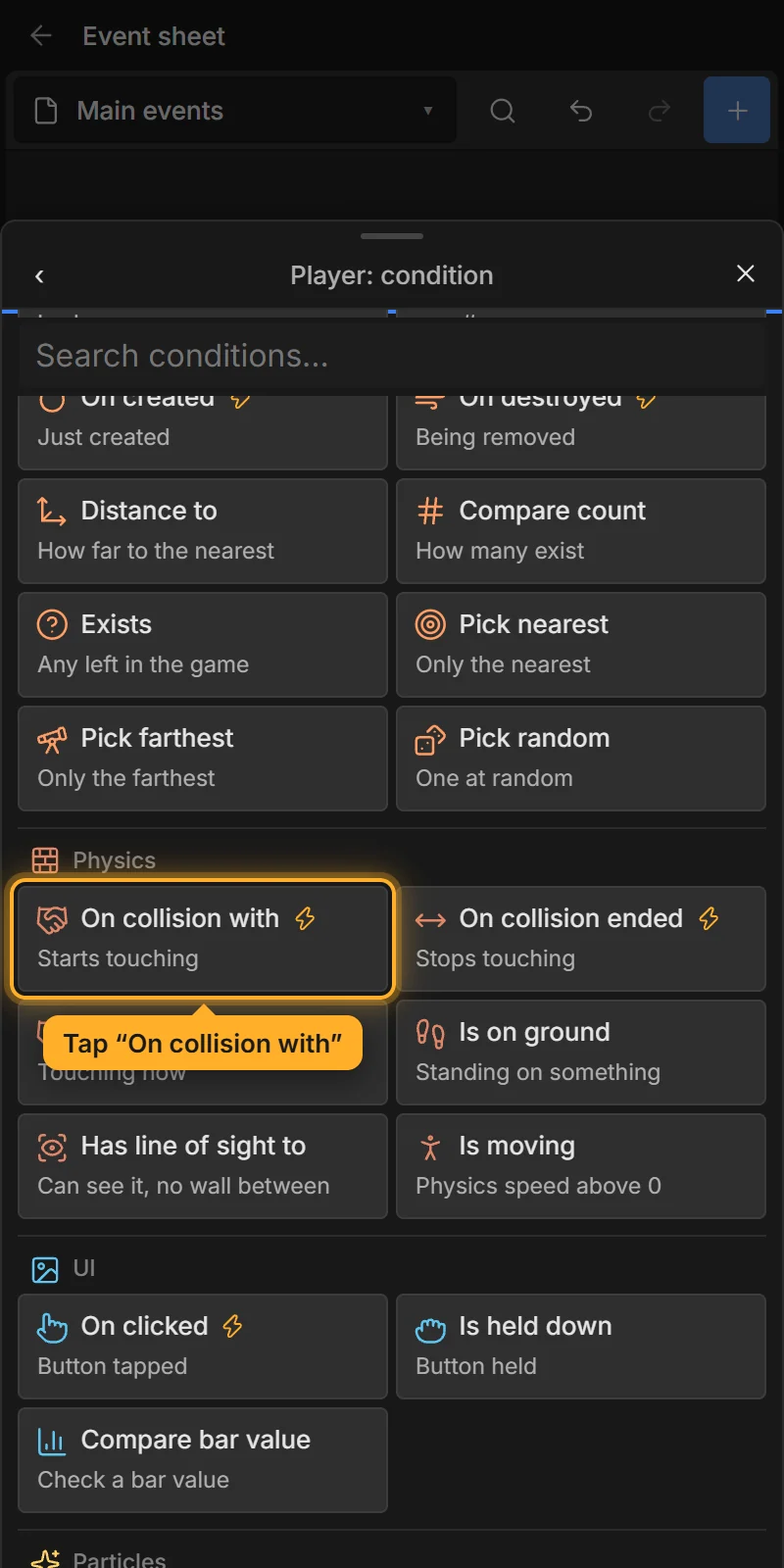
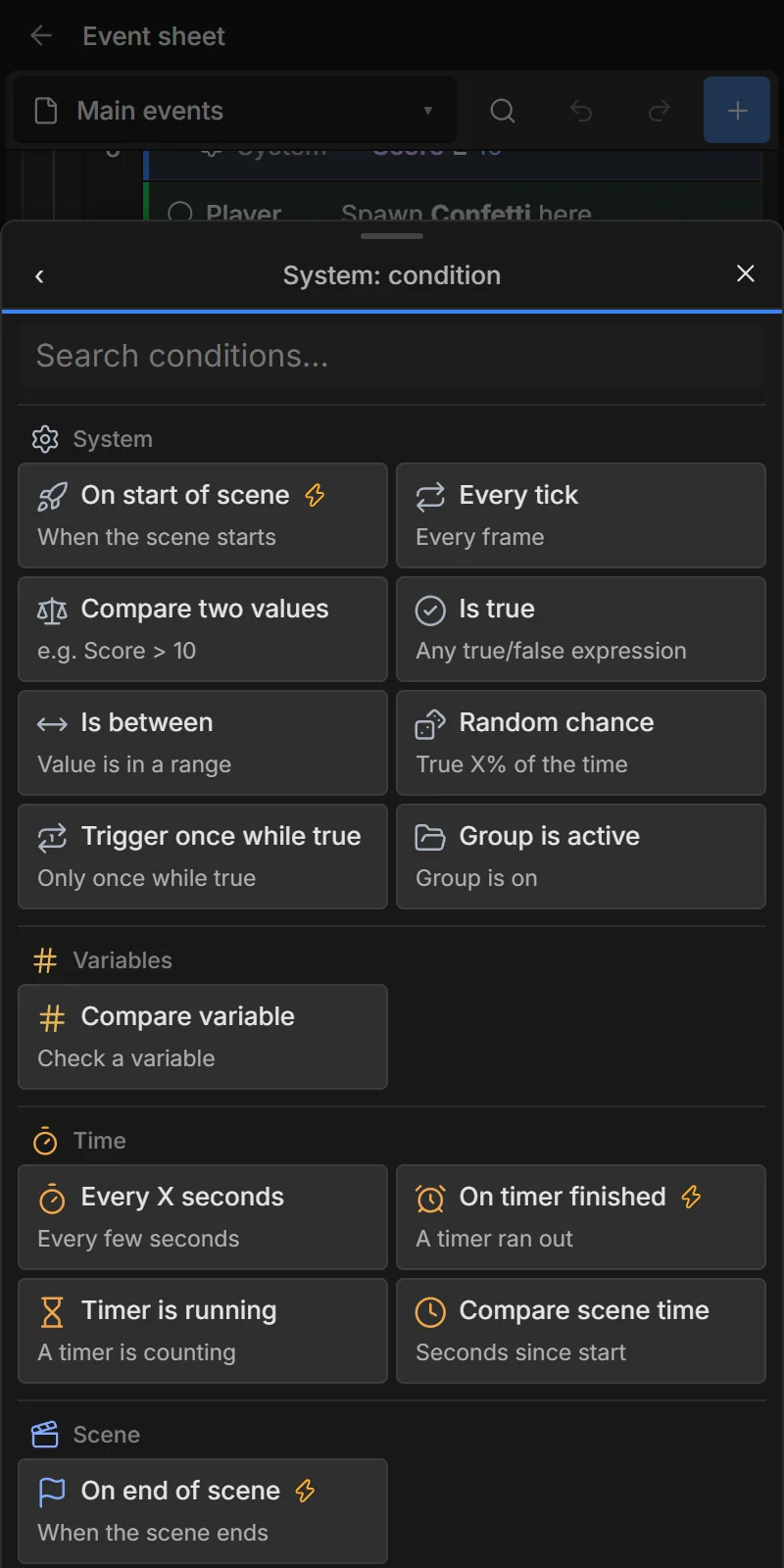
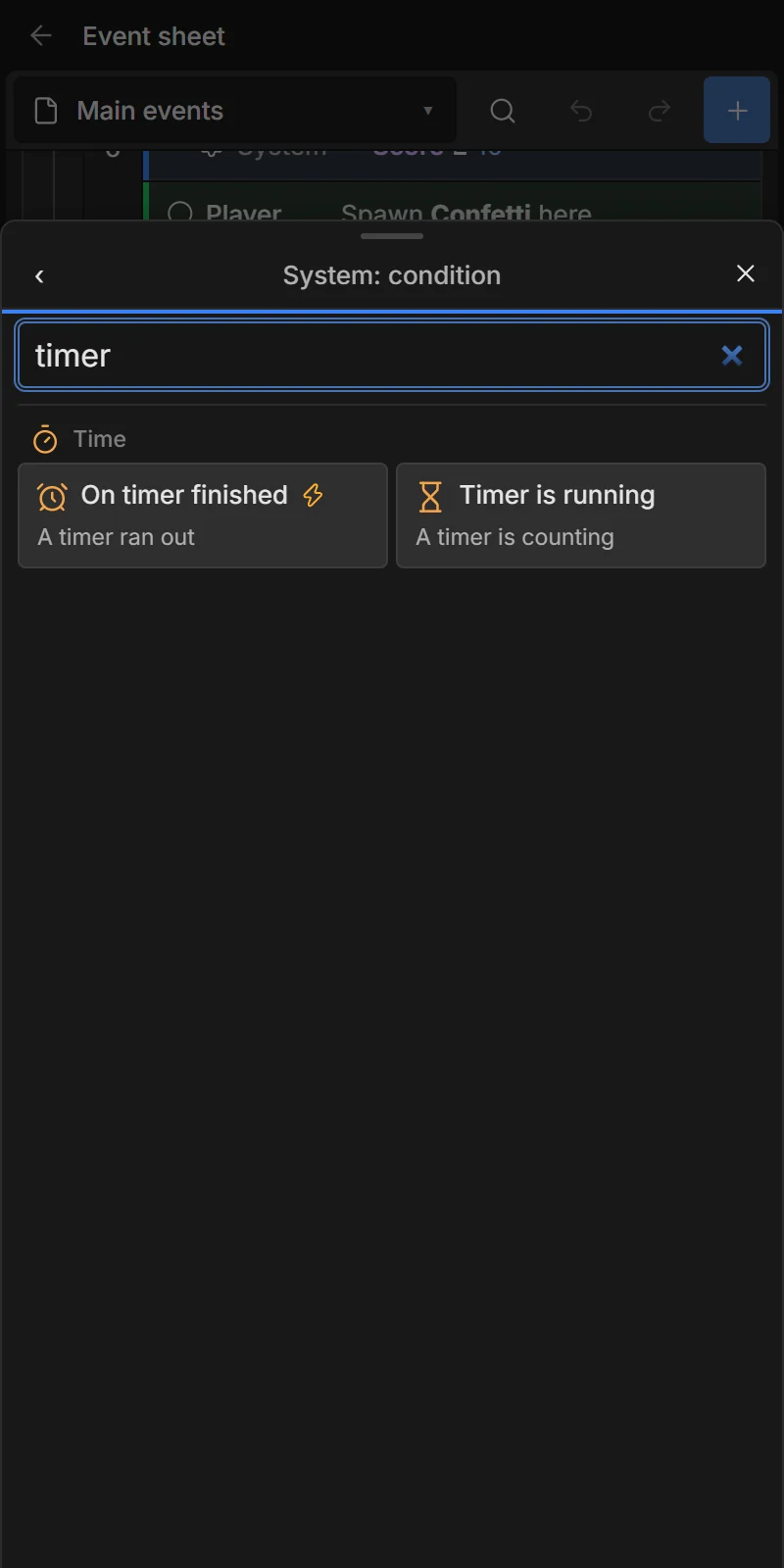
The top line previews the event as it will read. Fill in each field, then tap ✓ Add condition (or ✓ Add action). ‹ goes back to choose a different one.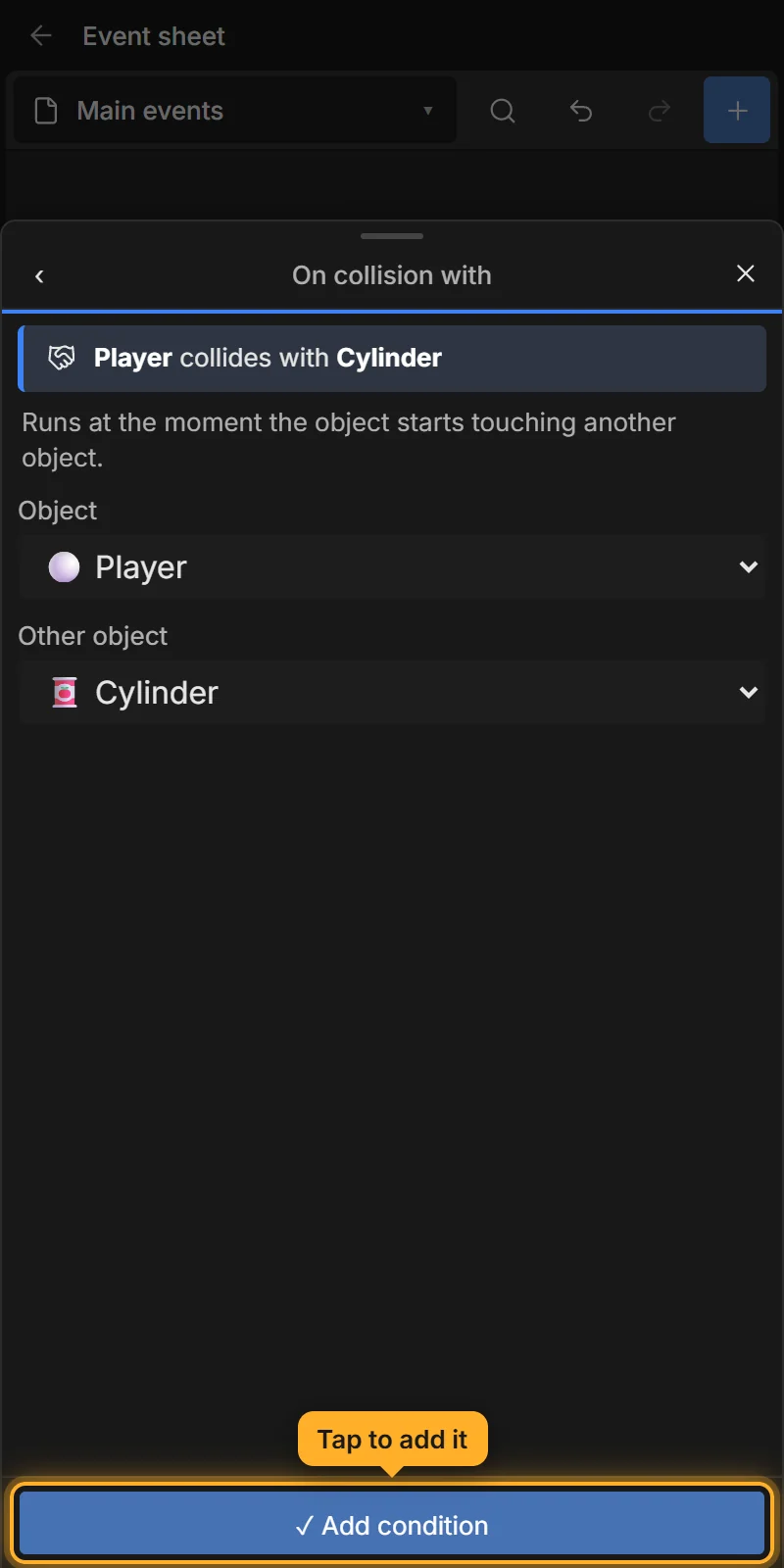
Add actions the same way with Add action under the event.
Parameter fields
| Field | How to fill it |
|---|---|
| Object | Choose from the list, or type a name or #tag. |
| Variable | Choose from the list, or + New variable…. |
| Choice | Tap one of the options. |
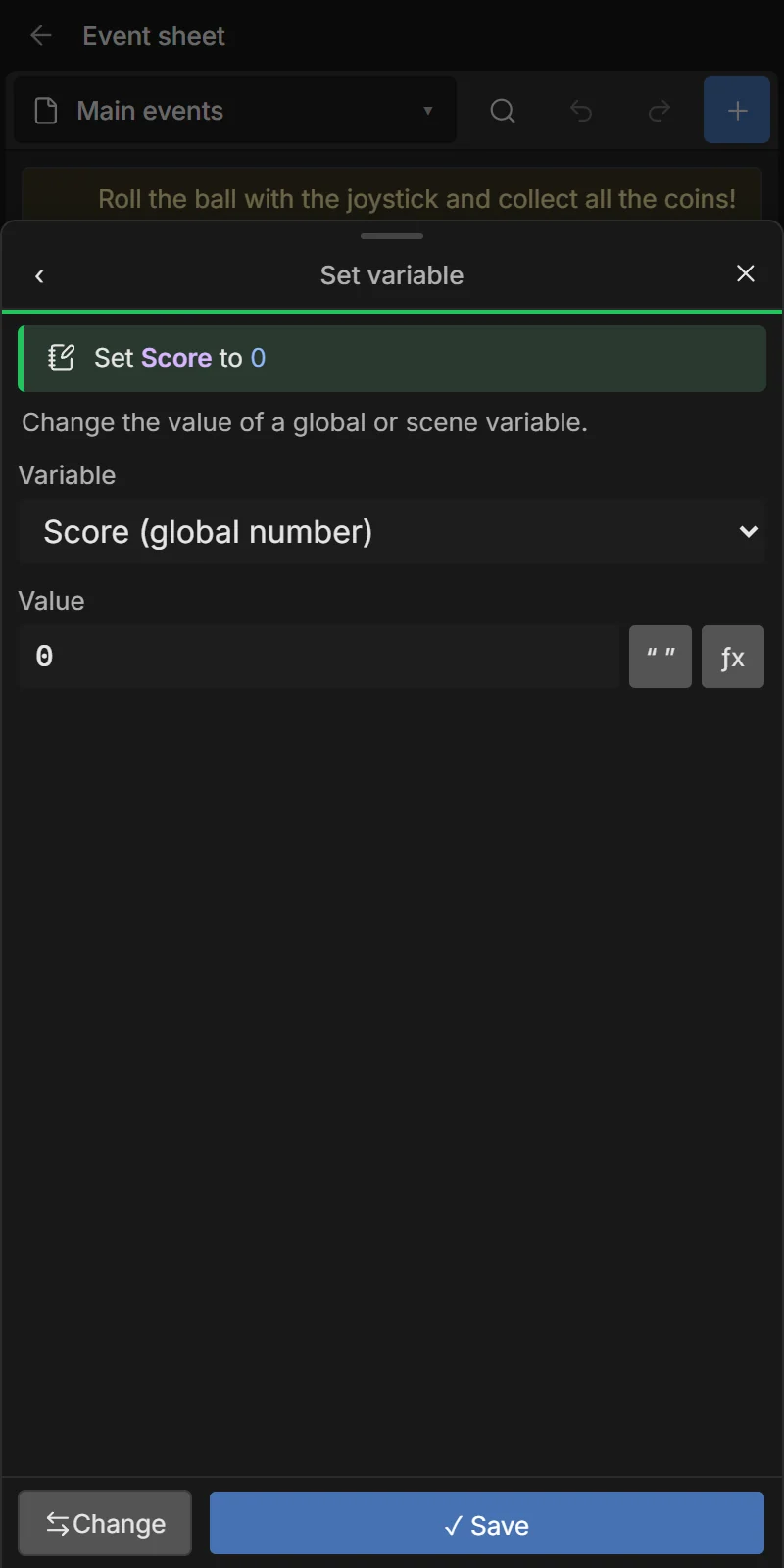
| Expression (numbers, text) | Type it. “ ” turns what you typed into text (adds or removes quotes). ƒx opens a panel of everything you can insert: variables, objects and their properties, functions, operators. Suggestions appear as you type. |
| Sound / Image / Scene / Button / Key | Choose from the list. |
A red message under a field explains a problem (for example Unknown variable: Scor. Text needs "quotes".).
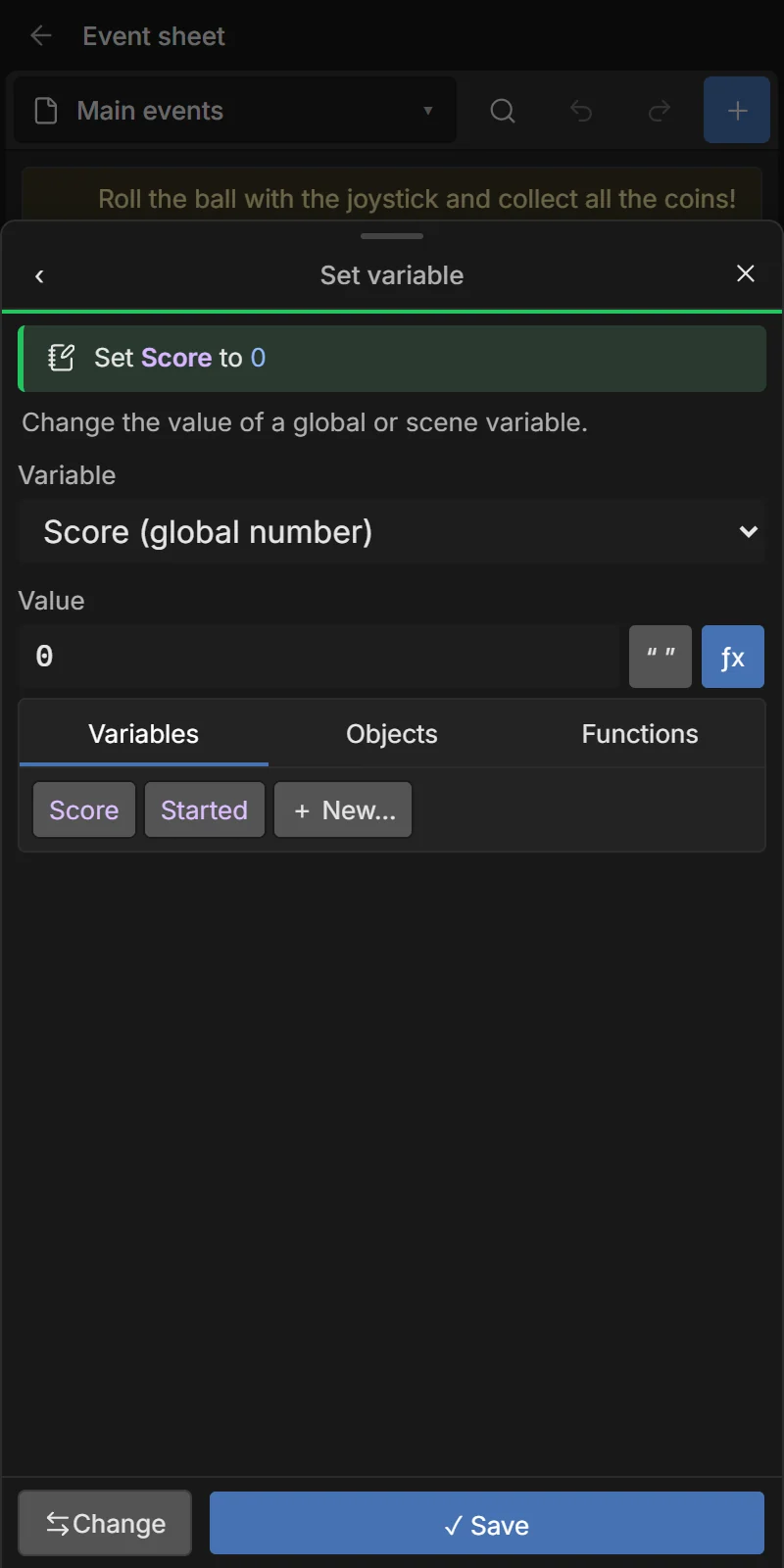
Select, edit and the menu
Rows work like this:
| Gesture | Does |
|---|---|
| Tap | Select (event, condition, action, group, comment…). |
| Tap again (or double-click) | Edit it. |
| Long-press (or right-click) | Its menu. |
| Long-press and move without lifting | Drag it somewhere else (a line shows where it will go). |
| Tap empty space | Clear the selection. |
When something is selected, a selection bar appears at the bottom:
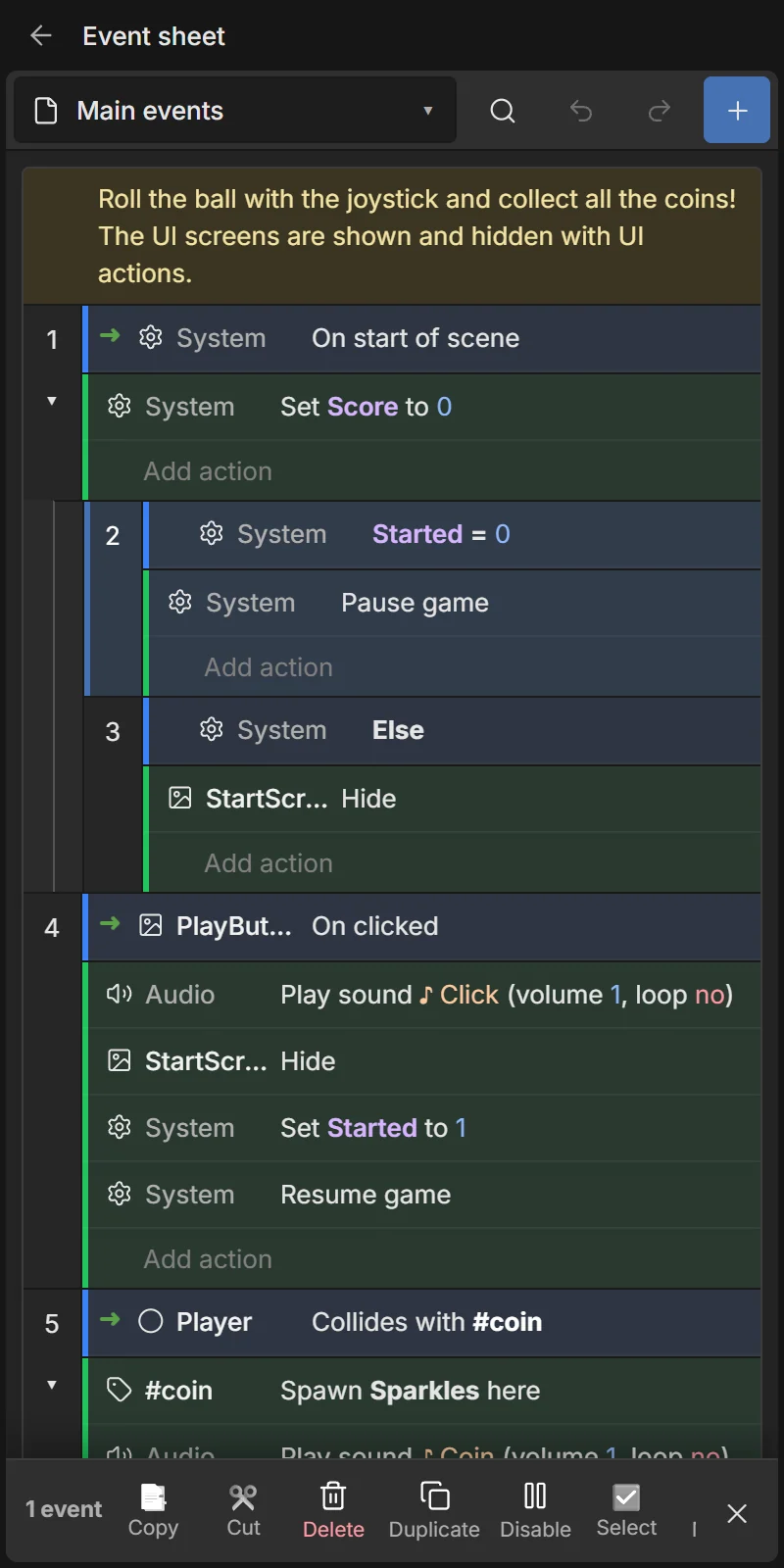

Edit, Copy, Cut, Paste, Delete, Duplicate, Disable/Enable, Invert (conditions), Select (tap more rows to add them to the selection), More (the full menu), ✕ clear.
Copy and paste work between sheets and projects.
Event menu
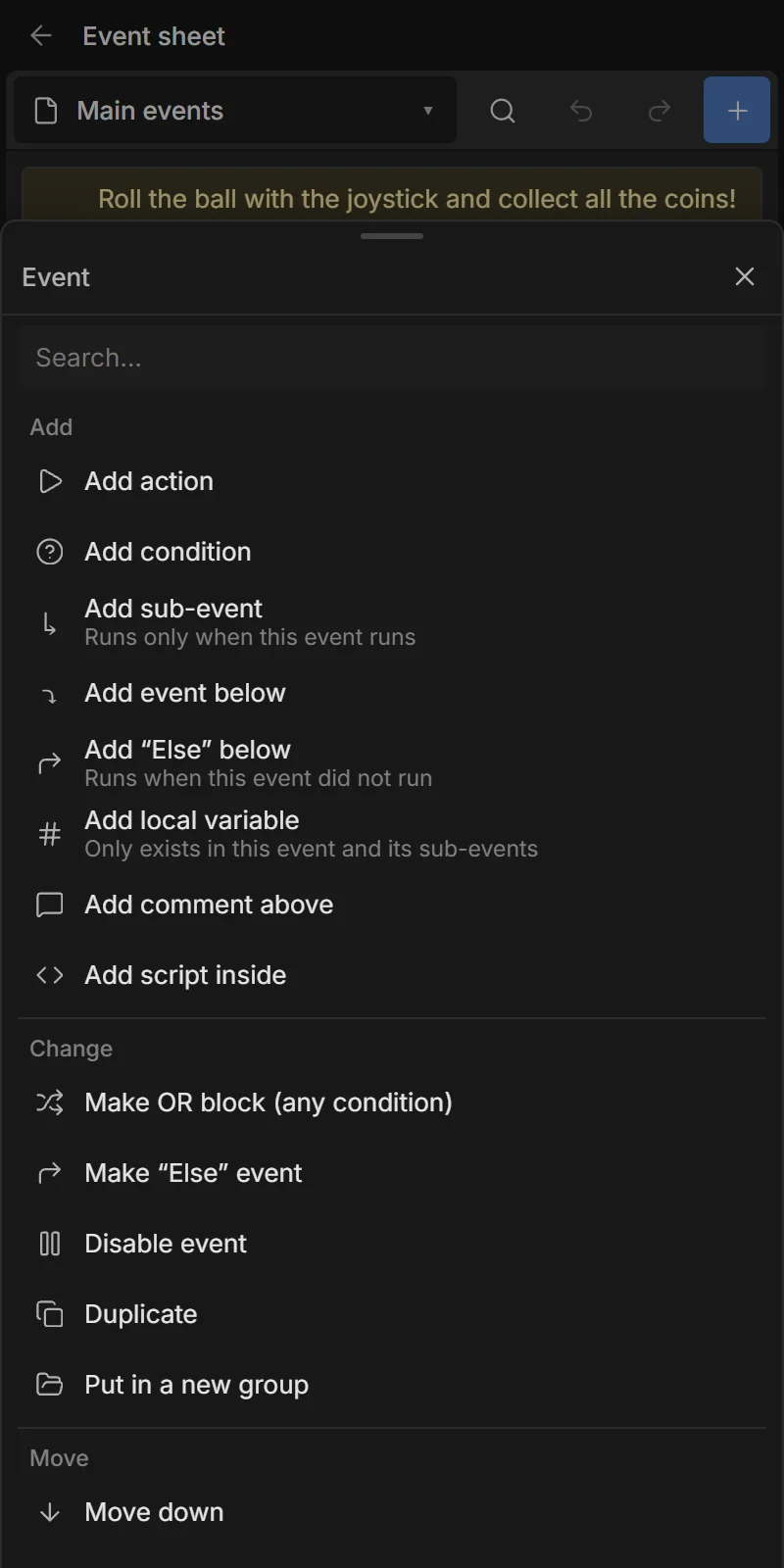
| Group | Items |
|---|---|
| Add | Add action · Add condition · Add sub-event · Add event below · Add “Else” below · Add local variable · Add comment above · Add script inside |
| Change | Make OR block / AND block · Make “Else” event · Disable / Enable event · Duplicate · Put in a new group |
| Move | Move up · Move down · Make sub-event of the one above · Move out of parent |
| Danger | Delete event |
Condition and action menus
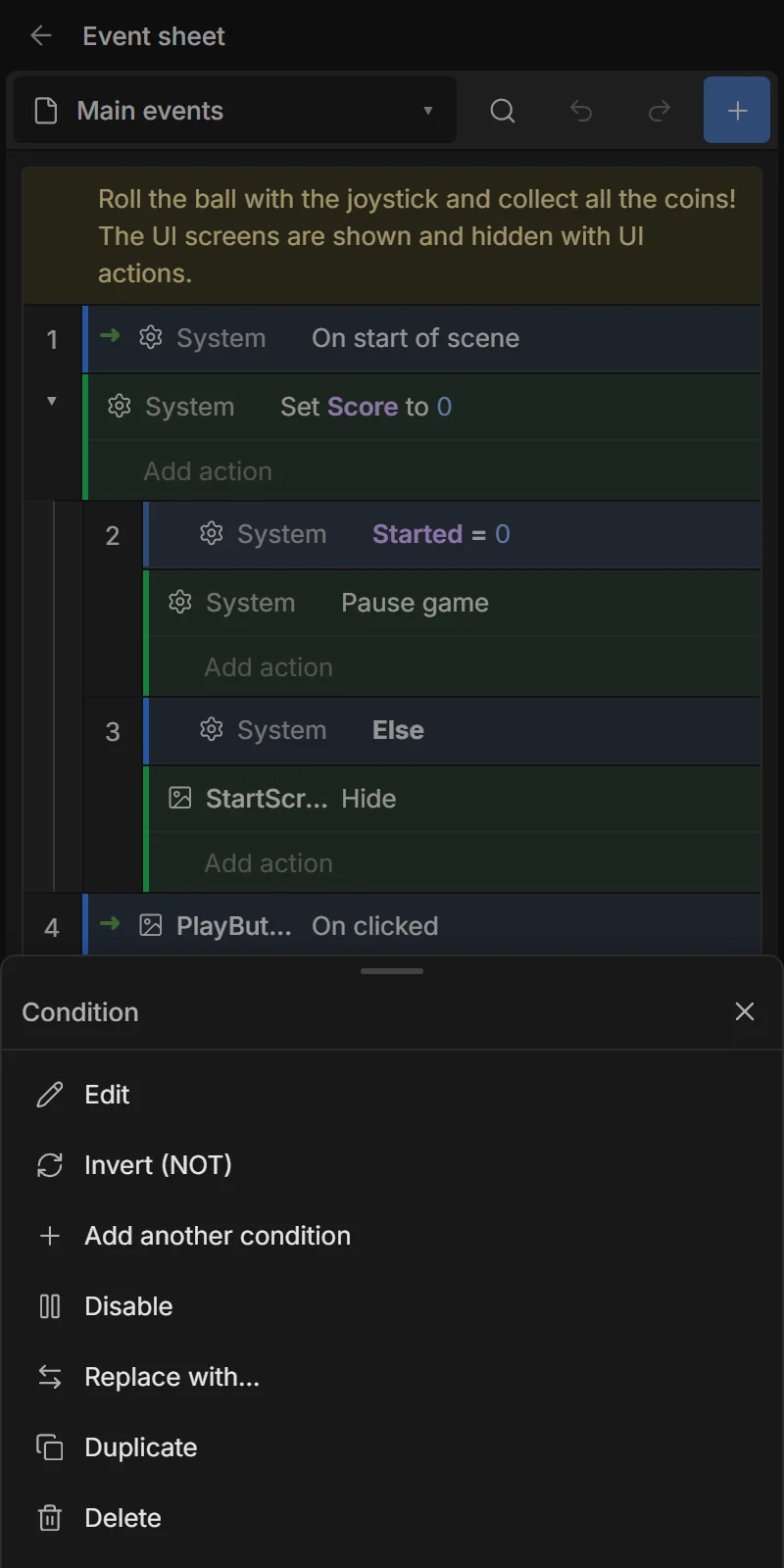
Conditions: Edit, Invert (NOT), Add another condition, Disable, Replace with…, Duplicate, Move up/down, Delete. Actions: Edit, Add action below, Disable, Replace with…, Duplicate, Move up/down, Delete.
An inverted condition shows ✖ and means the opposite: NOT Player is on ground = in the air. Triggers can’t be inverted. Disabled rows are faded and skipped.
Find
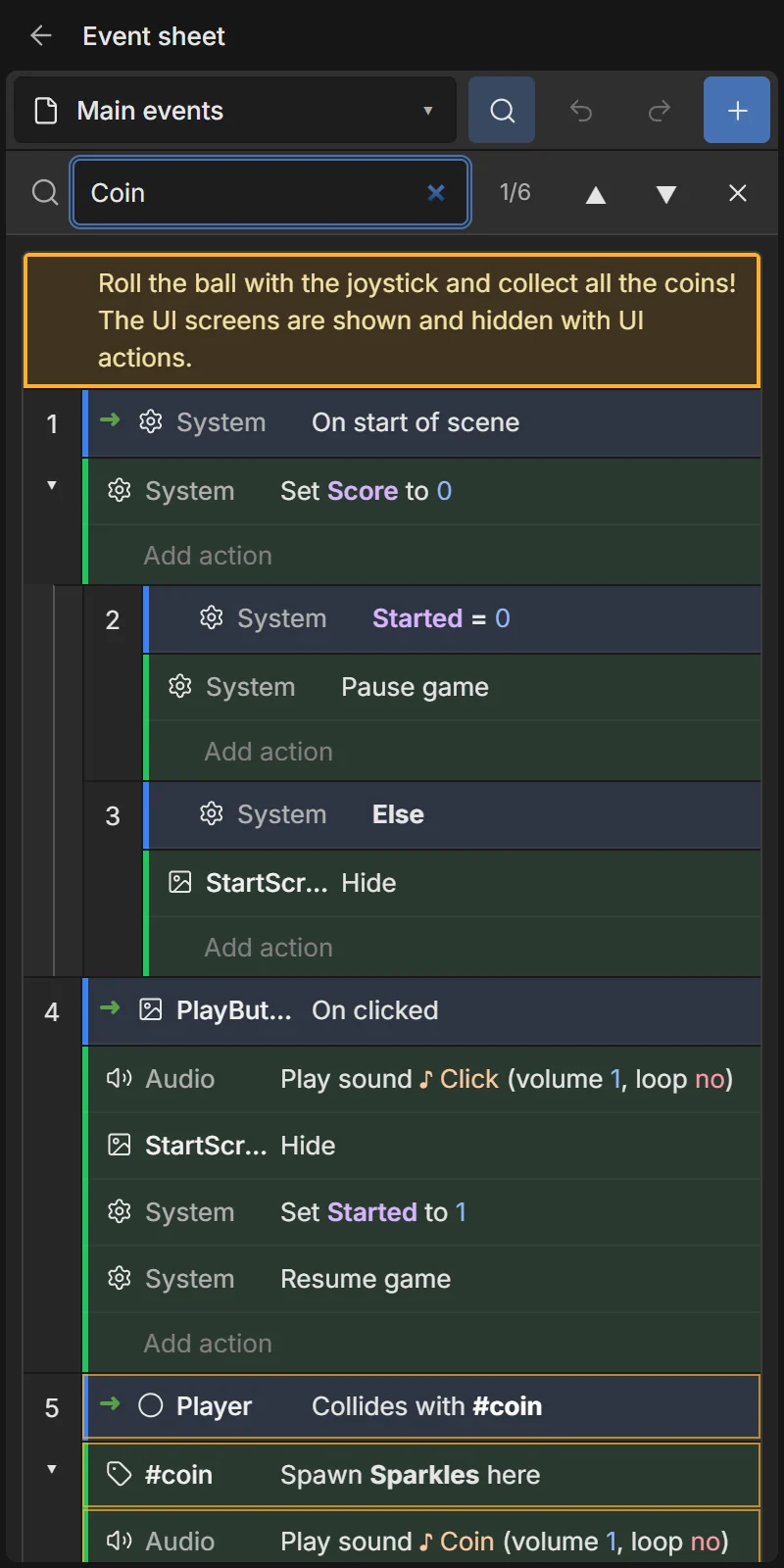
Tap 🔍 (Ctrl+F) and type: matching events light up; ▲ ▼ step through the results (folded events open to show them).
Sheet menu and + More…
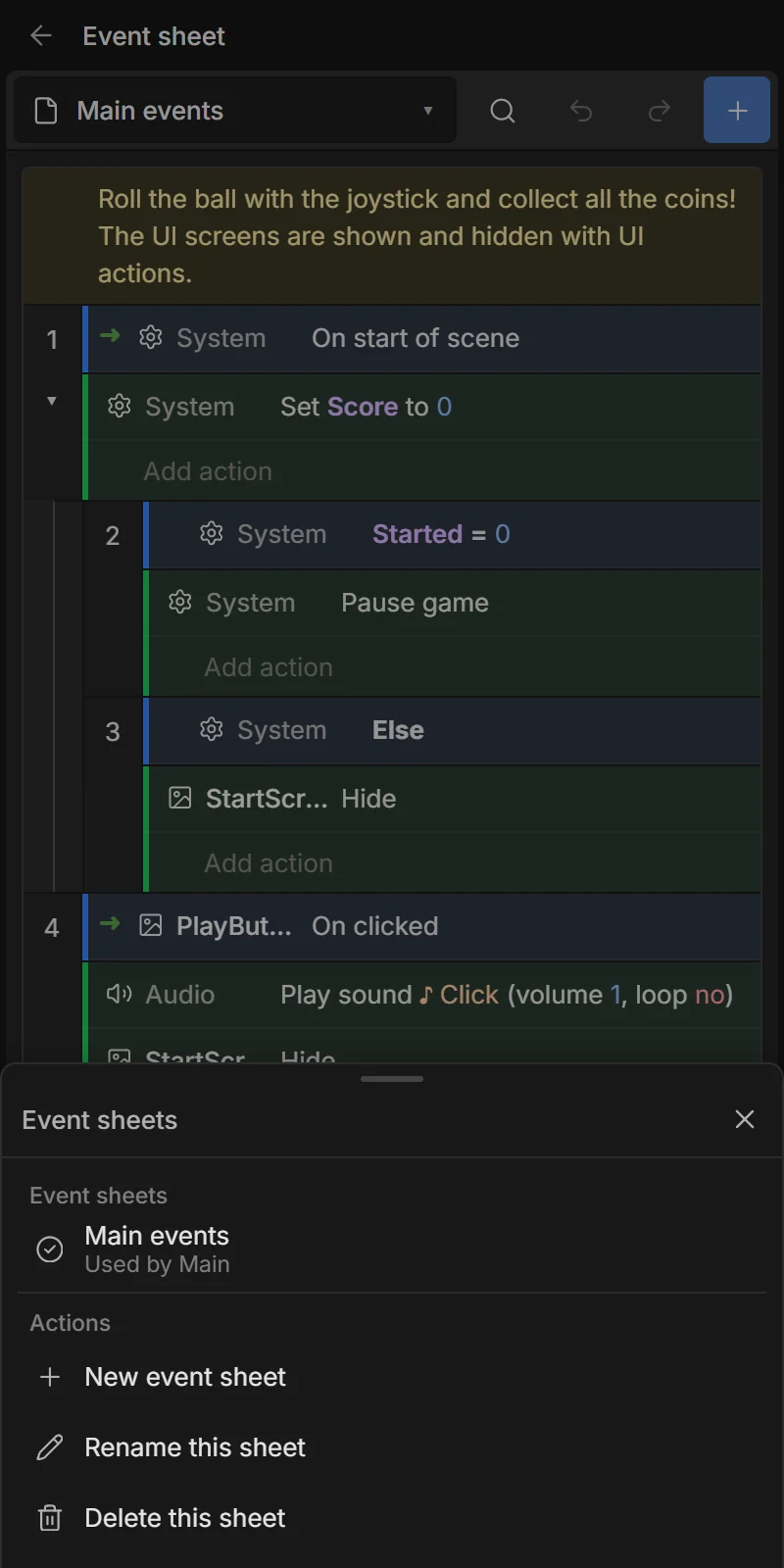
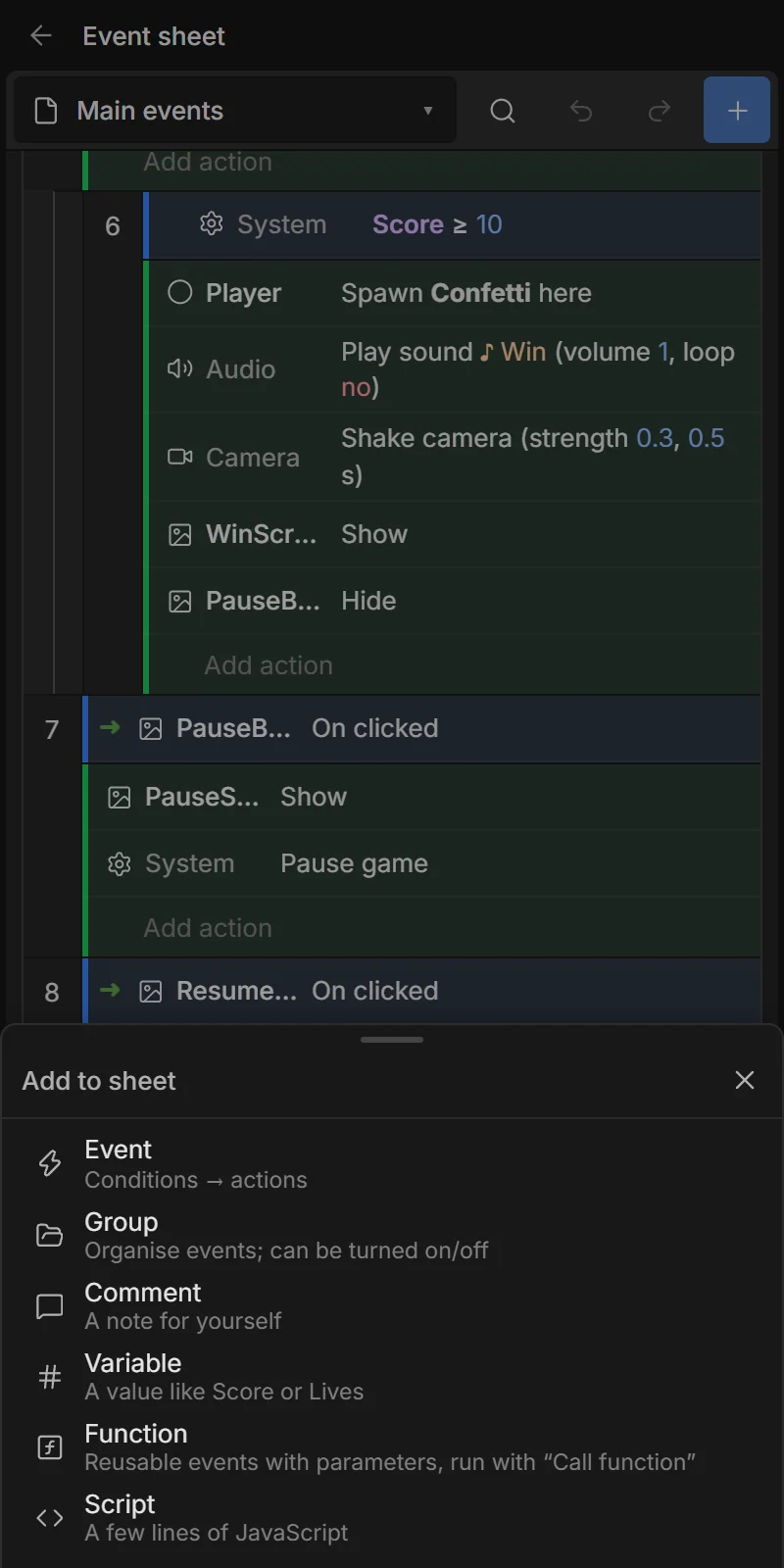
The sheet menu switches between sheets and has New event sheet, Rename this sheet, Use this sheet for ‹scene›, Include other sheets… and Delete this sheet. + More… adds an Event, Group, Comment, Variable, Function or Script.
Errors
If something in an event can’t work — an unknown object, variable or a typo in an expression — the event number gets a red badge. Tap it to see what’s wrong. While playing, the first problem shows as a message and the game keeps running.
Keyboard
With a keyboard: Enter edit, Del delete, Ctrl+C / X / V / D copy / cut / paste / duplicate, D disable, I invert, Esc clear, Ctrl+F find, Ctrl+Z / Y undo / redo.