Shapes & materials
Anything you can see has a Shape & look component. Add a shape from Objects → + Add → Shapes, or add the component to any object.
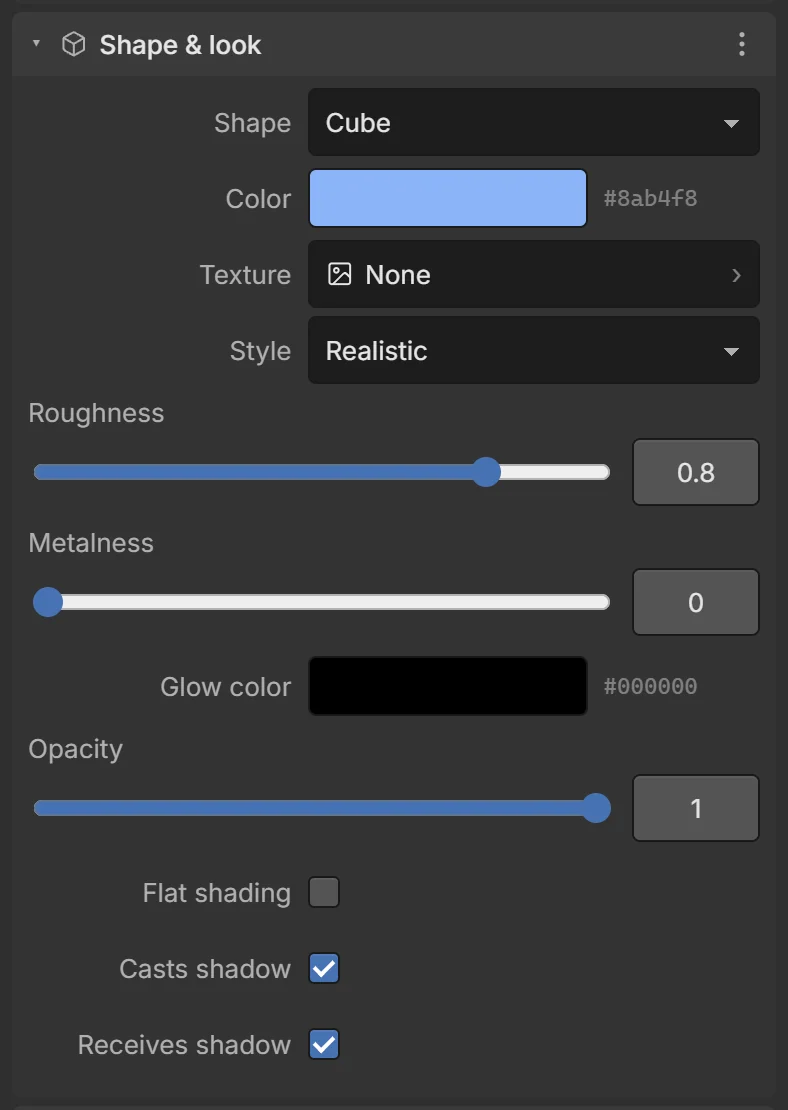
| Field | What it does |
|---|---|
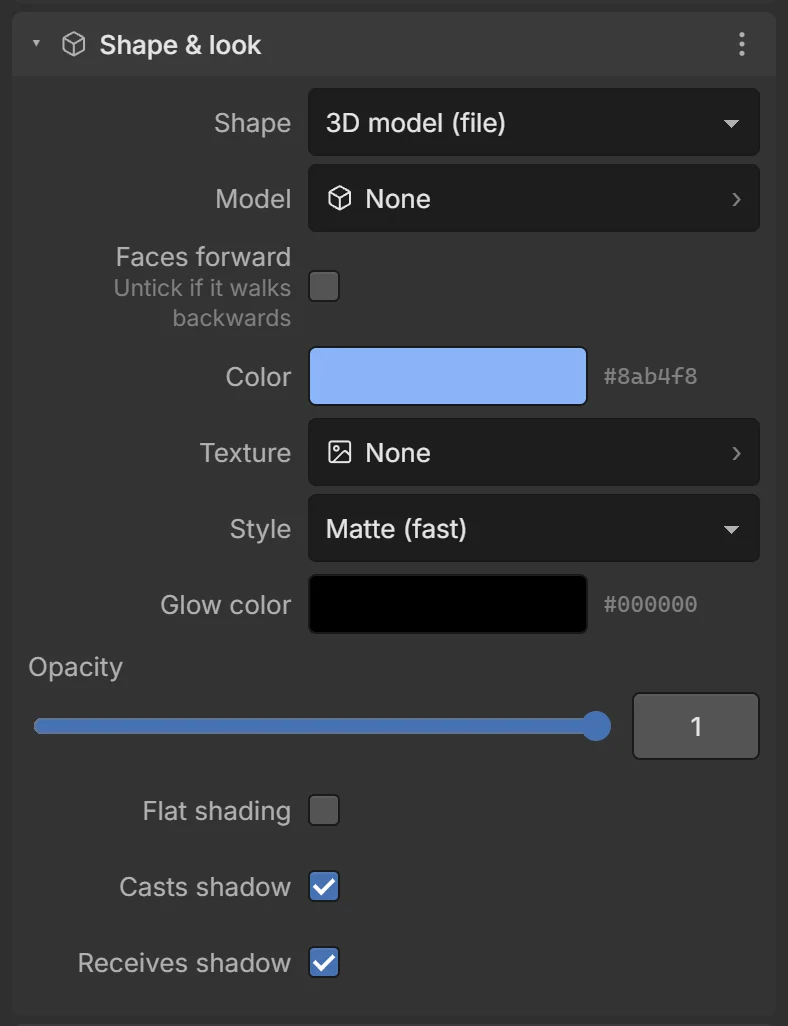
| Shape | Cube, Sphere, Plane, Capsule, Cylinder, Cone, Torus (ring), or 3D model (file). |
| Color | The base color. With a texture, the color tints it (white = the texture as it is). |
| Texture | An image wrapped on the shape. |
| Tiling | (with a texture) How many times it repeats, U × V. Use it for floors: a 10×10 plane with tiling 10, 10. |
| Style | How light falls on it (see below). |
| Glow color | Emissive color: the surface shines with it even in the dark. Black = no glow. |
| Opacity | 1 = solid, 0 = invisible. |
| Flat shading | Faceted, low-poly look. |
| Casts / Receives shadow | Whether it throws shadows and shows shadows on itself. |
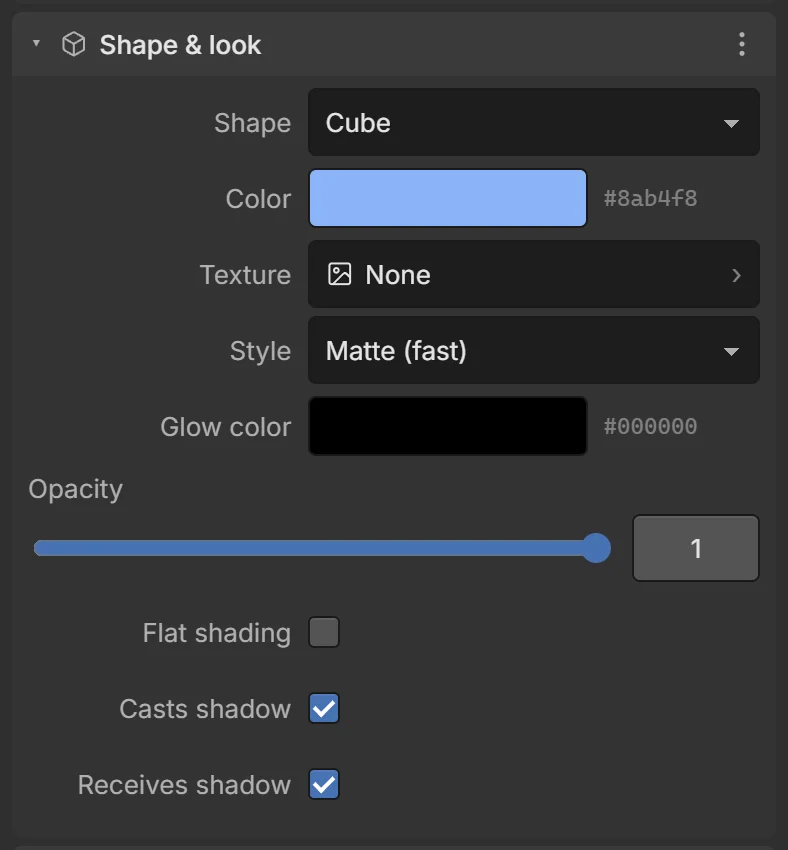
Material styles
| Style | Look | Speed |
|---|---|---|
| Matte (fast) | Soft, no shine. The default — looks good and is fastest on phones. | ⚡⚡⚡ |
| Realistic | Physically based: adds Roughness and Metalness sliders; reflects the sky when Light with sky is on. | ⚡ |
| Cartoon | Toon shading in bands. | ⚡⚡ |
| Unlit (flat color) | Ignores lights completely — always the exact color. Good for skies, UI-like objects, glowing things. | ⚡⚡⚡ |
Sizes
Shapes are 1 m across at scale 1 (the plane is 1×1 m; a new Plane is scaled 10×10). Change the size with Scale in the Transform card, or the Scale gizmo.
Changing looks while playing
Actions: Set color, Set opacity, Set visible, Tween (smoothly animate opacity, size, position…). Scripts: entity.setColor('#ff0'), entity.setOpacity(0.5).